
Steps for Inventory Counting (Spot) in Warehouse Mobile App:
Step-1. Login to the Warehouse management mobile app using User ID “109” and password “1”.
Step-2. Open the “Inventory” menu
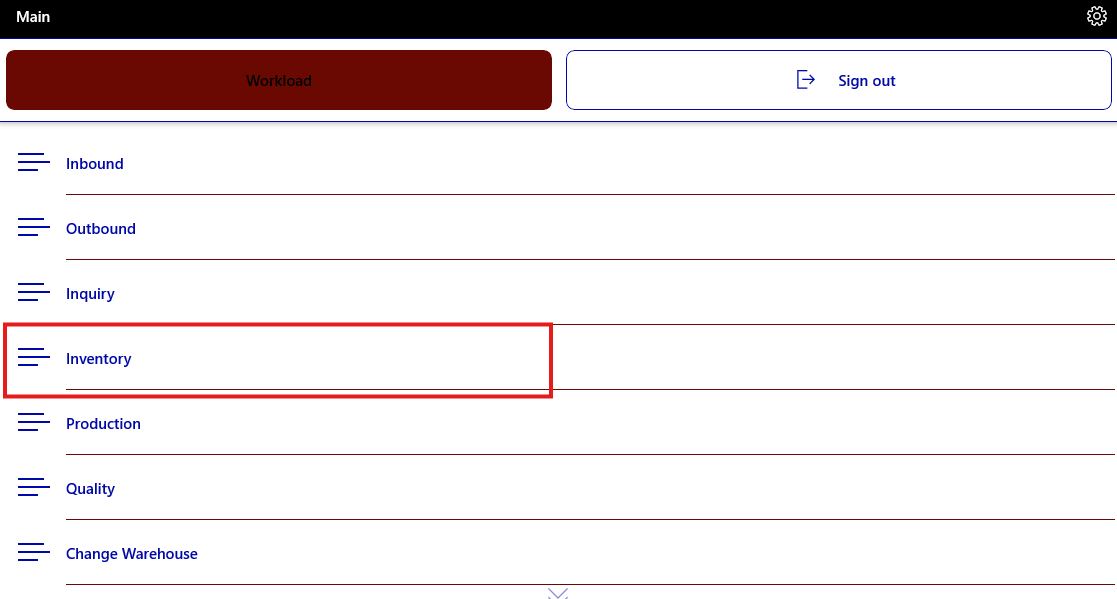

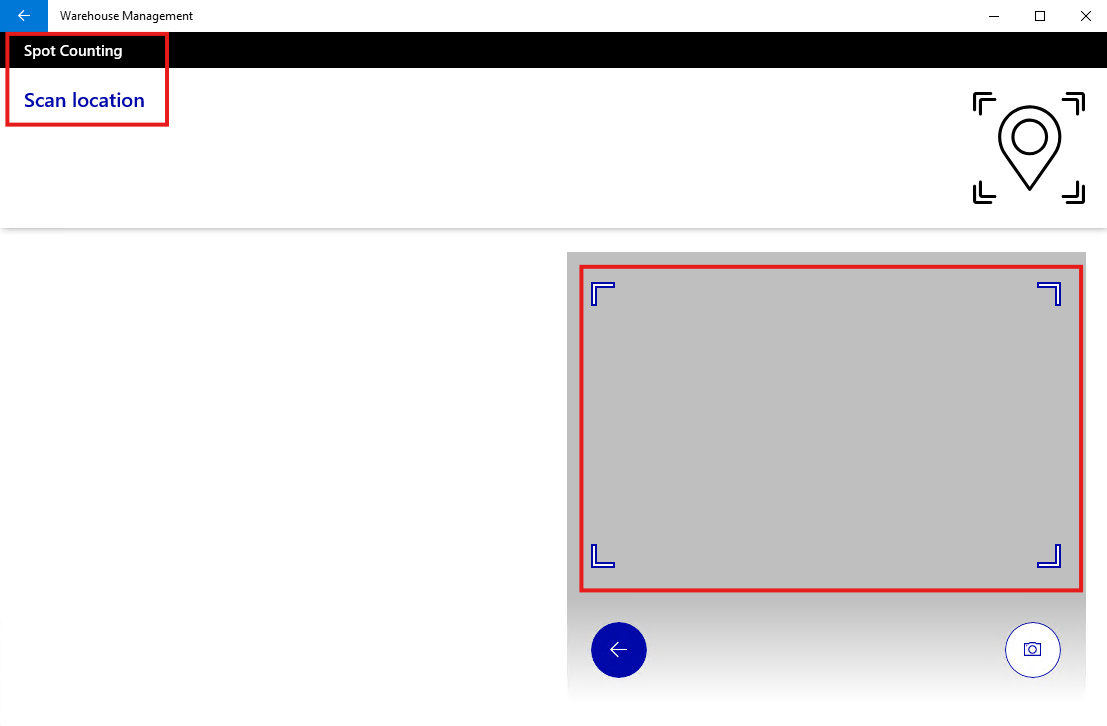
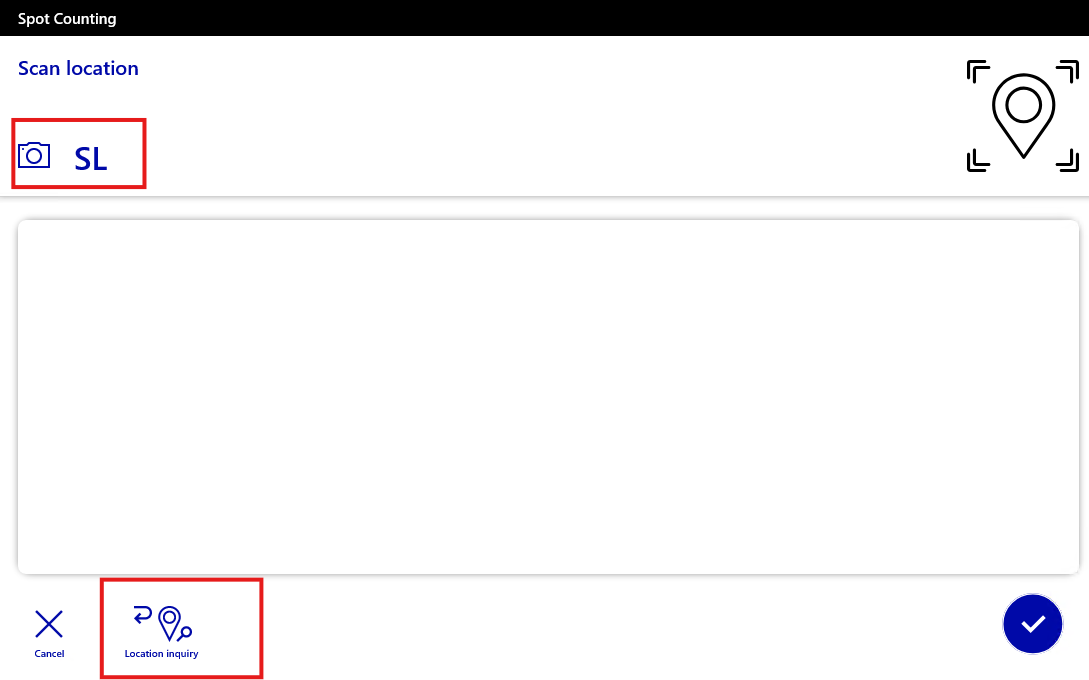
Step-3. Open the “Spot Counting” menu item, then scan the location “SL” by using a mobile device.


Step-4. For item “SS-6” enter counted quantity “5”
Step-5. For item “SS-C” enter counted quantity “250”
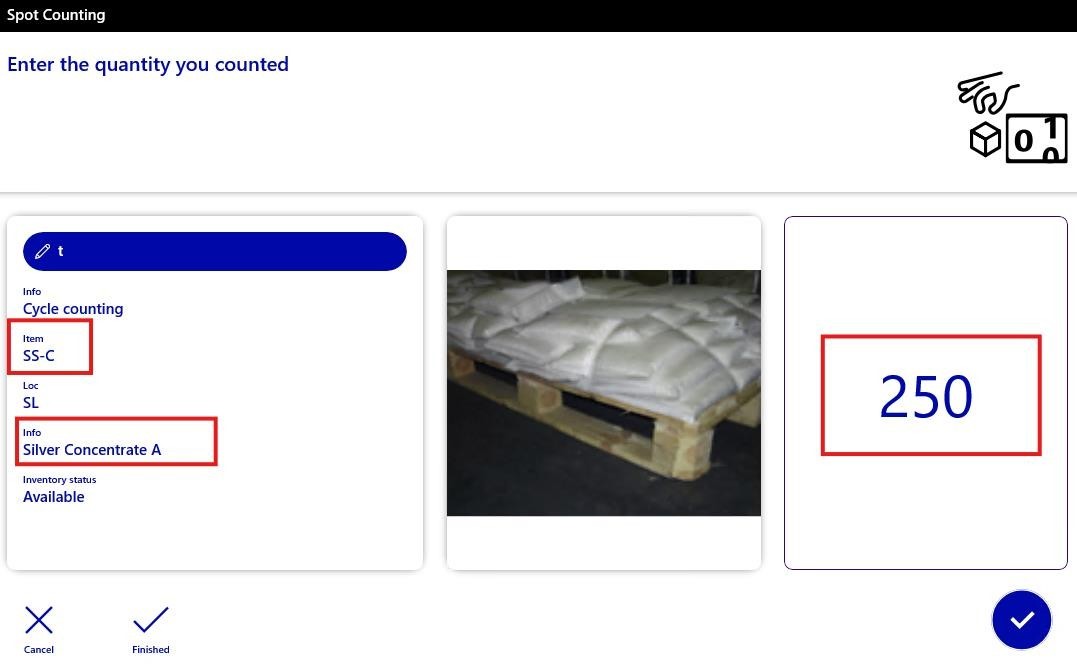

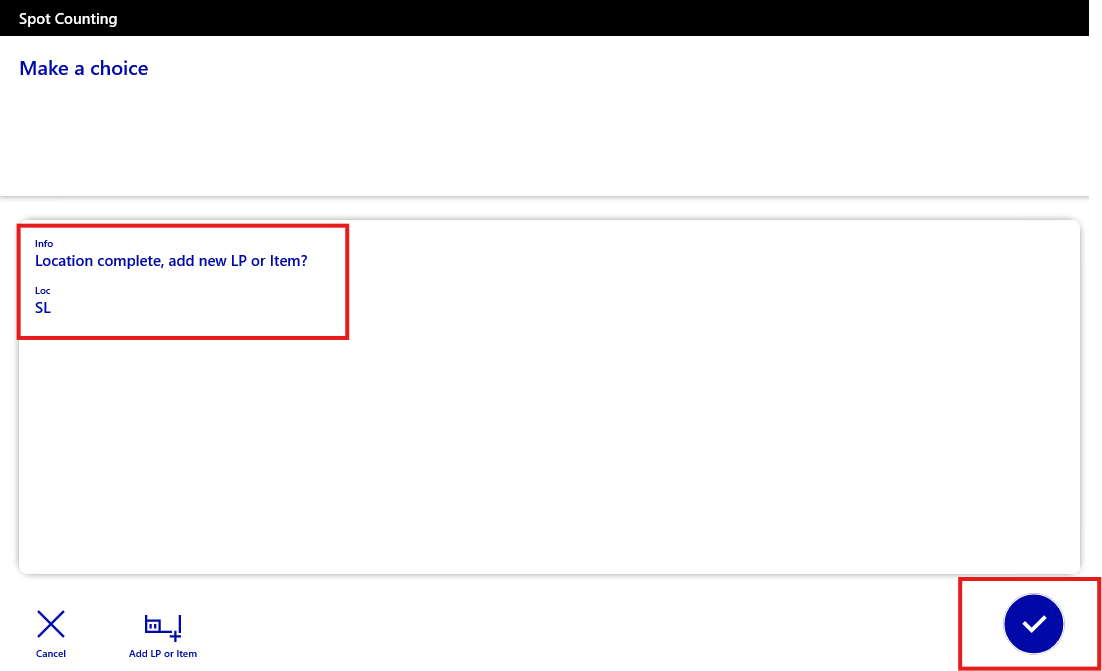
Step-6. If there are other items in the same location, then enter the item name and count the quantity for them until all items are counted at that location.
Step-7. If there are no uncounted products at this location, then confirm by sliding the button to the right to complete the “Work”.

Steps to Check Work Status in the D365 Environment:
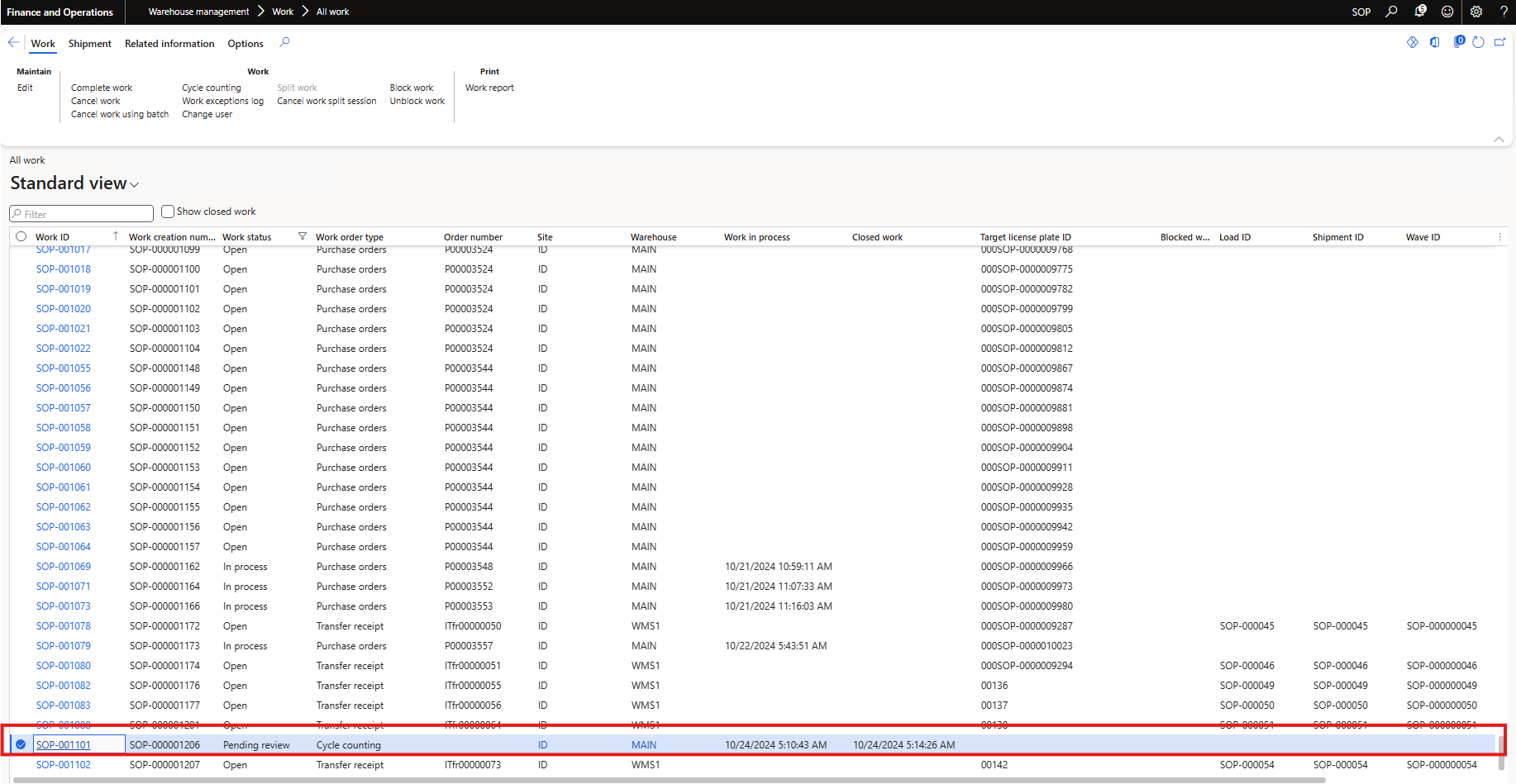
Step-1. Navigate to “Warehouse management > Work > All work.”
Step-2. Check the work status “Pending.”

Step-3. Perform reconciliation by rejecting the “SS-C” product.