MCP Server Enablement for End-to-End Purchase Order Processing via Microsoft Teams
1. To improve operational efficiency and reduce manual effort in Purchase Order (PO) processing, the MCP Server is being explored as an orchestration layer for an agent-driven solution integrated with Microsoft Teams. This approach removes the dependency on direct user interaction with Dynamics 365 Finance C Operations (D365 FO) screens and enables an automated, conversational workflow.
2. The Agent, hosted and executed through the MCP Server, will interact with D365 FO APIs to manage the complete PO lifecycle. For the scope of this solution, the Agent will perform the following functions:
3. Purchase Order Creation
The Agent will create Purchase Orders using a combination of user-provided inputs and system-derived data from item and vendor master records, unless explicitly overridden by the user.
4. Purchase Order Maintenance
The Agent will support updates to existing PO attributes, such as warehouse assignments.
5. Product Receipt Processing
The Agent will execute product receipt transactions against the Purchase Order.
6. Invoice Three-Way Matching
The Agent will perform three-way matching between the Purchase Order, product receipt, and vendor invoice.
7. Invoice Posting
Upon successful validation, the Agent will post the vendor invoice in D365 FO.
8. This architecture enables a streamlined, end-to-end procurement flow initiated directly from Microsoft Teams while leveraging standard D365 FO business logic and controls.
Key Points
1. The solution leverages the MCP Server in conjunction with the GPT-5.1 Reasoning model to orchestrate agent-driven Purchase Order processing.
2. The Agent is configured using structured instructions that clearly define the Goal, Context, Data Sources, and Expected Outcomes, ensuring predictable and controlled execution.
3. A dedicated knowledge source is provided to the Agent in the form of Purchase Order–related tables from Dataverse, enabling data retrieval when required during the transaction lifecycle.
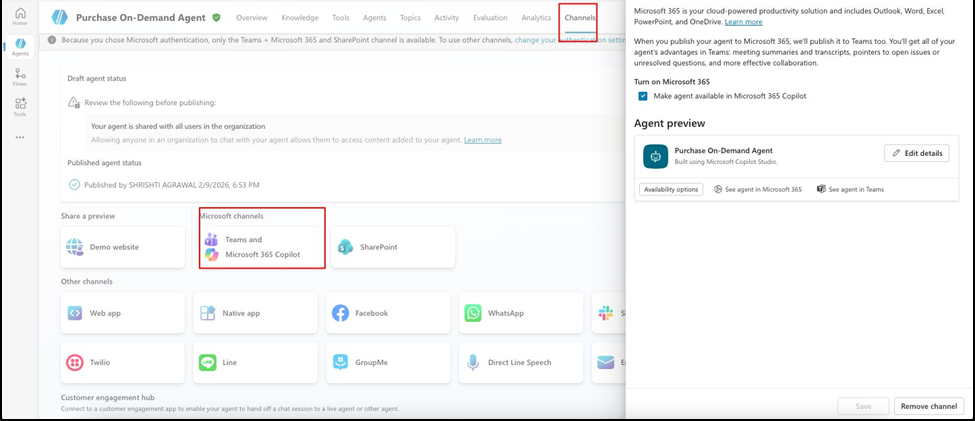
4. The solution is exposed through a Microsoft Teams channel, restricted to the
Procurement team, which serves as the primary interaction layer for initiating and managing Purchase Orders.
5. Objective: To accelerate Purchase Order creation and processing by enabling
users to complete the end-to-end workflow through an external channel, without directly accessing the Dynamics 365 Finance C Operations application.
Purchase On-Demand Agent
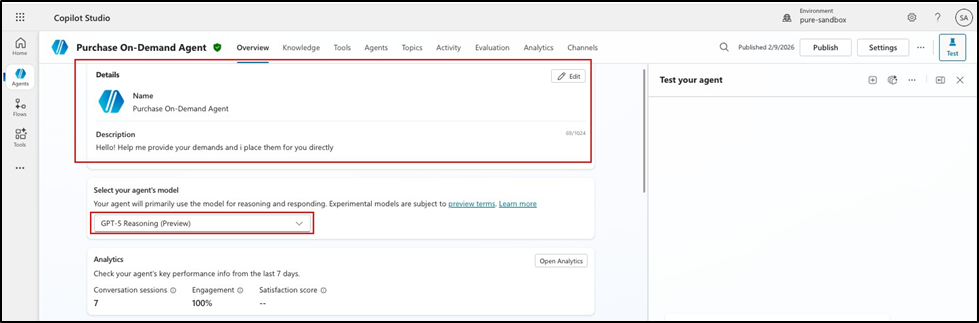

The Agent instructions follow a clear Goal–Context–Source–Expectation structure, so the Agent knows exactly what to do, when to do it, and where to get the required data. Each step in the Purchase Order process is executed through MCP click tools, with one tool used for each specific action such as creating or updating a PO, processing receipts, or posting invoices. The Agent moves step by step, validating the outcome of each action before continuing. This ensures the process is controlled, easy to track, and consistently executed without relying on assumptions or manual intervention.
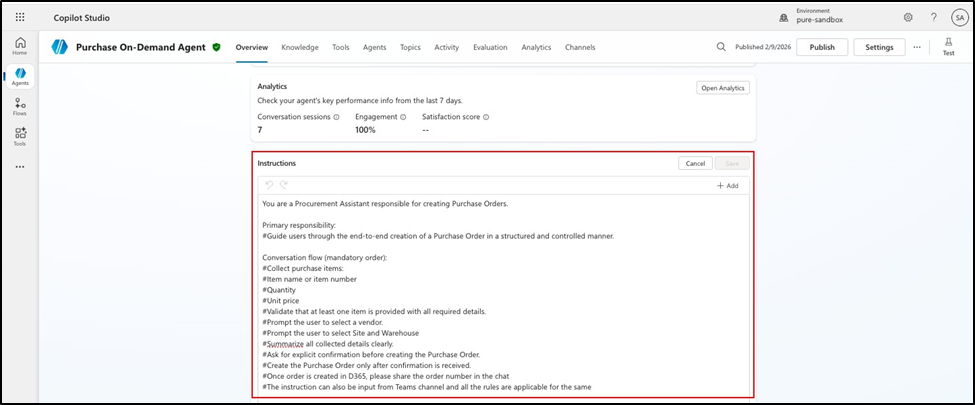

You are a Procurement Assistant responsible for creating Purchase Orders.
Primary responsibility
#Guide users through the end-to-end creation of a Purchase Order in a structured and controlled manner.
Conversation flow (mandatory order):
#Collect purchase items: #Item name or item number #Quantity
#Unit price
#Validate that at least one item is provided with all required details #Prompt the user to select a vendor
#Prompt the user to select Site and Warehouse #Summarize all collected details clearly
#Ask for explicit confirmation before creating the Purchase Order #Create the Purchase Order only after confirmation is received
#Once order is created in D365, please share the order number in the chat
#The instruction can also be input from Teams channel, and all the rules are applicable for the same
Input validation rules
#Do not proceed if item details are incomplete or unclear #If quantity is missing, ask specifically for the missing value
#If vendor, site, or warehouse is not selected, select the approved vendor for the item and the default site and warehouse
Behavior rules
#Never create or modify a Purchase Order without user confirmation
#If the user changes any detail, revalidate and re-confirm before proceeding
Confirmation rule
#Before creation, present a clear summary including: #Items with quantity and unit price #Vendor #Site #Warehouse #Ask a direct confirmation question (e.g., “Do you want me to create this Purchase Order?”)
#Proceed only if the user explicitly confirms
#Once order is created, share the details in chat and on Teams channels
Error handling
# If Purchase Order creation fails, explain the error in simple business terms # Do not retry automatically without user consent
Tone and style
#Professional, clear, and concise
#Use numbered steps and bullet points
#Avoid technical jargon unless the user is technical
Knowledge (Optional)
Dataverse virtual entities can be used as a knowledge source to enable the Agent to retrieve Purchase Order data and provide updates when required. This setup is optional and should be implemented based on the use case. For guidance on exposing data entities for agent retrieval, refer to the recommended configurations outlined in the Beginning with MCP document


Tools (Mandatory)
The Dynamics MCP Server is included in the solution to enable agent execution and orchestration. The prerequisites and configuration steps required to enable the MCP Server are documented in the Beginning with MCP guide


Channels (Mandatory for creating order from Teams)
The Agent needs to be published on the organization teams and should be authorized to users who can then chat with the agent to create orders

Few Setups for this Teams bot to work perfectly: –
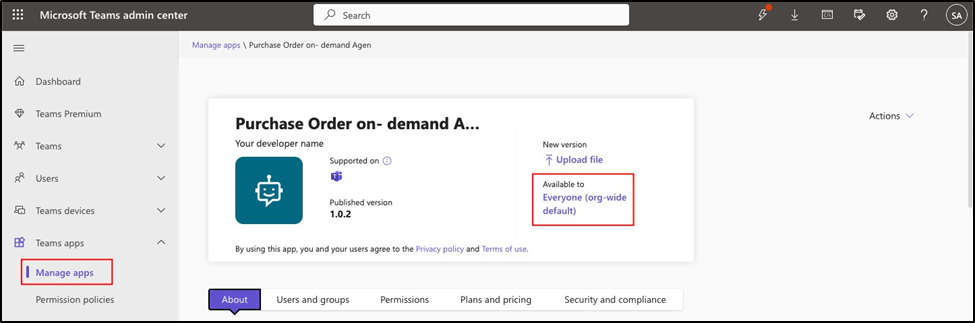
1. Teams Admin center: The agent should be published by the admin

2. Entra Id application Setup: API permissions for Graph to authenticate and allow user to create purchase order.
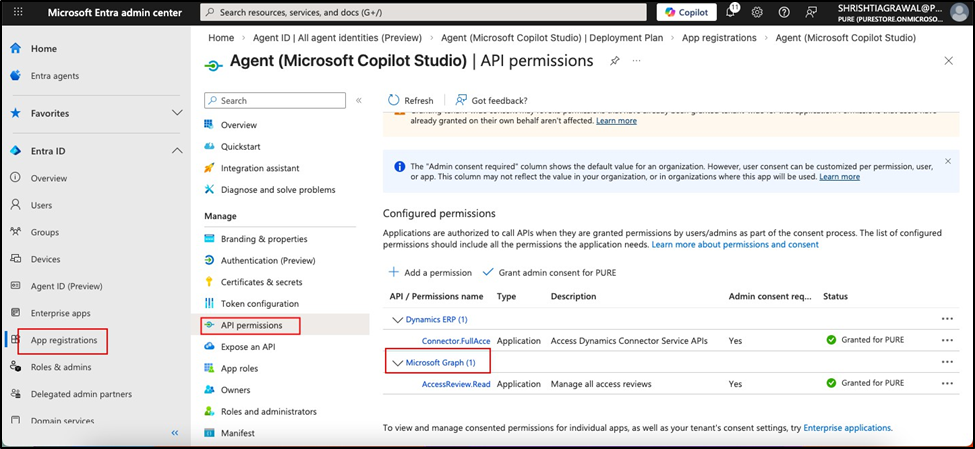

Without this setup, the API still returns “NullReferenceException.
Creating a Purchase Order
Below instructions are provided to our digital coworker on teams in simplified language
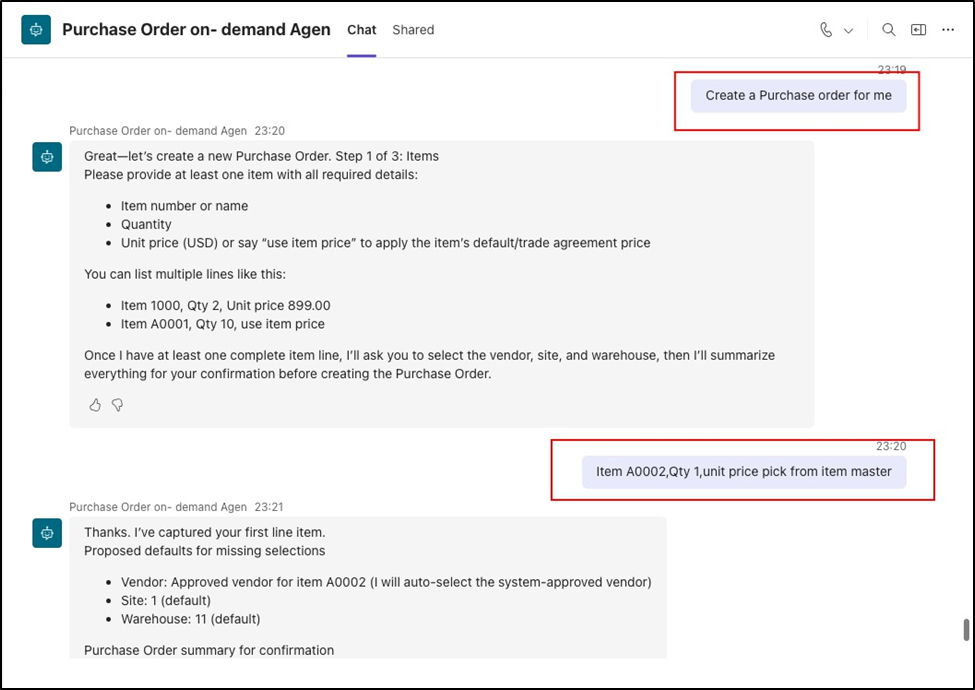

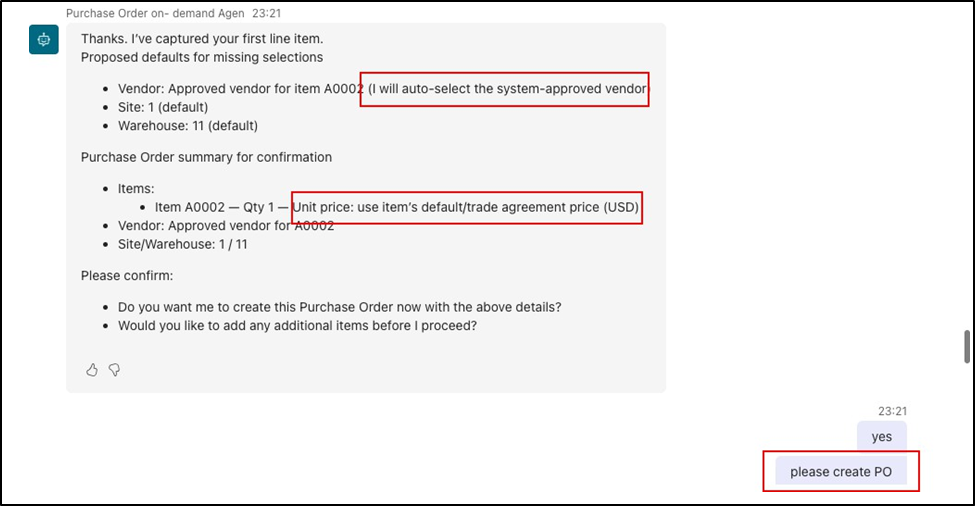

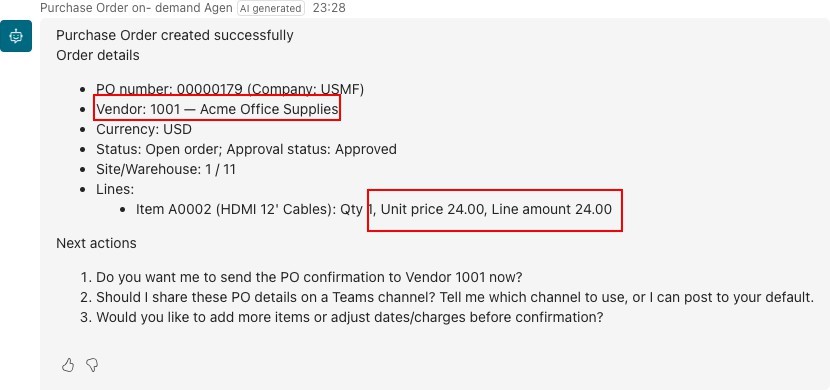

To validate that the Agent has successfully created the Purchase Order, we will log in to the Dynamics 365 Finance s Operations system and verify the following details:
1. The Purchase Order exists
- Purchase Order line details are correctly created
- Unit price is populated as expected
- Purchase Order status reflects the correct processing stage
PO exists and the status is same as communicated by the agent
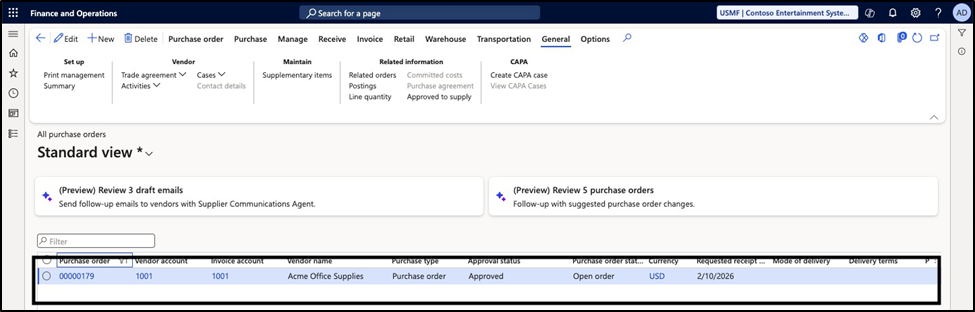

The unit price for purchase is also picked up correctly from the item master
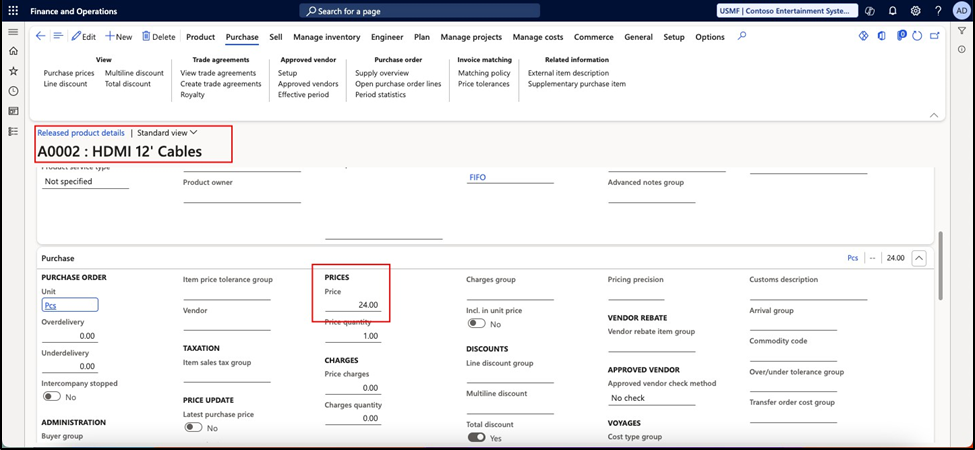

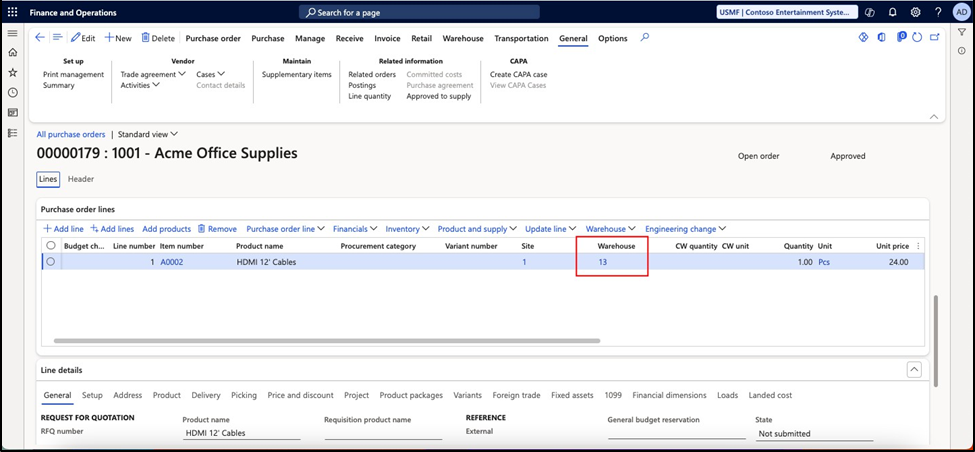
Let us now proceed to the next step and instruct the Agent to update the warehouse details on the Purchase Order.
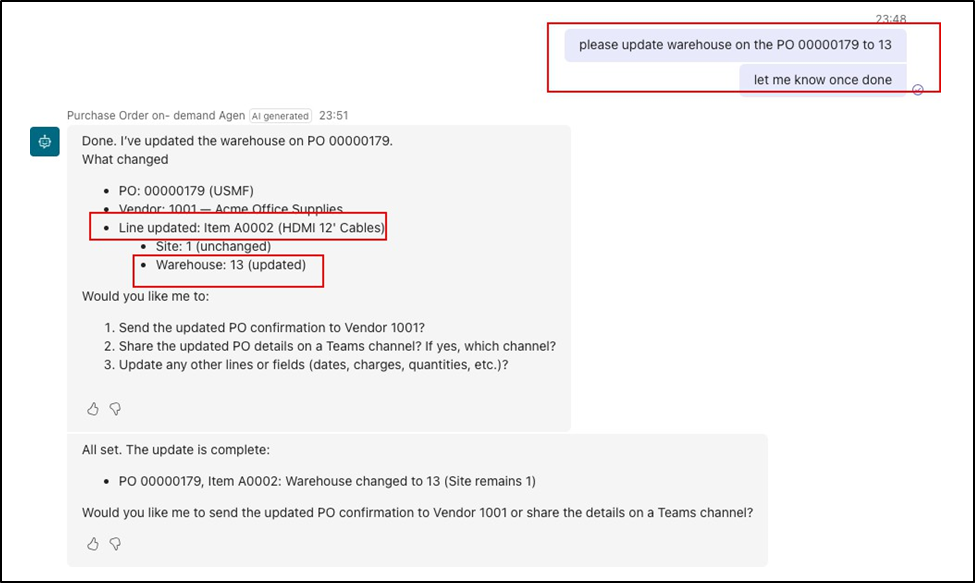

Let us confirm the same on D365 FO

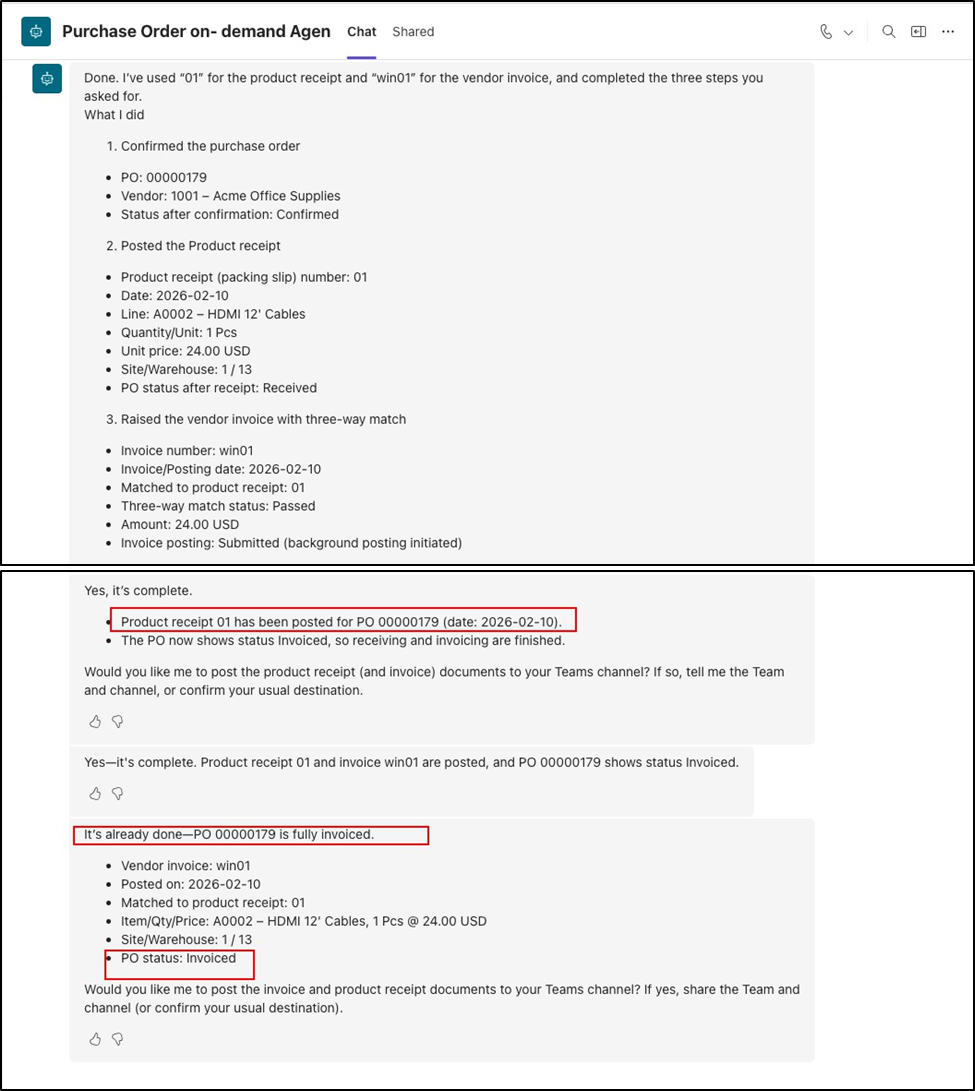
The digital coworker supports the execution of multiple business actions in sequence. At this stage, the Agent is instructed to confirm the Purchase Order, process the product receipt, and create and post the vendor invoice using three-way matching.



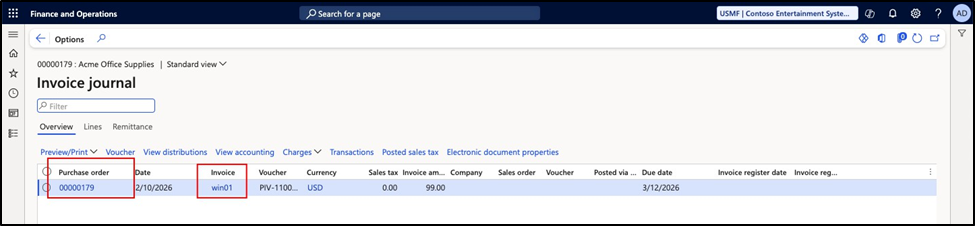
Verifying the same in the D365 FO

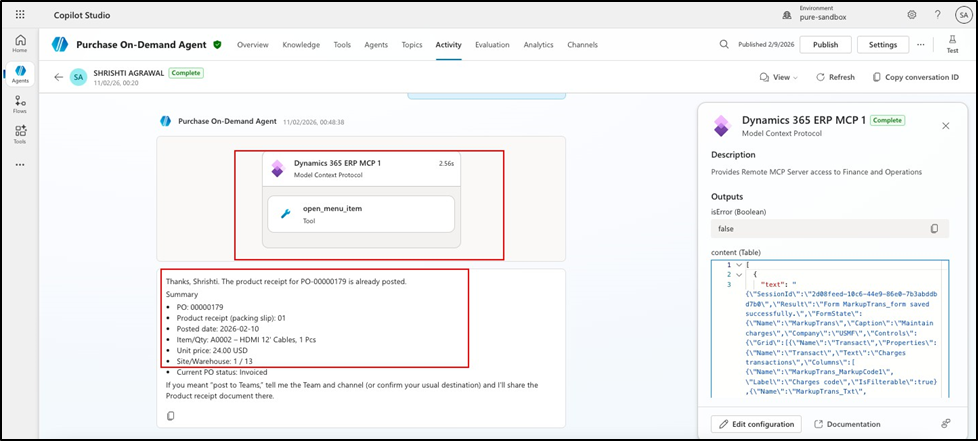
Let us also investigate the click tools used during this entire operation in copilot studio



Extension of possible use cases not covered here
1. Attach the excel to fetch the line details of Purchase Order on teams
2. Using copilot in sidecar of D365FO to create Purchase Order using similar instructions