Introduction
Asset leasing is a critical function for businesses that require the use of assets without ownership. Microsoft Dynamics 365 Finance and Operations (D365 FCO) offers robust tools to manage asset leasing efficiently. This user manual will guide you through the processes involved in asset leasing:
Configurations
Create a lease asset
Process Lease transactions:
o Initial recognition
o Payment schedule
o Asset depreciation schedule
o Liability amortization schedule
o Expense schedule.
Scenario:
Establish a new lease asset and process the associated lease transactions. The details of the lease asset are as follows:
Fair Market value: 3000
Rate: 7.69%
Asset Useful Life: 42
Total Installments: 36
Monthly Payment: 90
Asset expense: 10 for 36 months
Activation:
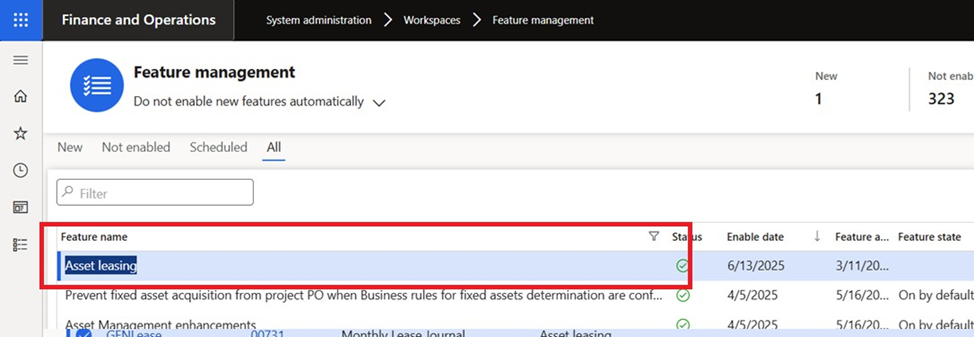
Go to System administration > Workspaces > Feature Management
Select “Asset leasing” feature and enable it.

Configuration:
• Asset Leasing Parameters
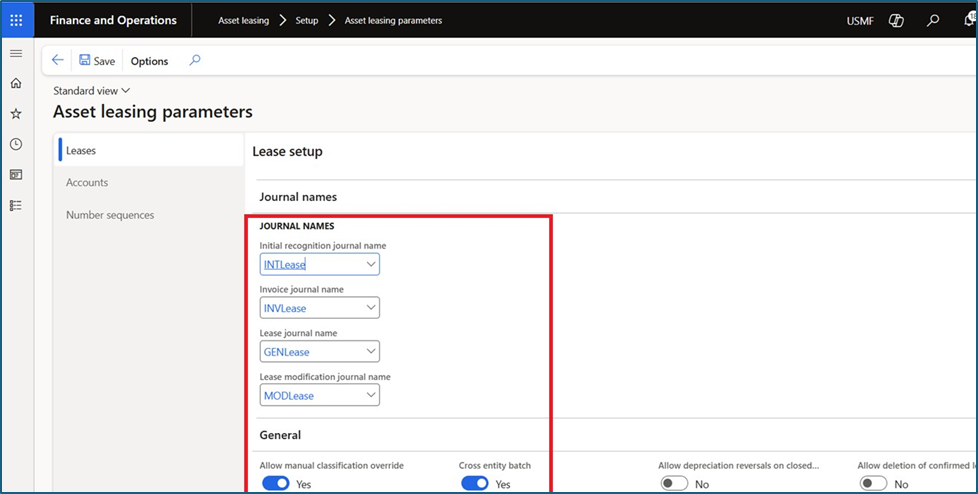
Navigation Path: Account leasing Setup Asset leasing parameters Leases
Select Asset leasing journals for postings.
Enable checkbox as per requirements:
o Allow manual classification override: Allows the lease classification to be overwritten manually. This allows the lease classification to be changed until the payment schedule is confirmed.
o Cross entity batch: Allows you to create and post journal entries using the batch creation process in different legal entities.
o Allow depreciation reversals on closed books: Allows posted depreciation transactions to be reversed for a closed book version.
o Allow deletion of confirmed leases: Allows the lease to be deleted if it is confirmed.
o Allow payment amount breakdown: Allows lease payment schedule line amounts to be broken down.

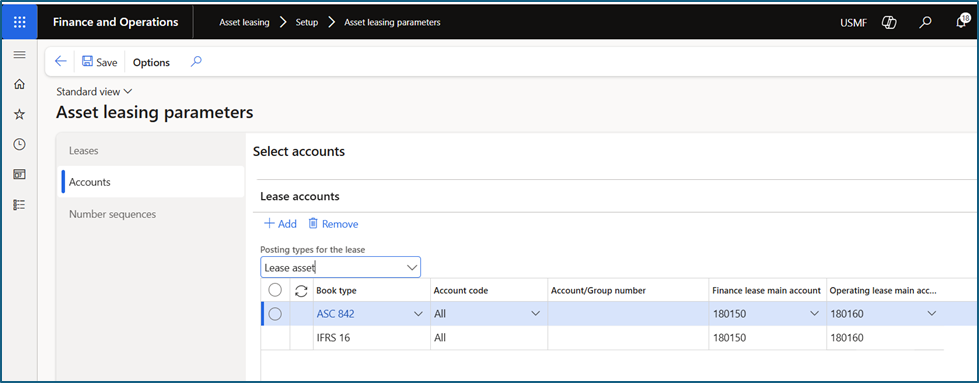
Navigation Path: Account leasing Setup Asset leasing parameters Accounts
Define asset lease ledger account as per Books type i.e. ASC 842 and IFRS 16.

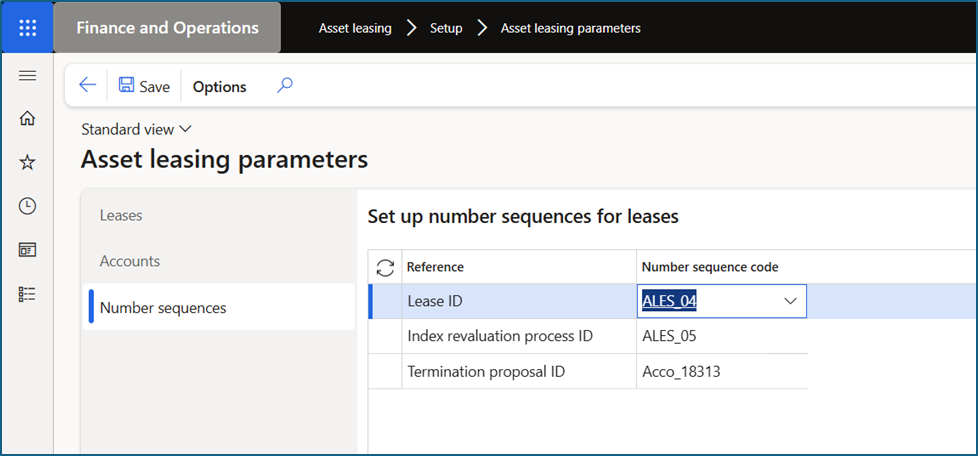
Navigation Path: Account leasing Setup Asset leasing parameters Number sequence
Define number sequence for all options

• Leasing Groups
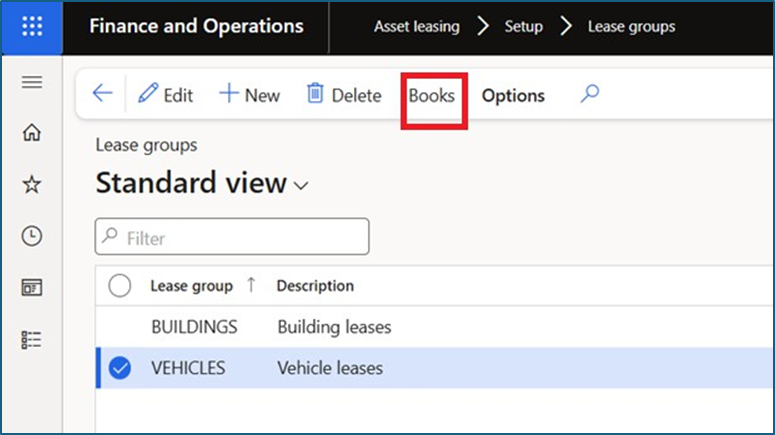
Navigation Path: Asset leasing Setup Leasing groups
A lease group is a classification used to organize and categorize leases, such as building, land, or equipment. It helps in reporting and managing different types of leases within the asset leasing module.
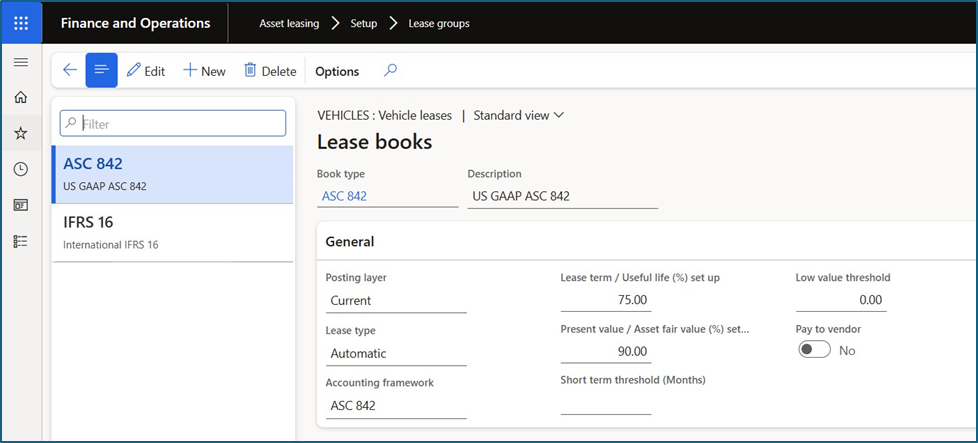
Click on Book and add books for Lease group. (Note: this is not compulsory. If user define books against group lease group, then while creating new Lease asset, book will auto be populated based on Lease group selection.)


• Location Details
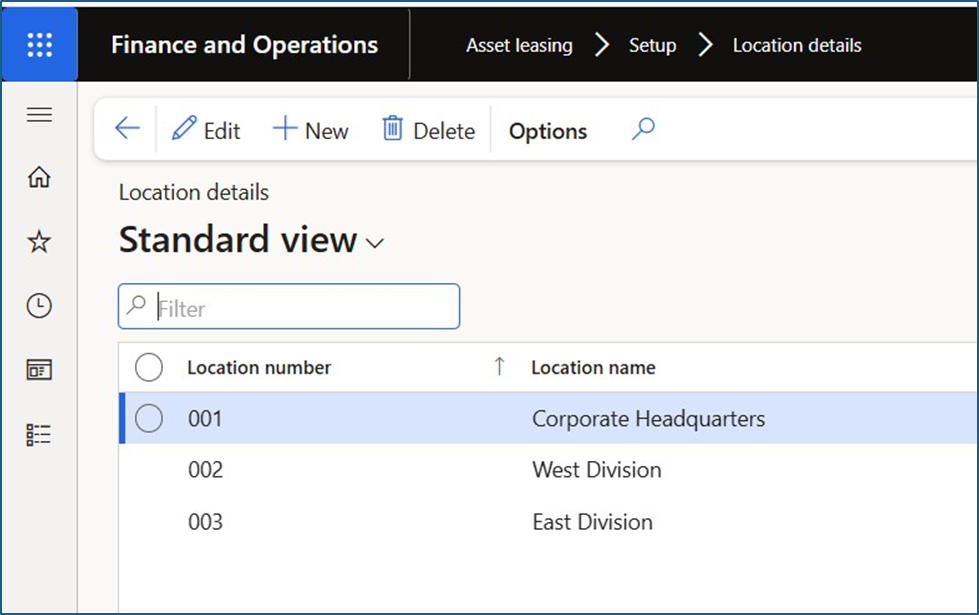
Navigation Path: Asset leasing Setup Location details.
Location indicates the asset’s location. The location can be cities, counties, states, countries, etc. It helps in reporting.

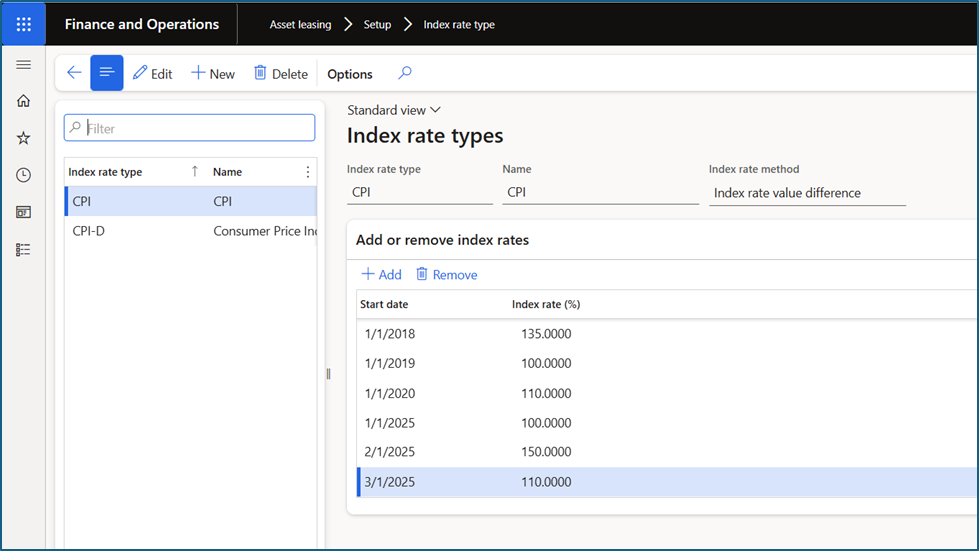
- Index Rate Types
- Navigation Path: Asset leasing à Setup à Index rate
- Index Rate Type” refers to how lease payments are calculated when they are tied to an index, like CPI or You can define two index rate methods: Index rate value difference or Index rate value. The system uses the selected method to determine how the index rate impacts the lease payment amount.
- Index Rate Method:
This setting determines how the index rate affects the payment:
- Index rate value difference: Calculates the payment change based on the difference between the index rate at the commencement date and the most recent index
- Index rate value: Calculates the payment using a percentage of the index rate defined in the Index rate (%)

- Lease Books
- Navigation Path: Asset leasing à Setup à Lease Books
- ease books are used to manage and track various aspects of lease agreements, including accounting, payment schedules, and They are crucial for organizing lease information, calculating present values, and generating journal entries for accounting purposes.
- User can create multiple lease books, each associated with a specific posting layer (e.g., for different accounting standards like IFRS 16 or US GAAP).
- Each book is linked to a lease and contains details like the accounting framework (IFRS 16 or US GAAP), lease type (finance or operating), and thresholds for lease term and present
User can also specify the lease term and present value thresholds that determine whether a lease is classified as a finance or operating lease.
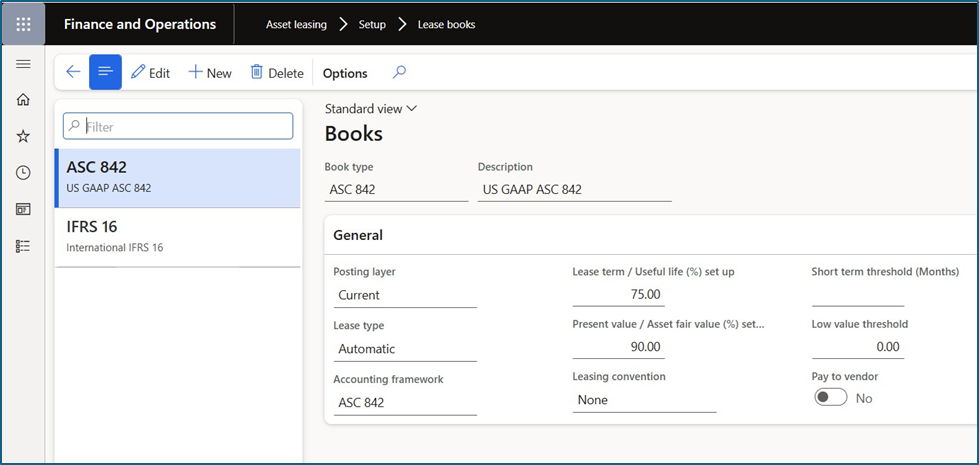

- Posting layers: Each book that is attached to a lease is set for a posting layer that has different purposes.
- Lease type: The lease type can be an operating lease or a finance It can also be set to automatic, as this will result in fewer books.
- Accounting framework: The most common ones are IFRS 16 and ASC 842 which set up the principles and rules for asset ASC 840, IAS 17 and cash basis can also be used.
- Lease term/useful life % set up: This field will classify the asset as a finance lease, if the lease term is set to automatic, and if the lease terms are over the asset’s useful life and is equal or greater than the % in this
- Present value/asset fair value (%) set up: % of assets fair This field will classify the asset as a finance lease if the lease term is set to automatic, and if the present value of future lease payment over asset fair value is equal or greater than the % in this field.
- Leasing convention: Commencement If this is set to none, the start date will be the commencement date.
- Short term threshold: Enter the number of months that will be used as a short-term
- Low value threshold: Enter the amount to use as a low value
- Pay to vendor: Set to yes, it will allow a lease payment to be posted as an invoice to the vendor account specified on each
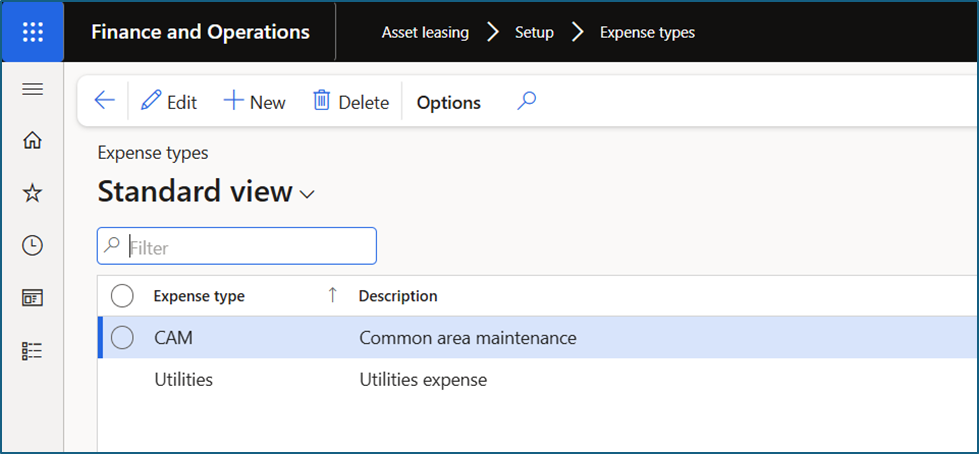
- Expense Types
- Navigation Path: Asset leasing à Setup à Expense Types
- Expense types are used to categorize and track various costs associated with leases, such as property taxes, common area maintenance, or insurance

Create Lease asset
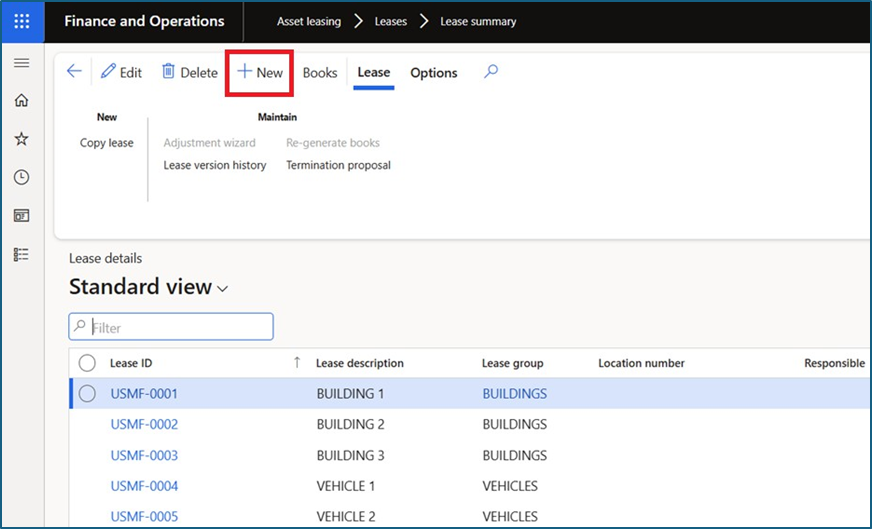
Navigation Path: Asset leasing Leases Lease summary.
Click on New button

Enter Lease description, Fair value of the asset, Incremental borrowing rate, lease term (in month), Asset useful life.
Select Lease group.
Select Lease start date.
Note: There are lots of fields available to capture lease details but in this example, we will not cover everything.


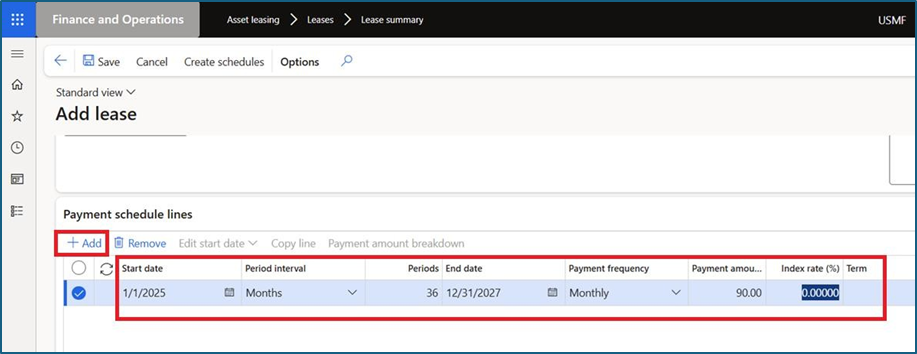
Go to the “Payment schedule lines” fast tab and add Payment installments asper lease agreement.

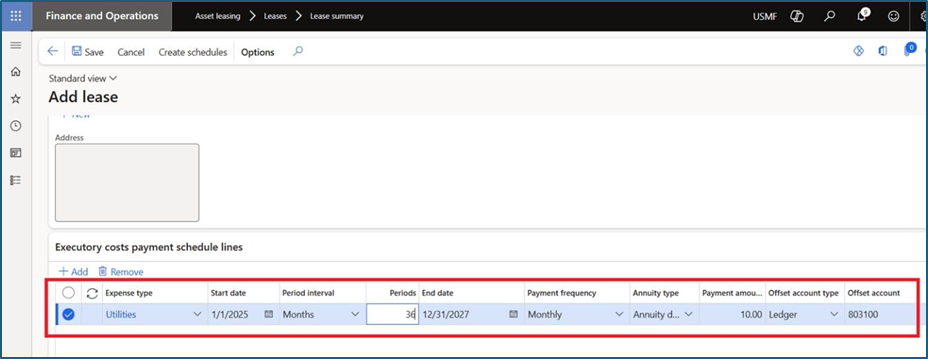
Go to Executory costs payment schedule lines fast tab and add lease expense schedule details.

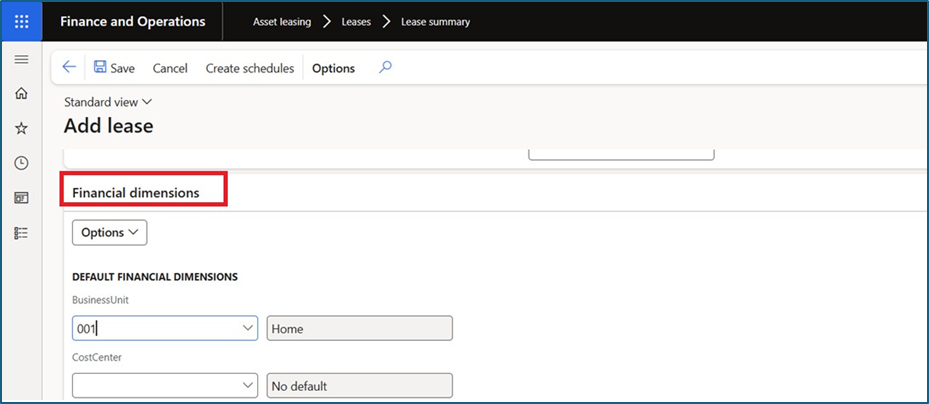
- Go to Financial dimension tab and update financial dimension

In the action pane, click on “Create schedule”.


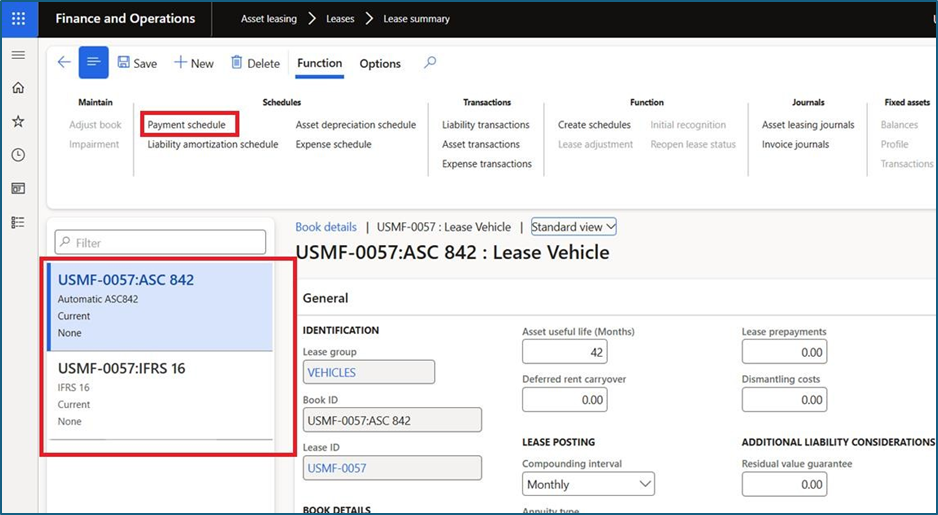
- In the action pane, click on “Books”.
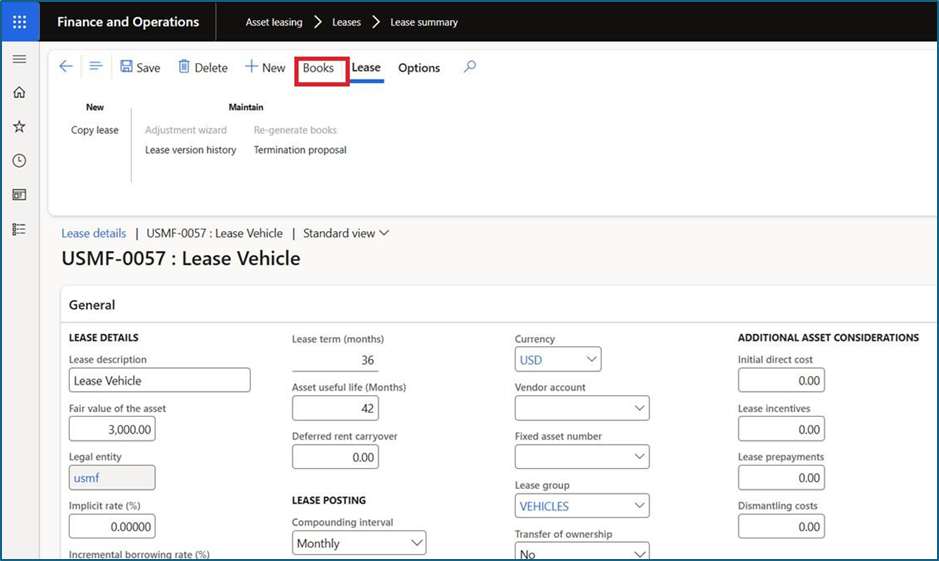

- Books details will auto be populated based on Books and lease group mapping setup and if books not available, go to the action pane and click on “+New”
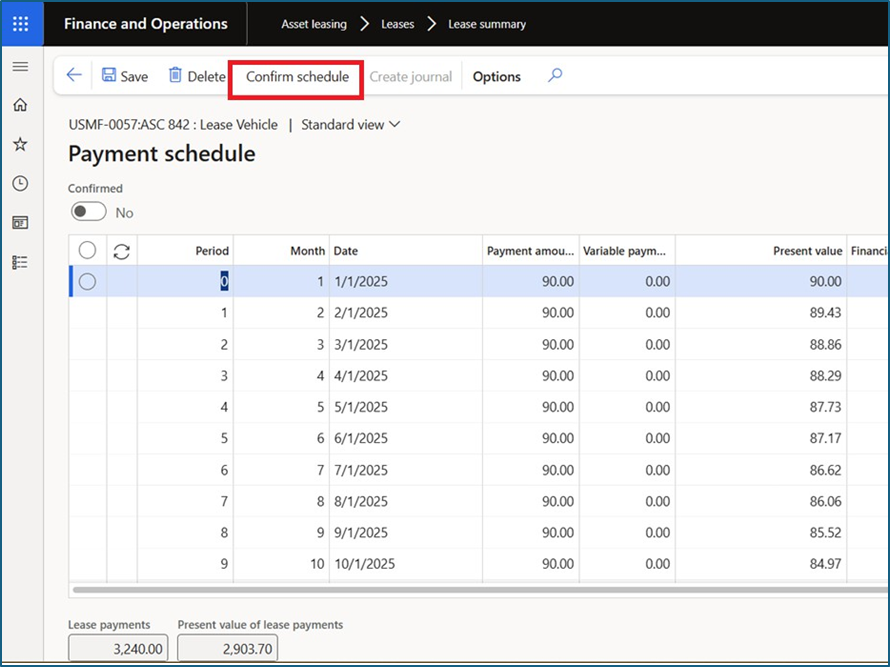
- Click on Payment schedule and validate payment schedule details as per agreement.

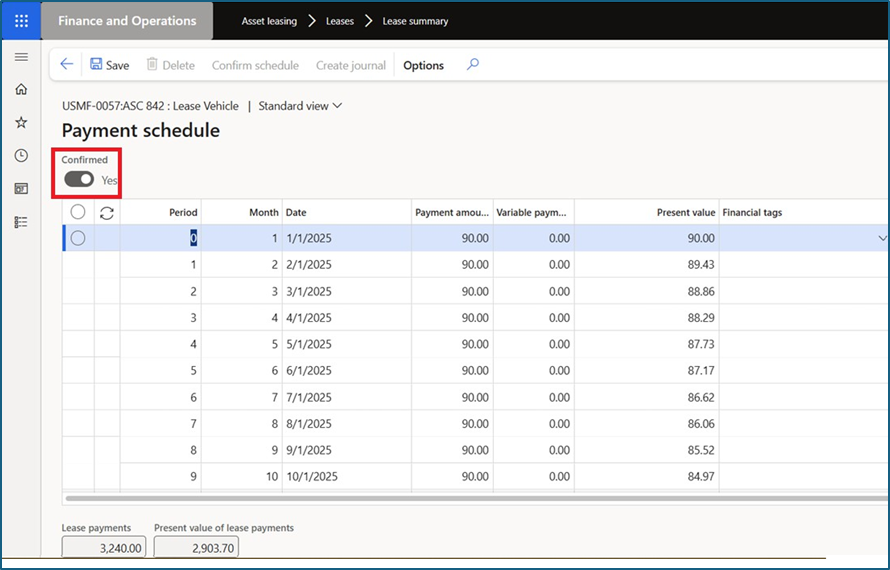
Click on Confirm schedule and go back.


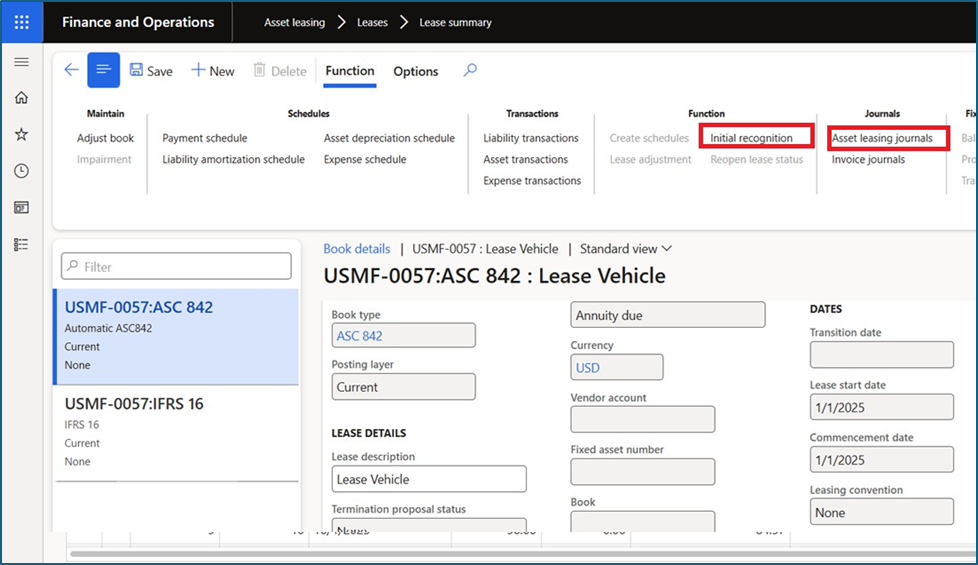
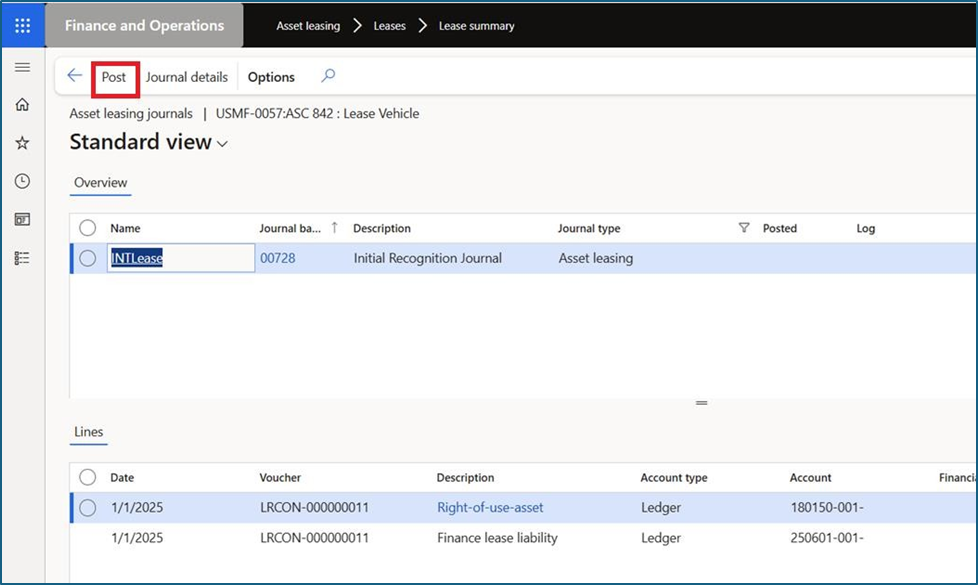
- Click on “Initial recognition” and go to “Asset leasing journals
Select initial recognition journal system created and Post journals


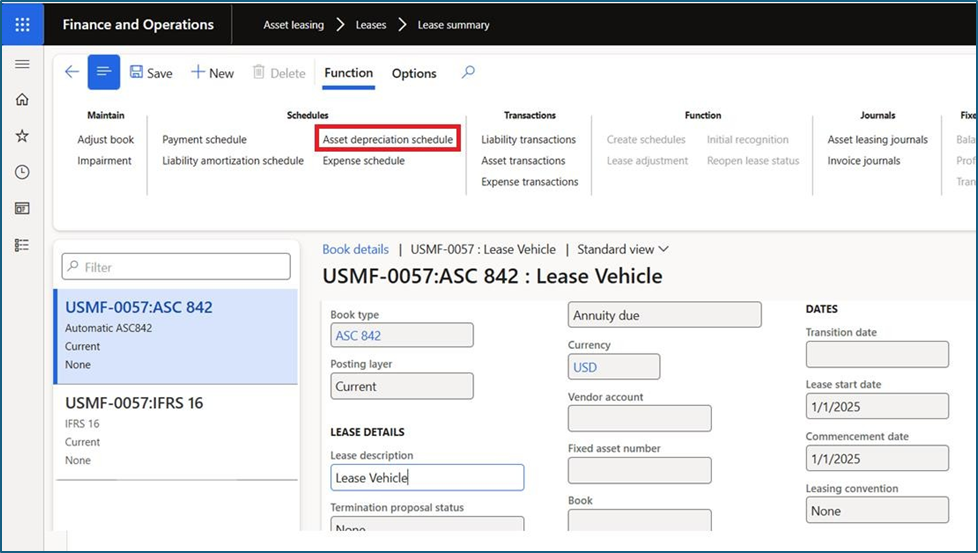
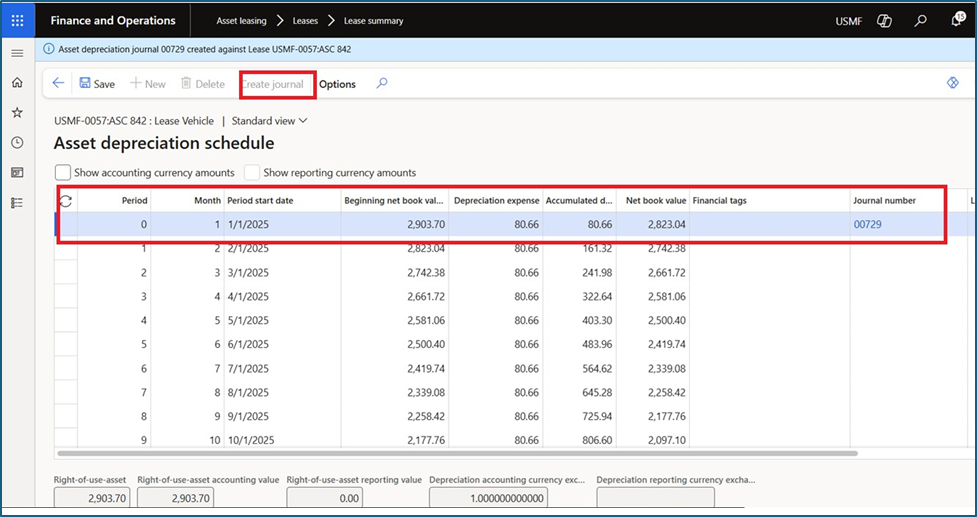
Click on “Asset depreciation schedule” and click on create journal.
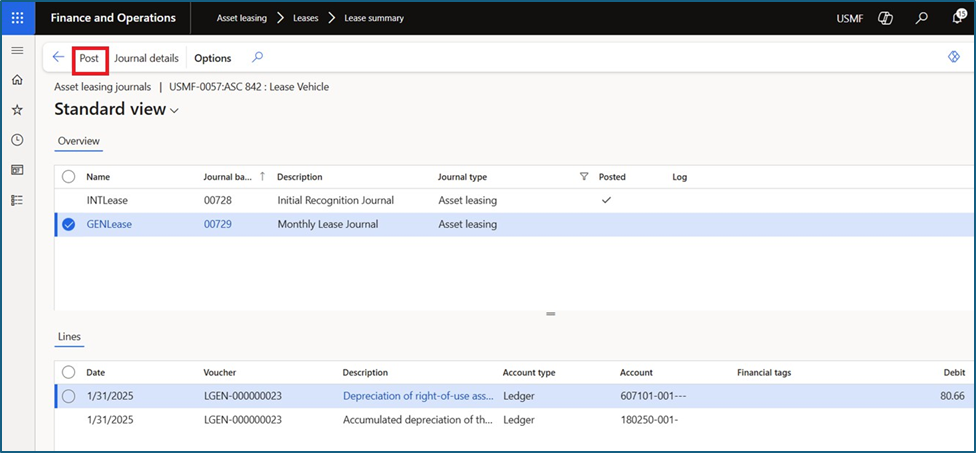
Go to “Asset leasing journals.
Validate Journal and Post journals.



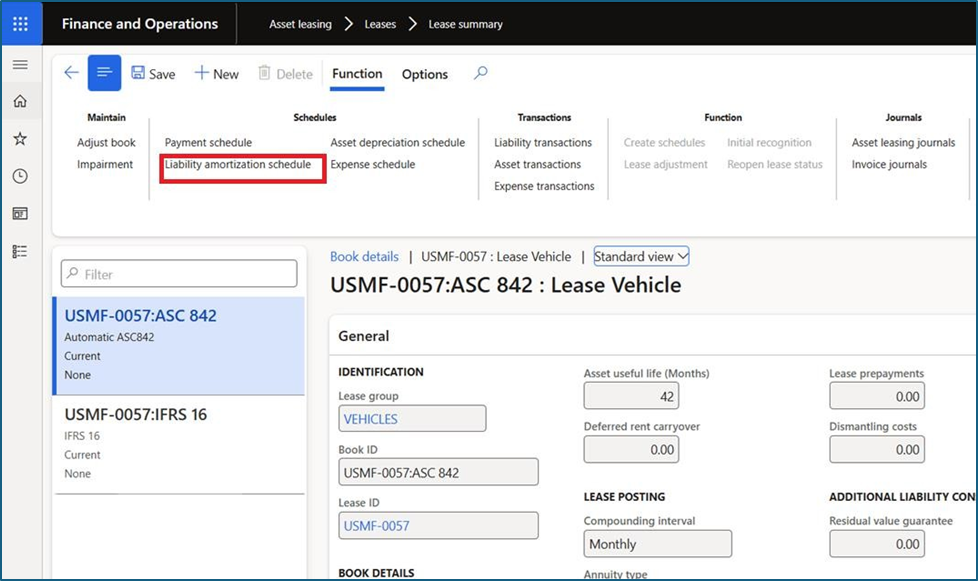
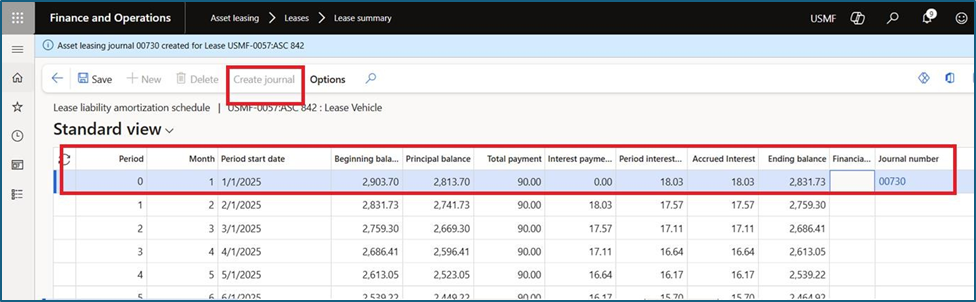
- Click “Liability amortization schedule” and click on create
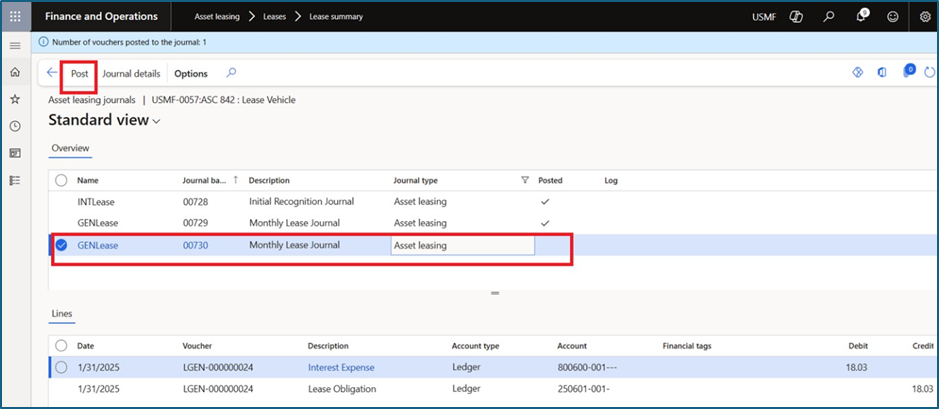
- Go to “Asset leasing journals and Post
- Validate Journal and Post



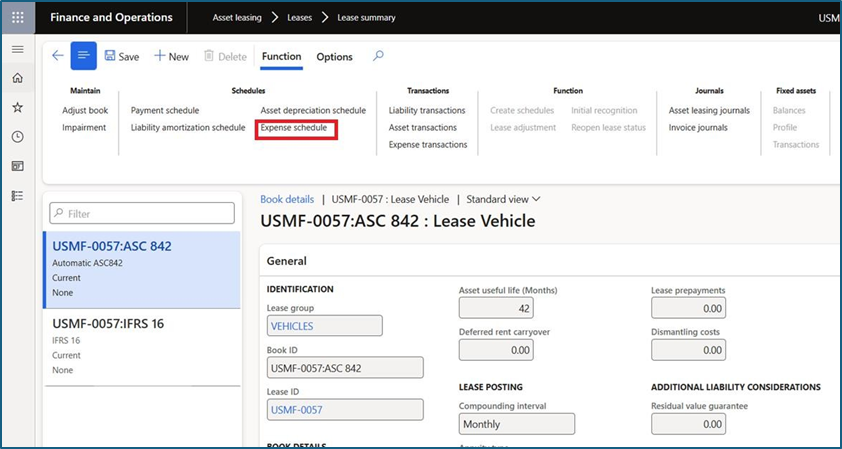
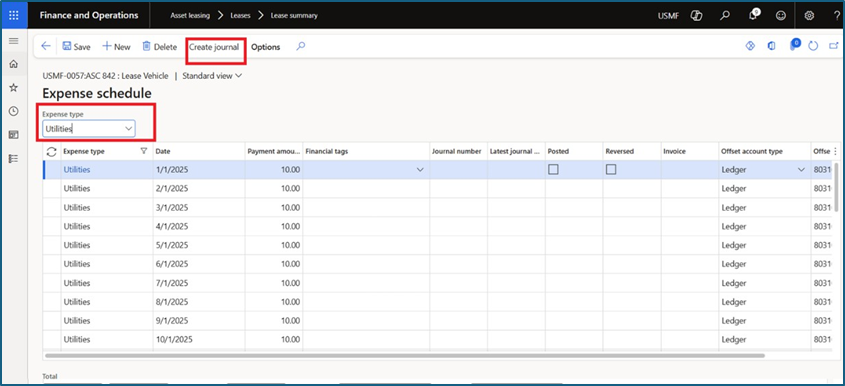
- Click “Expense schedule” and Select Expense
- Select expense schedule and click on Create
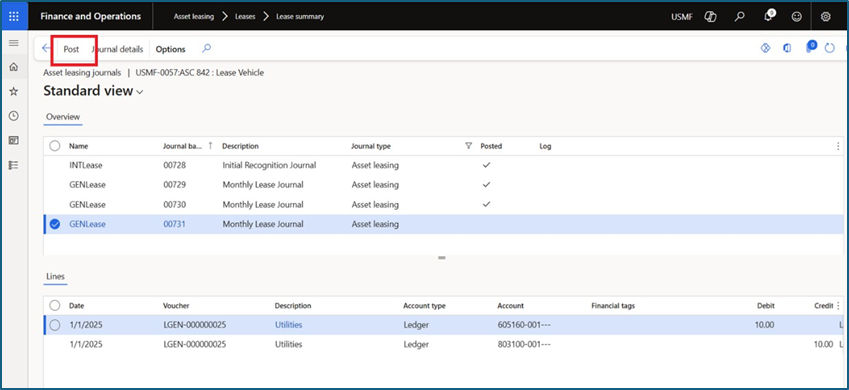
- Go to “Asset leasing journals and Post
- Validate Journal and Post



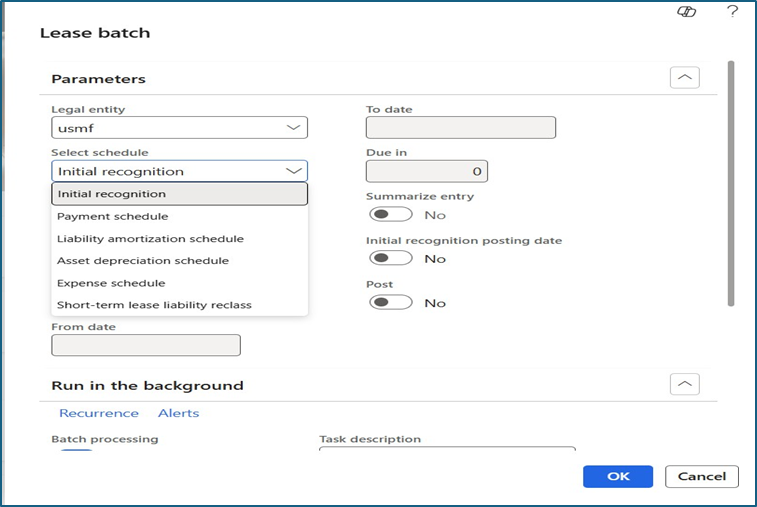
Note: To Process Lease transactions on periodic basis, user can go to Asset leasing
Periodic Batch job creation and create posting batch job for Payment
schedule, liability amortization schedule, asset depreciation schedule and expense schedule.
The batch job option allows users to process all lease assets simultaneously without having to create lease transactions for each individual asset.

Conclusion
In summary, by following these steps, users can efficiently manage and process their lease transactions, ensuring accuracy and compliance with the necessary schedules. Utilizing the batch job option streamlines the process, saving time and effort by handling multiple assets simultaneously.