Many users often overlook the use of Purchase Policies during project process mapping in Microsoft Dynamics 365 Finance and Operations. This is mainly due to a lack of awareness or undervaluing their role. However, purchase policies are very useful for creating effective and streamlined business processes for customers.
A purchase policy is a defined set of rules or controls that guide and govern various parts of the purchasing process within an organization. These rules ensure that procurement activities align with the company’s strategic and operational goals. Purchase policies are applicable to different purchasing documents, such as:
- Purchase Requisitions
- Requests for Quotation (RFQ)
- Purchase Orders
These policies help in enforcing business rules and restrictions during procurement. For example, you can set rules for approval processes, spending limits, or preferred vendors.
Restrict Procurement Categories for Purchase Requisitions
Scenario: – Consider a scenario where a company, USMF, has an established procurement category hierarchy. The organization aims to restrict specific users so that they are only able to create purchase requisitions for the “Tower” category and its associated subcategories (Plumbing), To achieve this, a purchase policy can be configured within Microsoft Dynamics 365 Finance and Operations to limit access.
By applying this policy, users will only see the “Plumbing” category in the purchase requisition form, and all other unrelated categories or products will be hidden from their view. This ensures that employees request only the items relevant to their roles or departmental needs, thereby improving process control and reducing errors.
Create the Purchase Policy
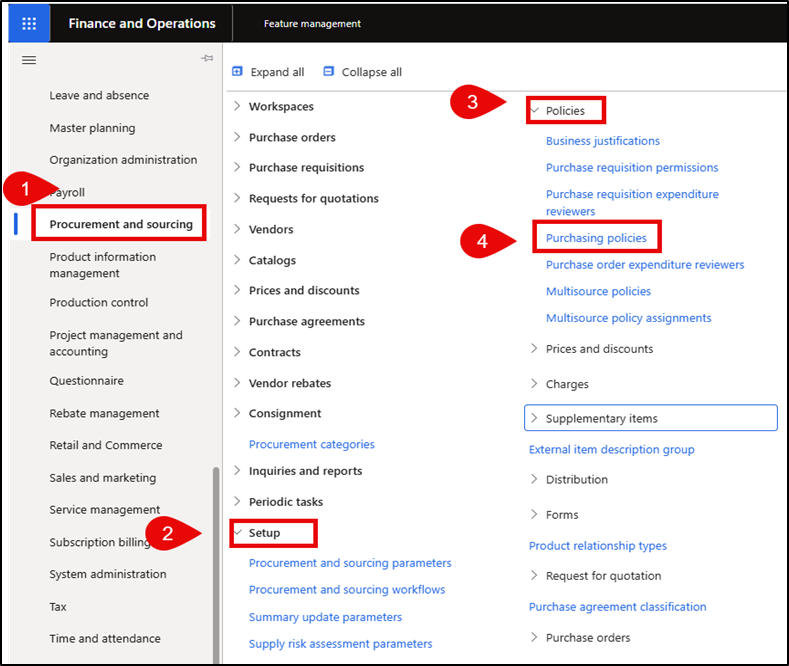
- Navigate to Procurement and Sourcing > Setup > Policies > Purchasing Policies to access the relevant configuration settings.

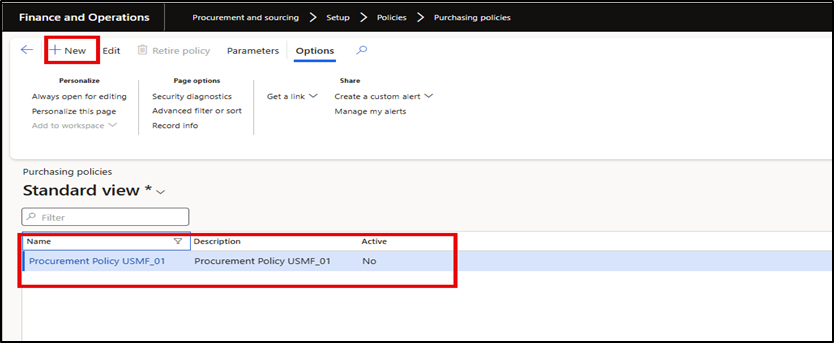
- Users can access an existing purchasing policy or create a new one by clicking the “New”

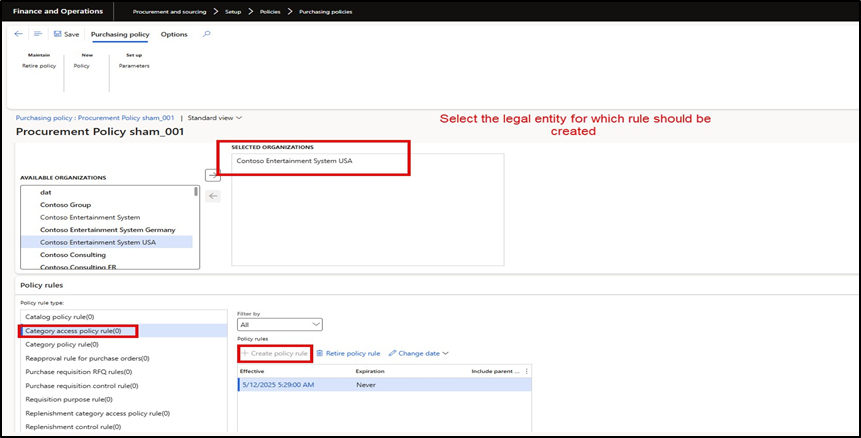
Select the policy rule type as “Category access policy rule” and click Create Policy

- Choose the category or subcategory for which you want to grant access to this
In this example, under the Tower category, there are three subcategories. However, we will select only “Plumbing”. This policy rule ensures that the other two subcategories will not be accessible for purchase requisitions.
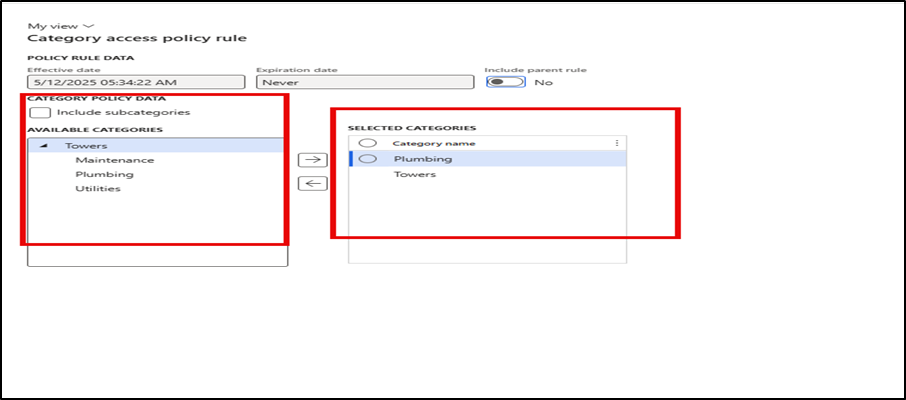

- Now let us validate whether policy is effective or
- Create a Purchase requisition and attempt to add lines to the
- The user will observe that only one procurement category is available for selection, despite the Tower category having three subcategories
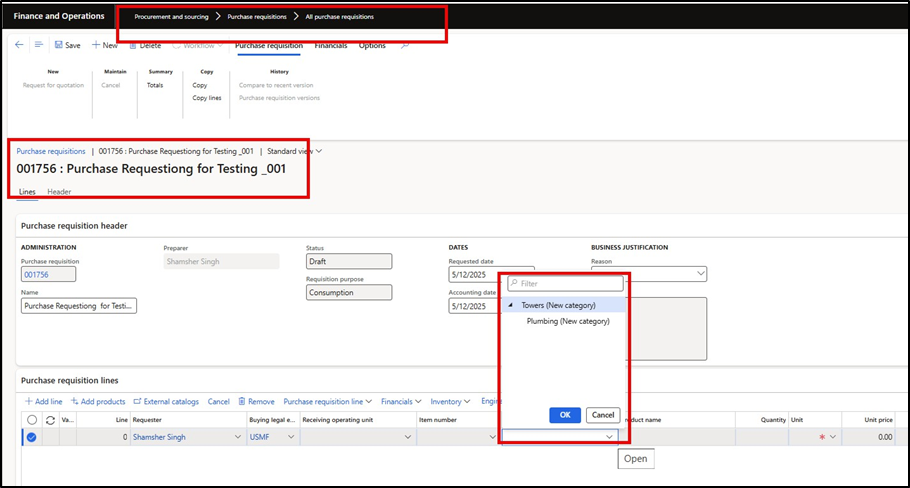

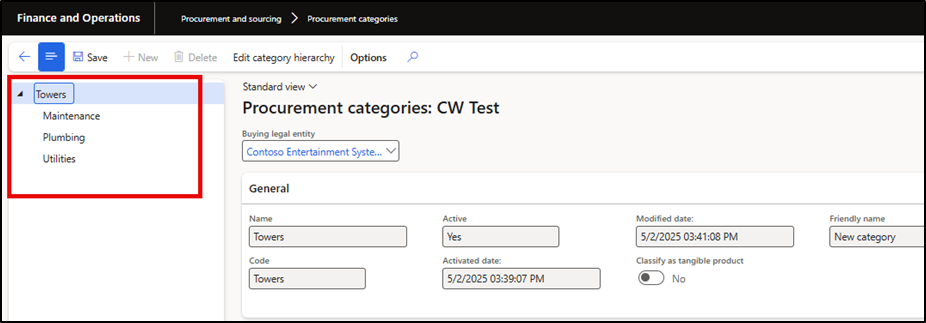

- This confirms that the policy is active and working as
- You can repeat this process to create multiple rules under Purchasing Policies, depending on your organization’s procurement requirements.
Purchasing Policies Re- approval for Purchase order
In this section, we will explore the Re-Approval feature within the Purchasing Policy in Dynamics 365 Finance and Operations. This feature becomes particularly relevant when using a Purchase Order (PO) workflow and changes are made to a purchase order after it has already been approved.
A common question often arises: Should the approval process be triggered again if a field on the purchase order is updated after approval?
The answer lies in how the Purchasing Policy is configured. The policy allows you to define specific fields that, if changed post-approval, will trigger a re-approval process. This level of control helps organizations manage approval workflows more effectively, ensuring compliance without introducing unnecessary delays.
Scenario Example: Let’s consider a scenario in the USMF legal entity, where purchase order workflow is already active. The requirements are as follows:
- If a change is made to the “purchase order lines financial dimension” after the PO is approved, the system must trigger the re-approval workflow.
- If any other field is modified, the system should not trigger re-approval. These changes should be automatically accepted, and the purchase order should remain in an approved state.
By leveraging the Re-Approval feature in purchasing policies, organizations can streamline procurement workflows, reduce manual oversight, and ensure compliance with internal control standards.
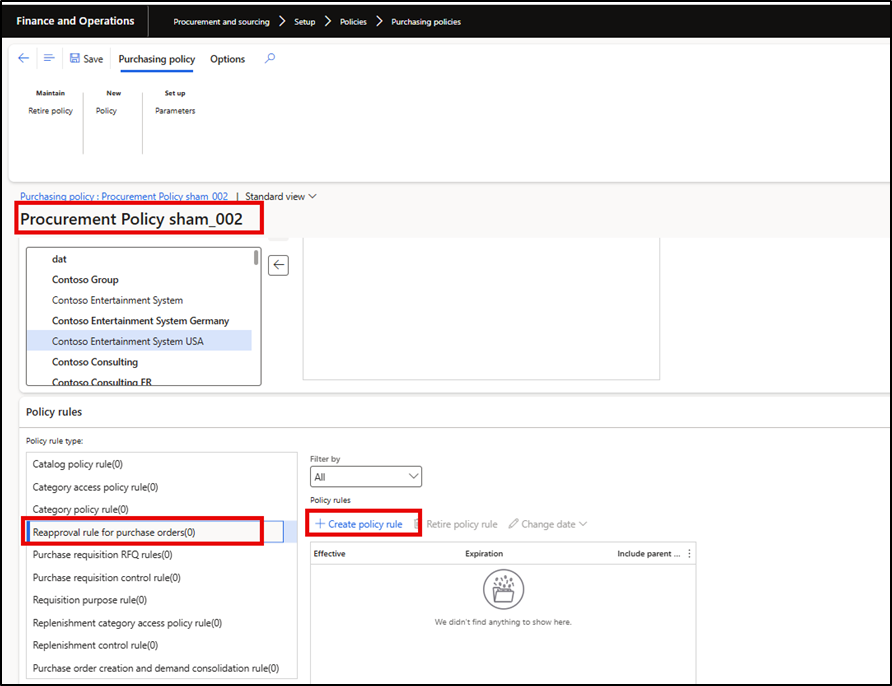
Create Purchase Policy
Navigate to Procurement and sourcing > Setup > Policies > Purchasing Policies
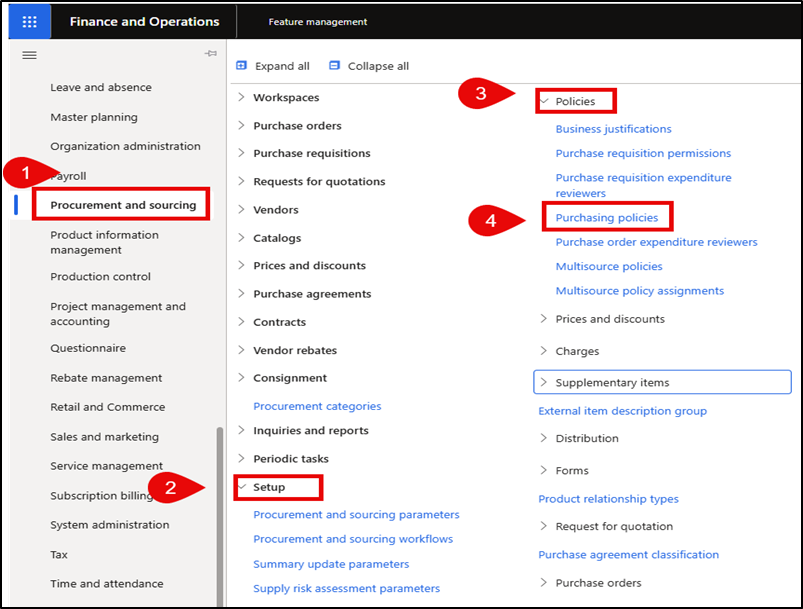

User can Create new purchase policy by clicking the “New” button
Select policy rule type as “Category access policy Rule” and Create Policy
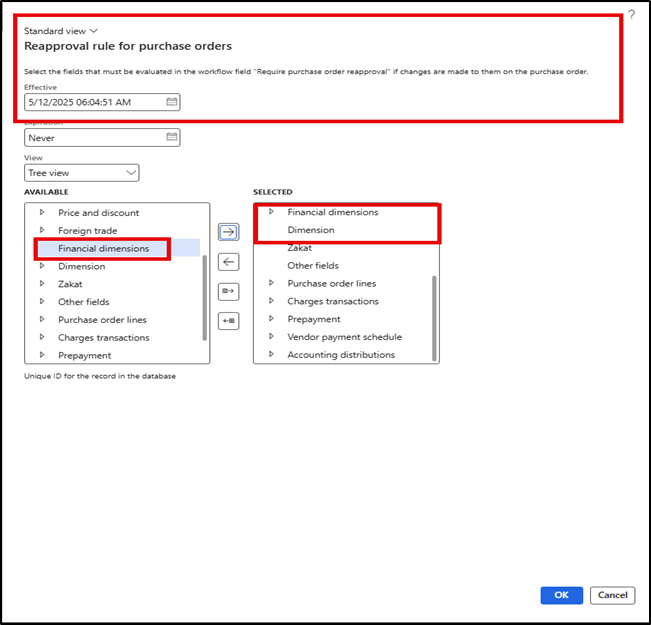
Select these fields from PO Header and Line for which you want to run the full PO Workflow after a change request on the PO. Means for all other fields we can configure a auto approve in the PO Workflow. The list of fields requiring reapproval will be different in any business scenario.
The usability of this form is unfortunately not as good but try to find the reapproval required fields on the left side (using the tree view) and assign to the right area on the Control what is selected on the right side is best in List View.

- The usability of this form is unfortunately not as good but try to find the reapproval required fields on the left side (using the tree view) and assign to the right area on the Control what is selected on the right side is best in List View.

Add Re-Approval Condition in Workflow
- Let’s add the condition in the PO Workflow we need to add at least a condition to route the Workflow to an autoapproval task. Additional I’ve added a condition whether a former instance regarding that PO exists & second contion to define the Re-approval required or not
- This setup now requires to “request a change” for a PO after approval and to “Submit” the PO to the
Workflow after the changes.
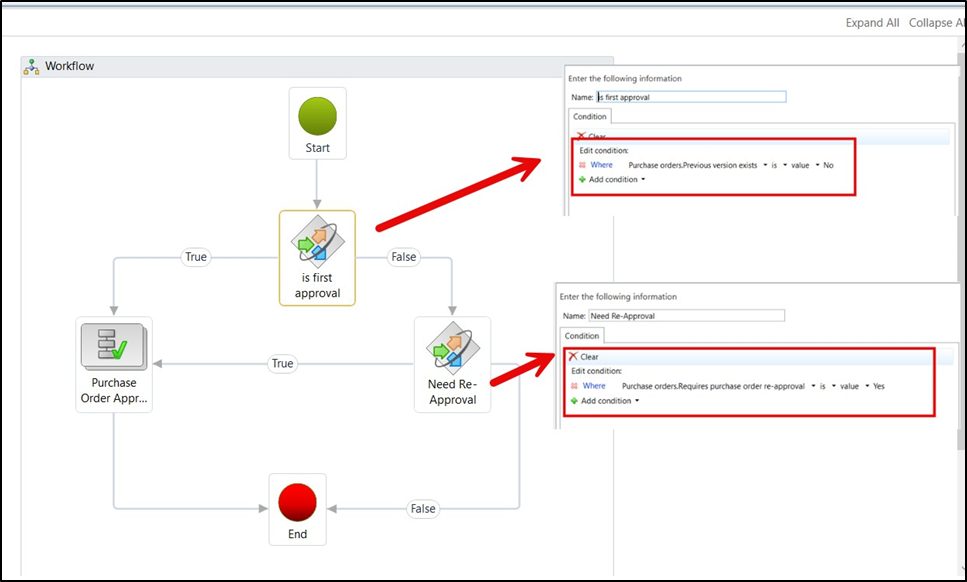

- The regular PO Workflow starts and if one of the business critical fields was changed, otherwise the autoapproval is executed and the PO keeps approved after a short processing time needed by the Workflow processing In this way we also have the Workflow history for the autoapproval and who has the change request submitted.
Validated Purchase Policy
Now let us validate two different scenarios in D365 , as per our purchase policy which we have created above we have made the rule that if user make any changes in financial dimensions only than re-approval process will triggers another wise in case of any another filed system will not trigger the re-approval process.
Changes in Unit Price under the purchase order line and validate the re-approval behaviour
Changed in Financial dimension and validate the purchase order re-approval behaviour
Scenario 1- Change in Unit Price (Negative Scenario)
- Create a purchase order with qty 320@280 with the financial dimension “001”
- Submit the purchase order and get approved through the workflow
- Now the purchase order status would be “Approved”
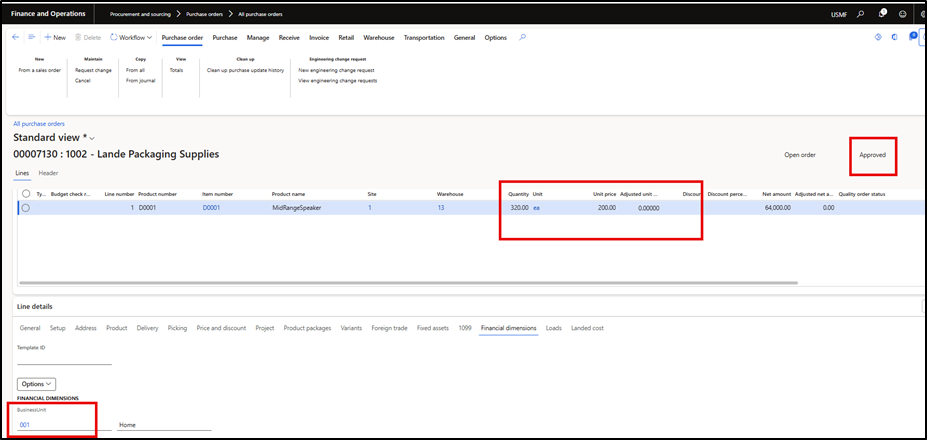

- Click on the “Request change” button and try to change the Unit price of the purchase order line from 200 to 250 and again submit in Here user noticed that purchase order status will get changed and now in “Draft” status
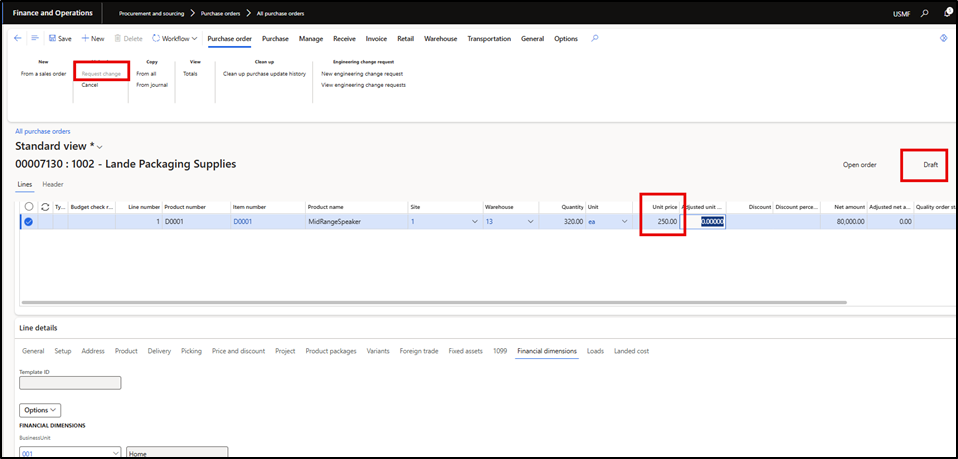

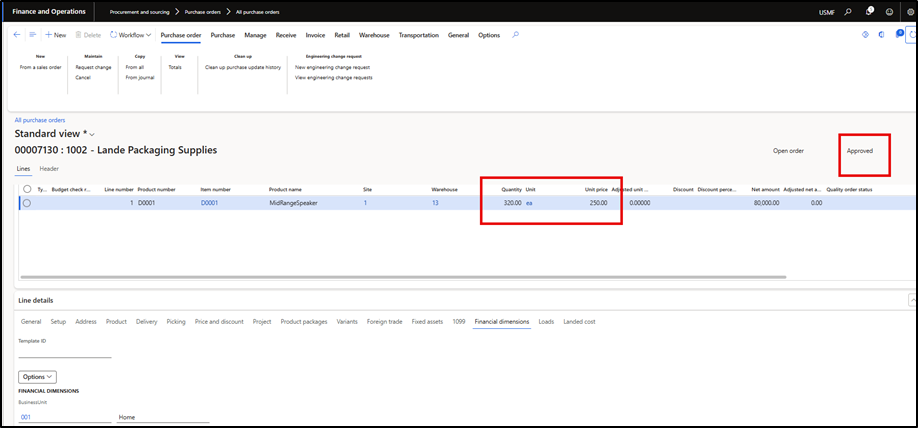
- As well as user submit the purchase order in workflow, we noticed that purchase order workflow automatic approved and the purchase order status is now “Approved” because under the re-approval policy we have not selected the price field.

3.1 Scenario 2- Change in Financial Dimension (Positive Scenario)
- Go to the same purchase order which we have used in scenario -1
- Click on the “Request change” button to make the changes
- Change the Financial Dimension on PO header “002” for “001”
- User can notice purchase order status now is “Draft”
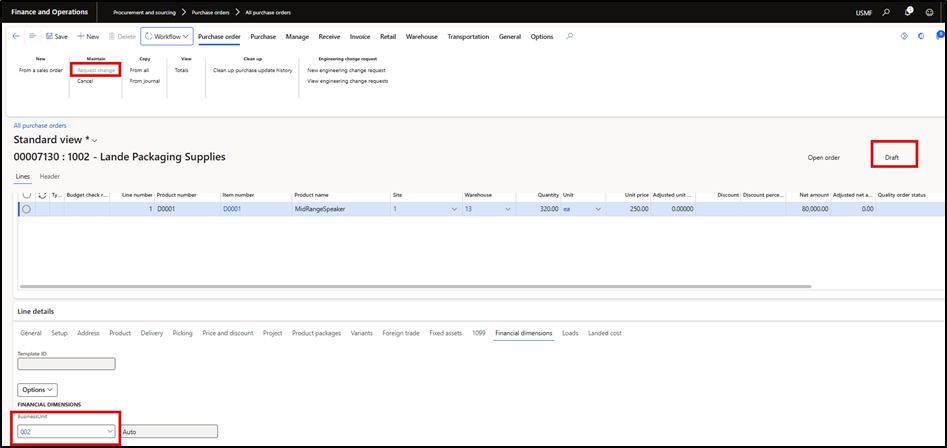

- Save the changes
- Submit the workflow
- User can notice that now workflow has assigned to the approver again as we have defined the financial dimension change in our purchase policy.