Process Overview: In D365, retail sales prices default from a variety of configurations. This document summarizes options for retail prices, along with expected settings for Frontier, and includes the SOW process: 35.25.035 Apply discounts, POS.
Requirements – Work Items
- Ability in POS to have a pop-up for manual approval or info about specific discounts. FIT
- Manual discounts can require management approval.
- Retail discount information is available thru POS buttons.
Configurations, Setup Options
Prices are set in D365 in:
- Released products ‘Sell’ fast tab.
- This is the default price, if the system cannot find pricing in any other location. Most customers put a high default price here, such as MSRP (Manufacturer’s Suggested Retail Price).
- Trade agreements set prices for specific stores (or groups of customers or customers).
- Frontier will not use customer-specific pricing, but could in the future
- Frontier will use trade agreements to set the price for each unit of measure, for stores
- Houston stores will use the same prices, but Frontier may use different prices in different markets in the future
- Trade agreements can be updated on a frequent basis
- Retail discounts
- There are several options for retail sales promotions. These discounts usually apply on top of (as a reduction to) trade agreement prices.
- See the retail discount section further below.
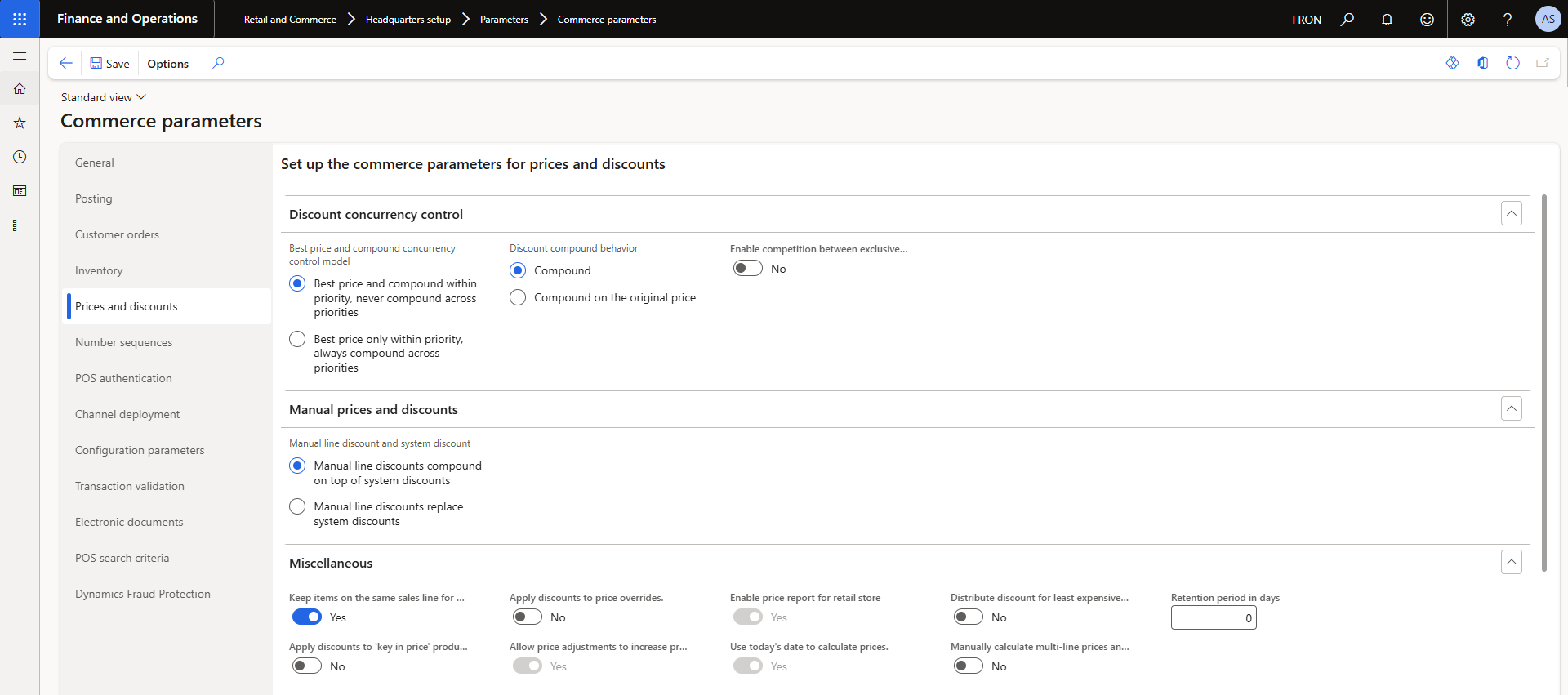
Configurations related to price defaulting:

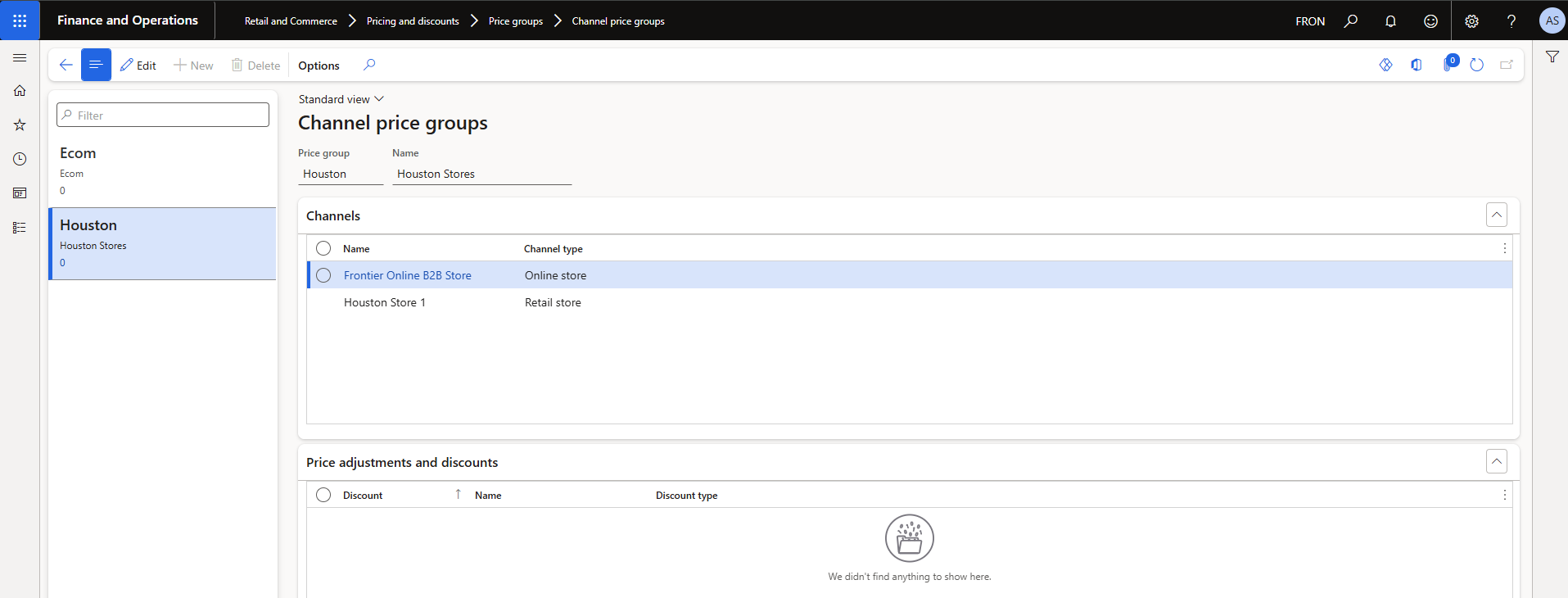
Retail price groups are tagged to channels, so prices for specific ‘all-channel’ prices can be set.

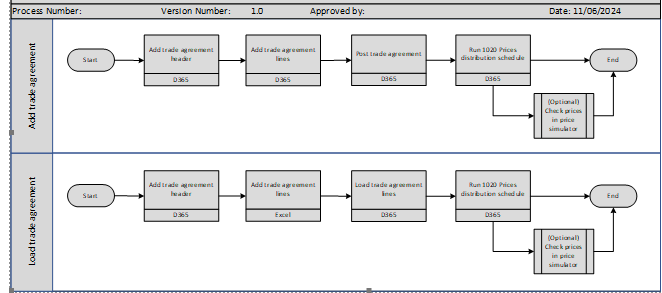
Trade agreements process steps

Detailed screen clips of the process:
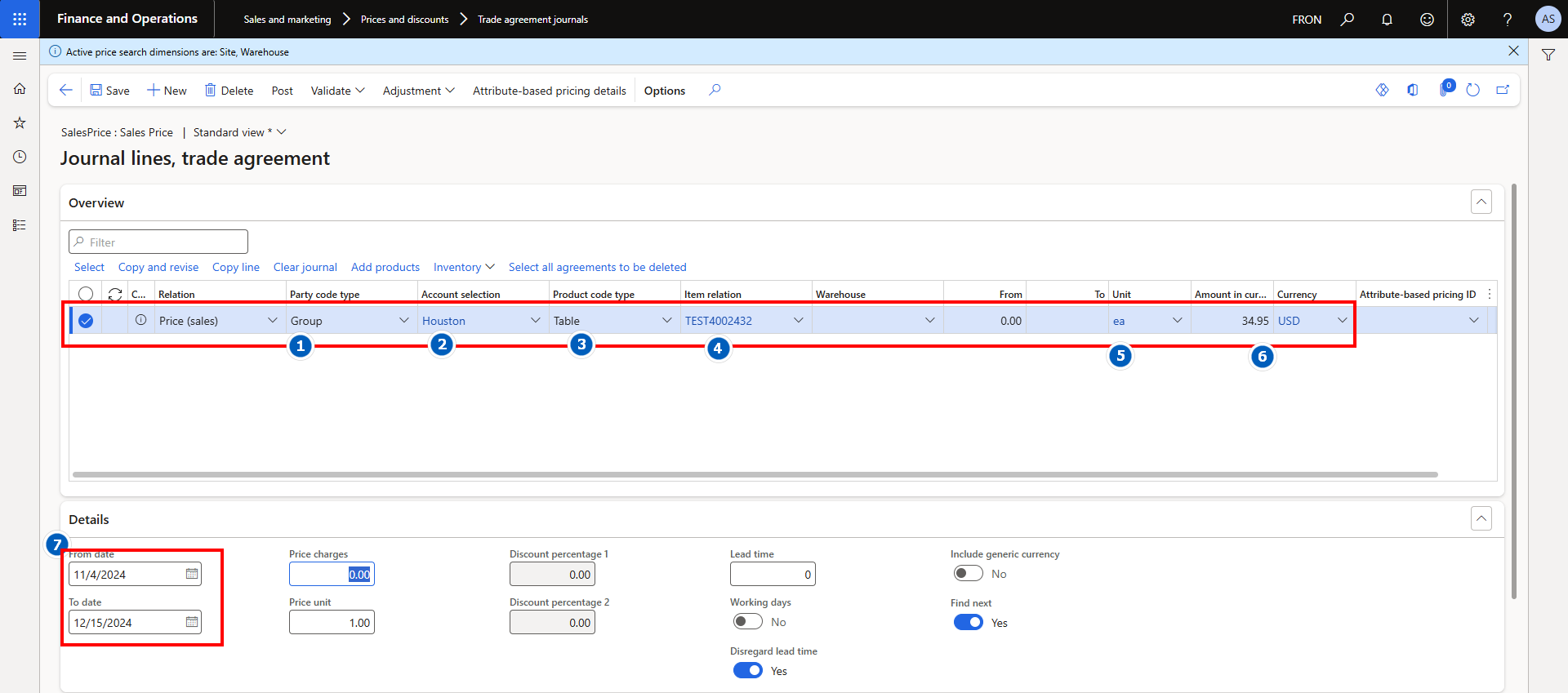
A Trade Agreement represents a user-defined price for an item at a specific site or location. A trade agreement is set up as noted below. First, enter the header as shown, then click Lines


Select Party code type Group to Select a channel price group. Select Party code type Group for the item to price. Be sure to select unit of measure, dates and the price.

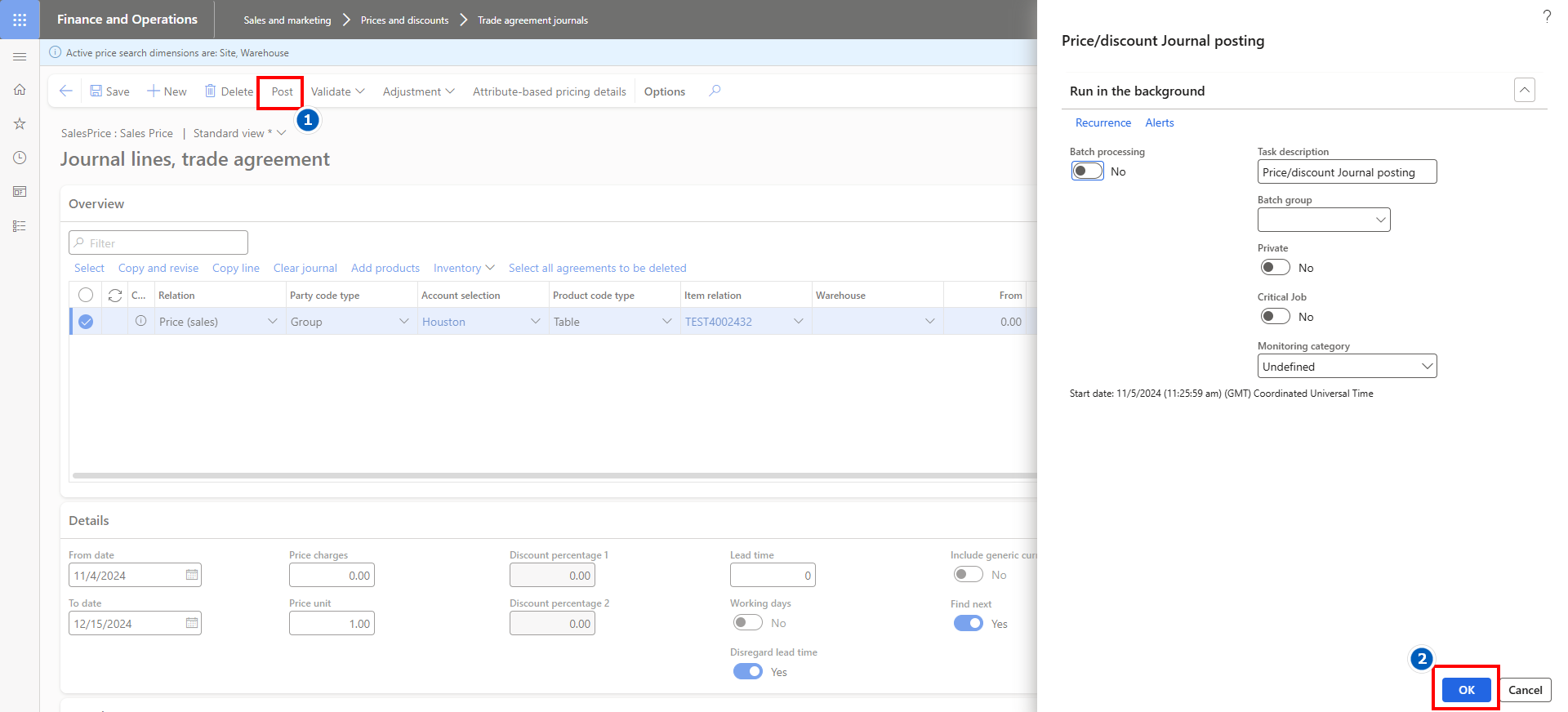
Post the trade agreement to make it active:

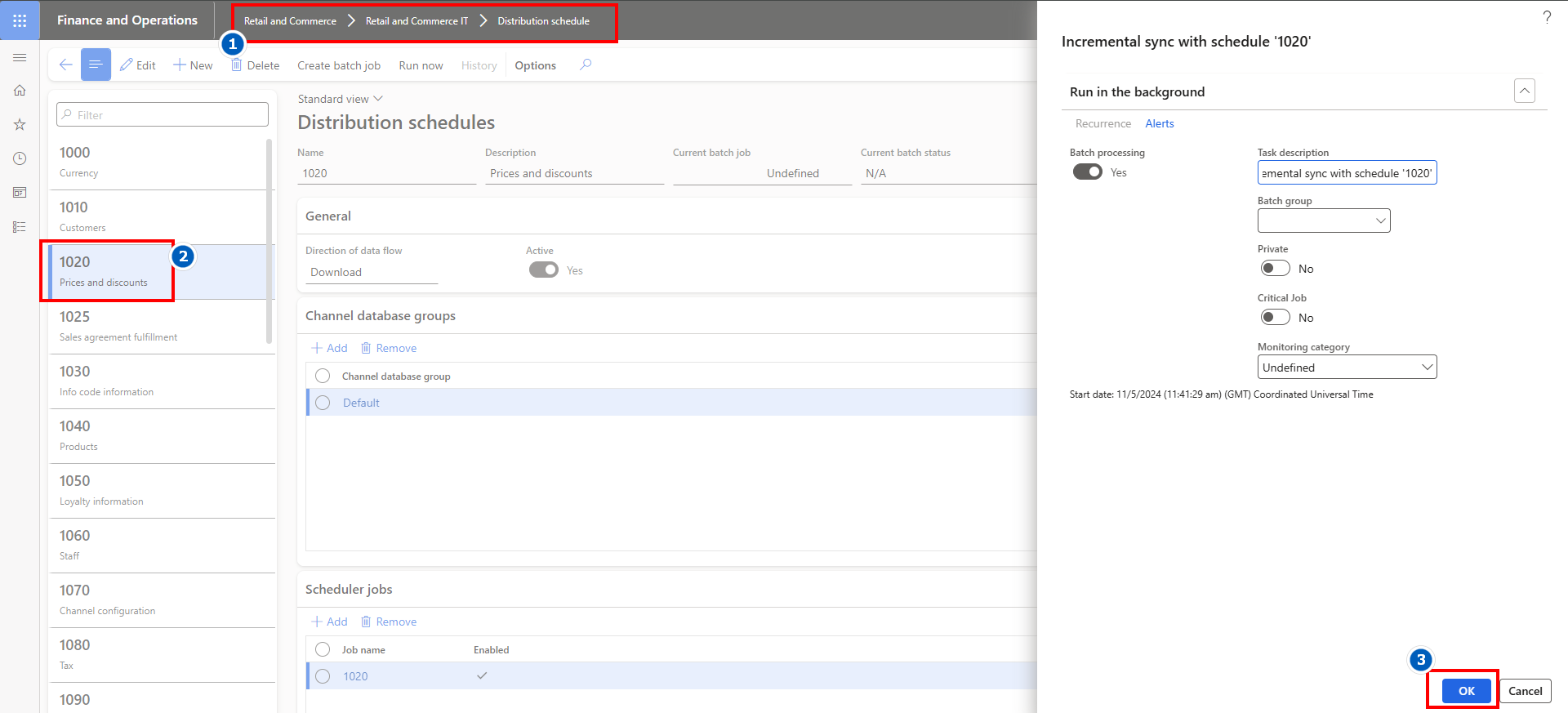
Run the price update distribution job, to apply the price in all retail channels (stores and Ecom in the price group).

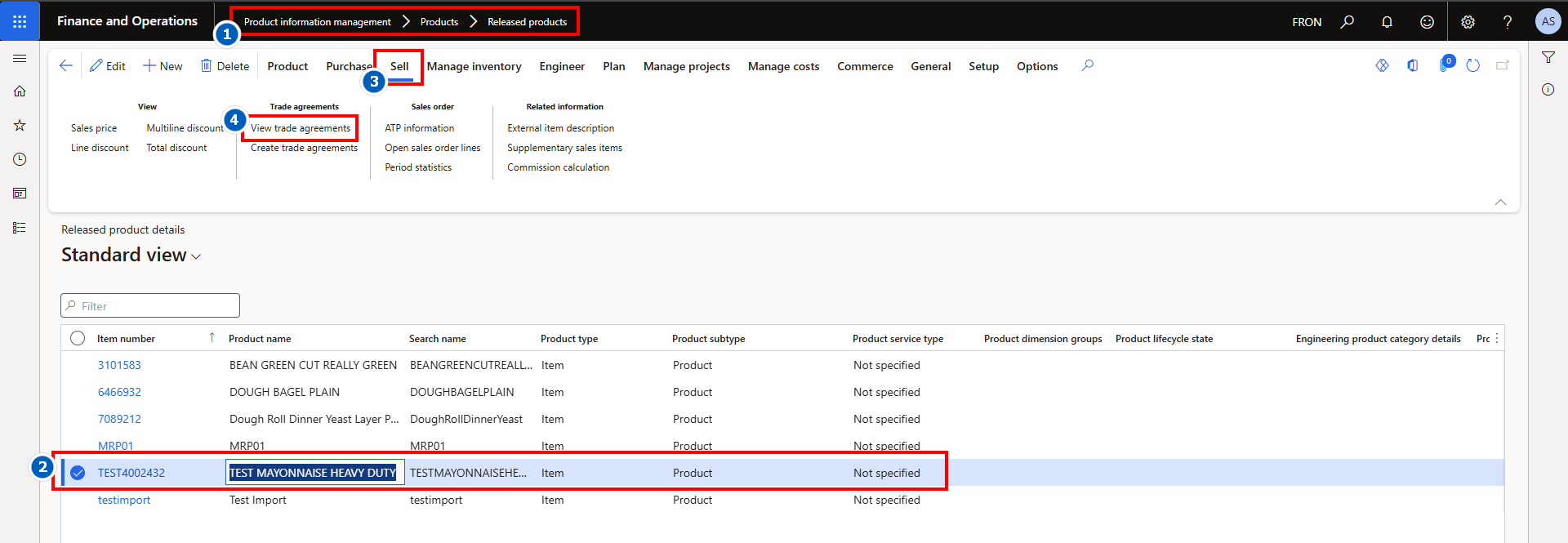
Trade agreements in effect on an item can be viewed from the released products record.

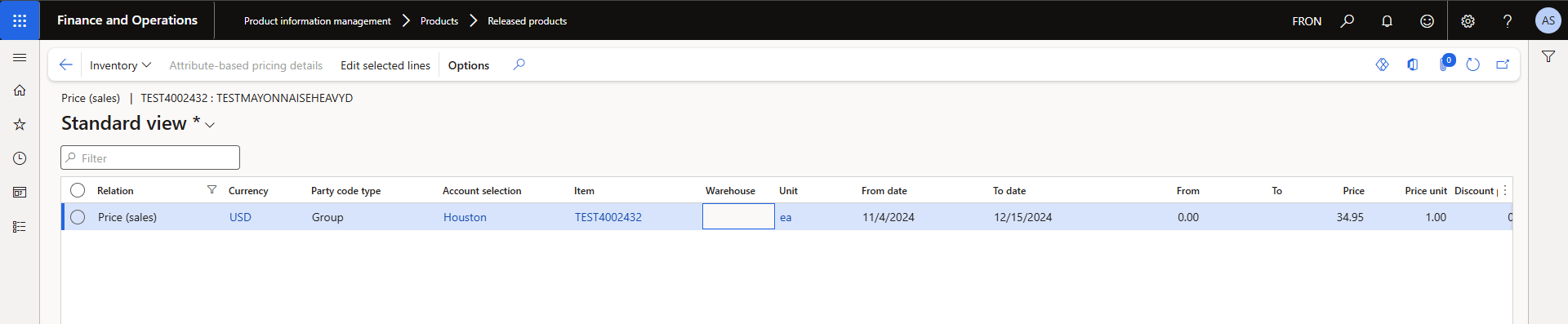

The price will default on transactions in the channel selected, with the associated unit of measure, within the date range.
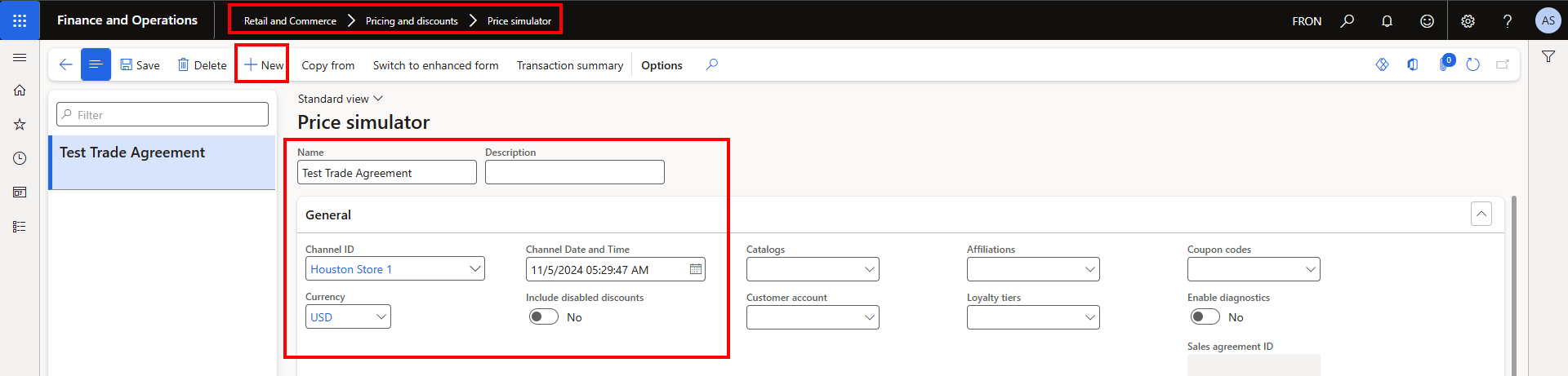
Prices applied can be verified by checking in the price simulator (optional, below).
Enter the test information, including selling channel, plus date of sale.

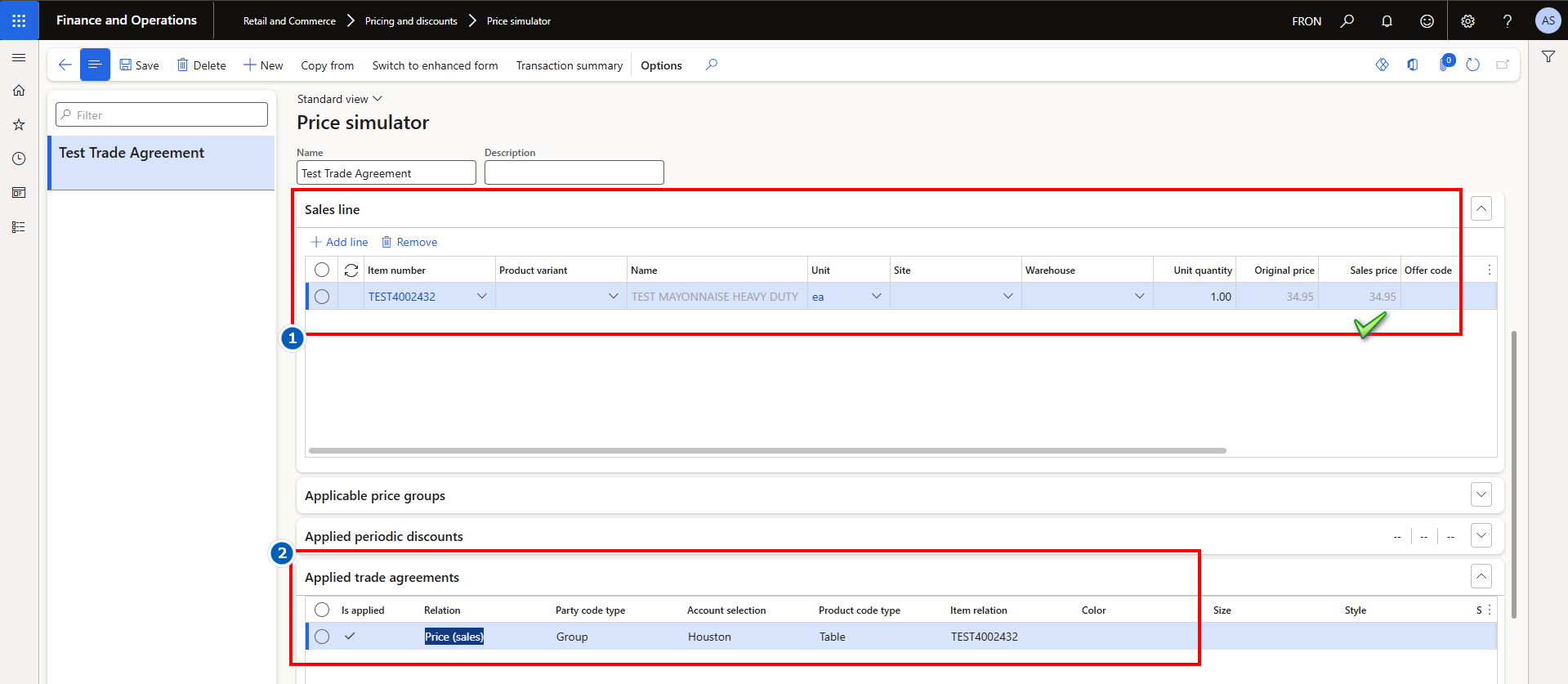
Enter the prospective sales line information, and the system will display the price for the channel, plus the price source.

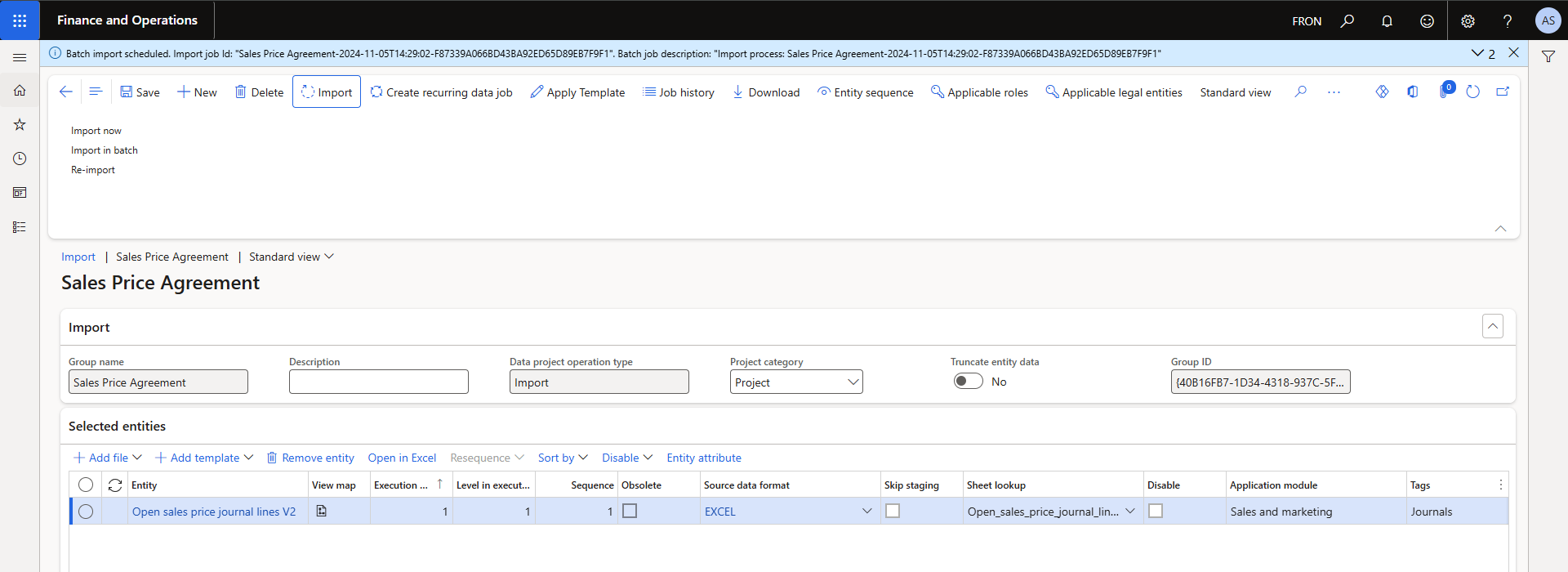
Uploading trade agreements. As illustrated further above, each trade agreement record consists of a header and a lines component. Discussed potential process with team.
- The team will add the header (which is on the lines Excel file), same as above.
- Then load the spreadsheet, contained here (mapping is on 2nd sheet for info; we only need the 1st sheet):
Illumina can help load the entity below and test with the team

Retail discount process steps
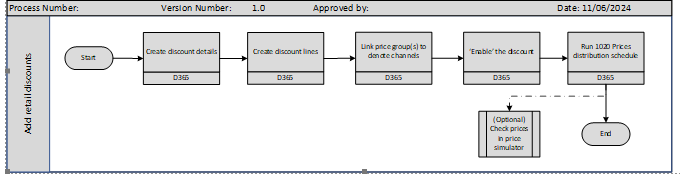

Retail discount information and example:
Types of retail discounts.
In D365, there are both a price adjustment option and discount options. Price adjustments affect the price of an item directly (usually a permanent markdown), so it rings up at the lower price. Discounts apply as a reduction (negative amount) after the usual price is charged.
Retail discounts are set up according to type at Retail and commerce> Pricing and discounts
Available menu items are:
- Discounts – A simple discount for a single percentage or amount, such as 20% off specific items or categories of items.
- Mix and match discount – A discount for purchasing a combination of products, such as buy 2 cases of tomatoes, plus 1 cases of pasta, for $125.
- Quantity discount – A discount for the purchase of one or more specific quantities, such as 20% off 2 or more items (either specific items or items in the same category, etc.)
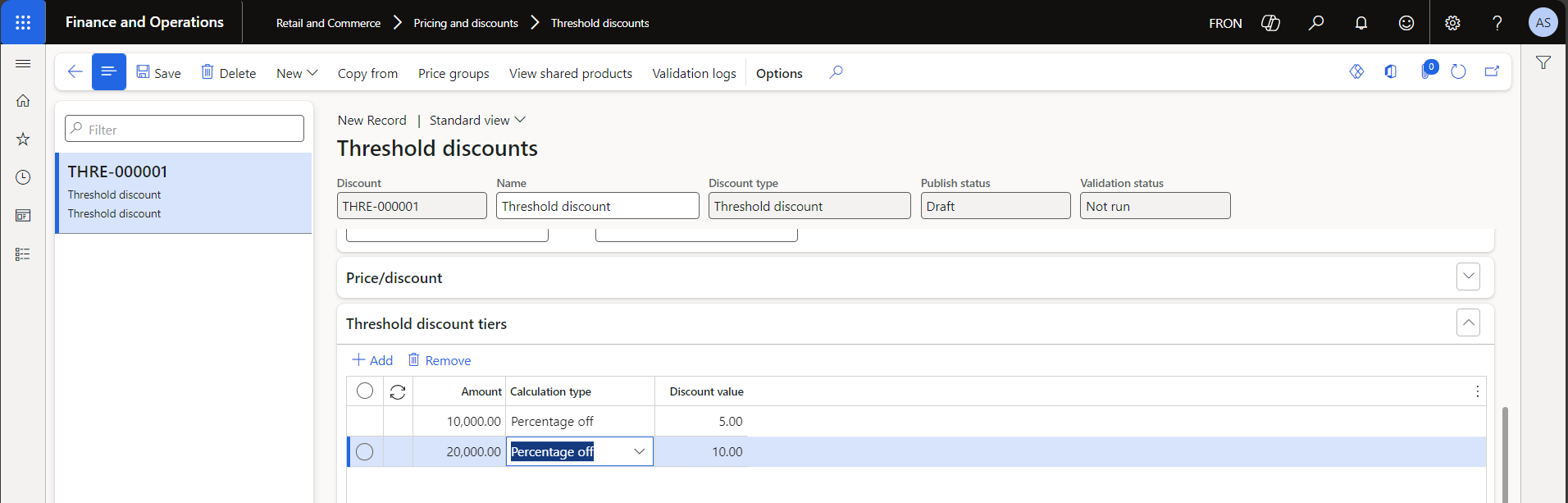
- Threshold discount – A discount for a transaction total, such as spend $100, get $5 off, spend $500, get $35 off
- Price adjustments – adjusts the sales price directly. Trade agreements execute the same function as price adjustments, just in a different manner.
There is also the ability to scan or type in a coupon/discount barcode directly into the POS. The coupon can be required to receive the discount.
Example discount setup, with field explanation.
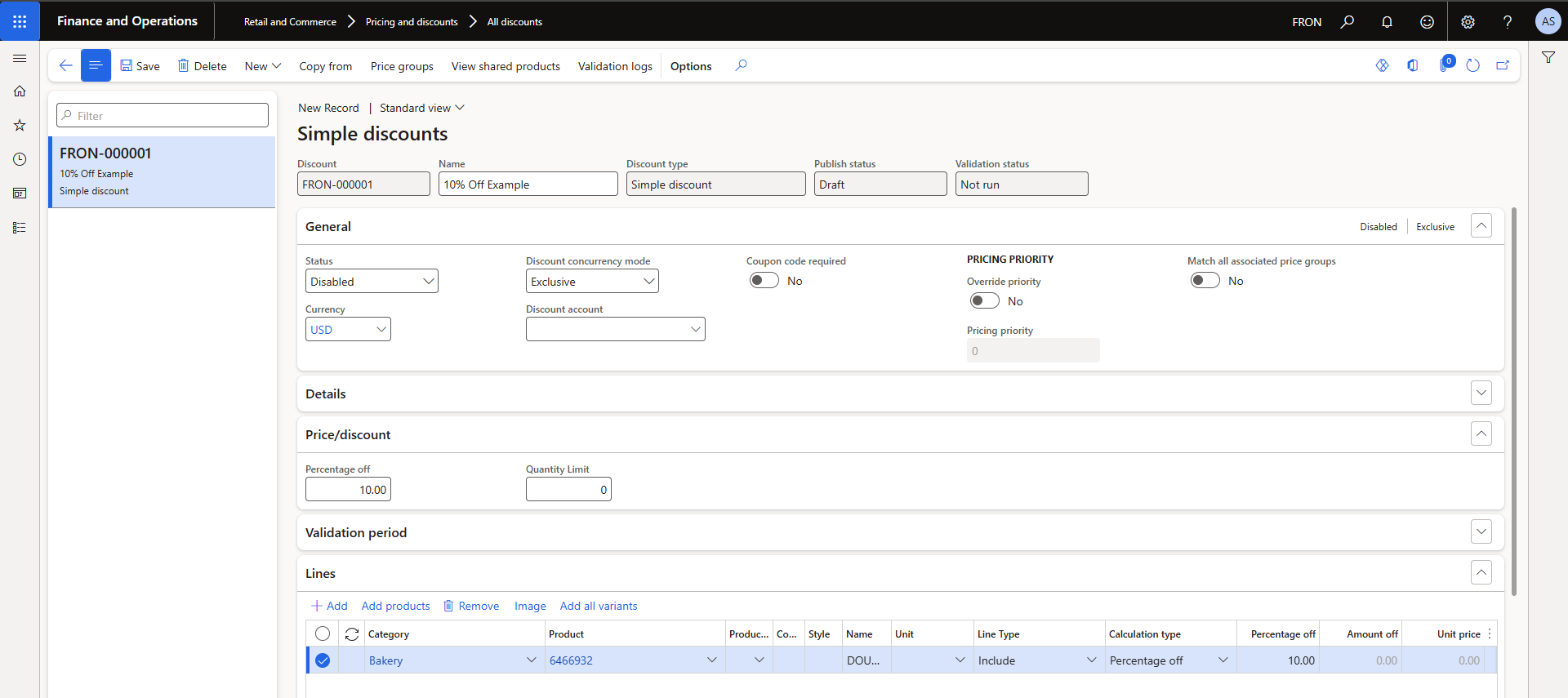

Simple discounts can also be $ off, as below.
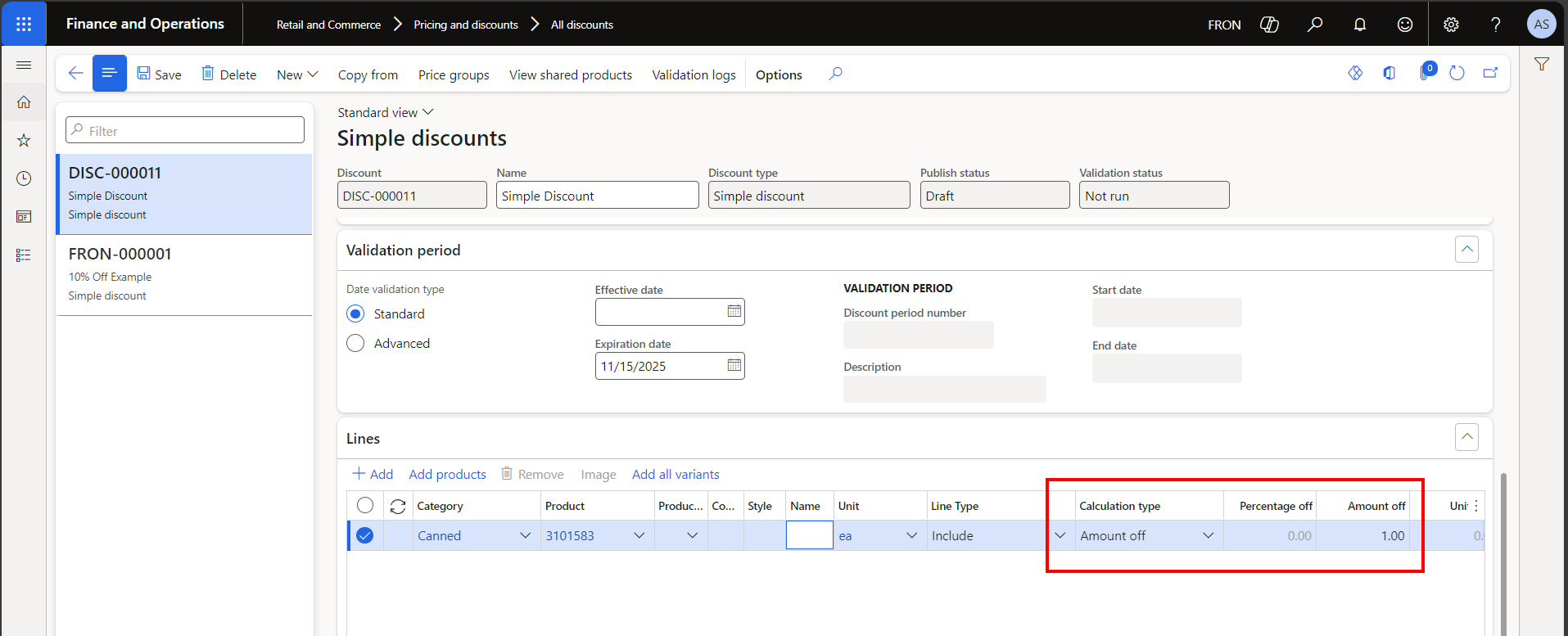

Selected fields:
- Discount concurrency mode – This determines which discounts compete on a transaction, and which discounts are compounded together. The three values for this option are Exclusive, Best price, and Compound.
- ‘Compound’ allows adding up with other sales and discounts.
- When the value is Compound, the discount can be compounded with any other discount that is also set to Compound. Therefore, two or more Compound discounts will all be applied to a transaction line.
- When the value is Exclusive or Best price, only one discount can be applied to a transaction line.
- The only difference between Exclusive and Best price is the order that the discounts are considered and applied in.
- Exclusive discounts are always evaluated and applied before Best price and Compound discounts, if all other settings are the same. Therefore, Exclusive and Best price discount never compete for the best price. Two or more Exclusive discounts will compete for the best price, as will two or more Best price discounts.
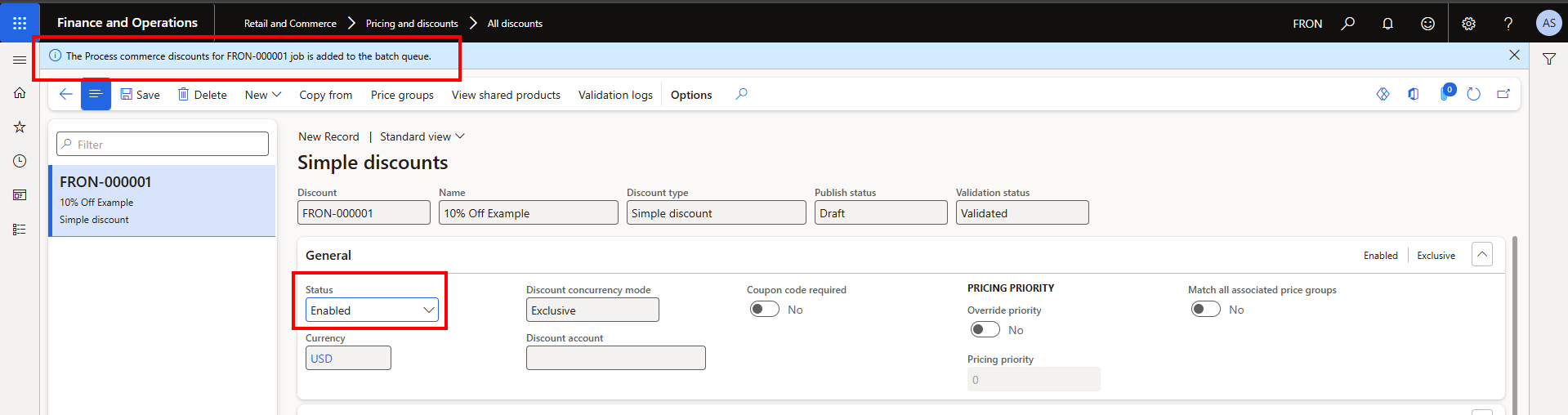
- Select Coupon code required, if applicable. When Coupon code required is set to Yes on a discount, the discount is applied to a transaction only if the coupon code or bar code is provided by MPOS.
- Enter the lines of the discount in the ‘Lines’ area.
- Use the ‘Price group’ button to set up what channels to apply the discount to.
- ‘Compound’ allows adding up with other sales and discounts.


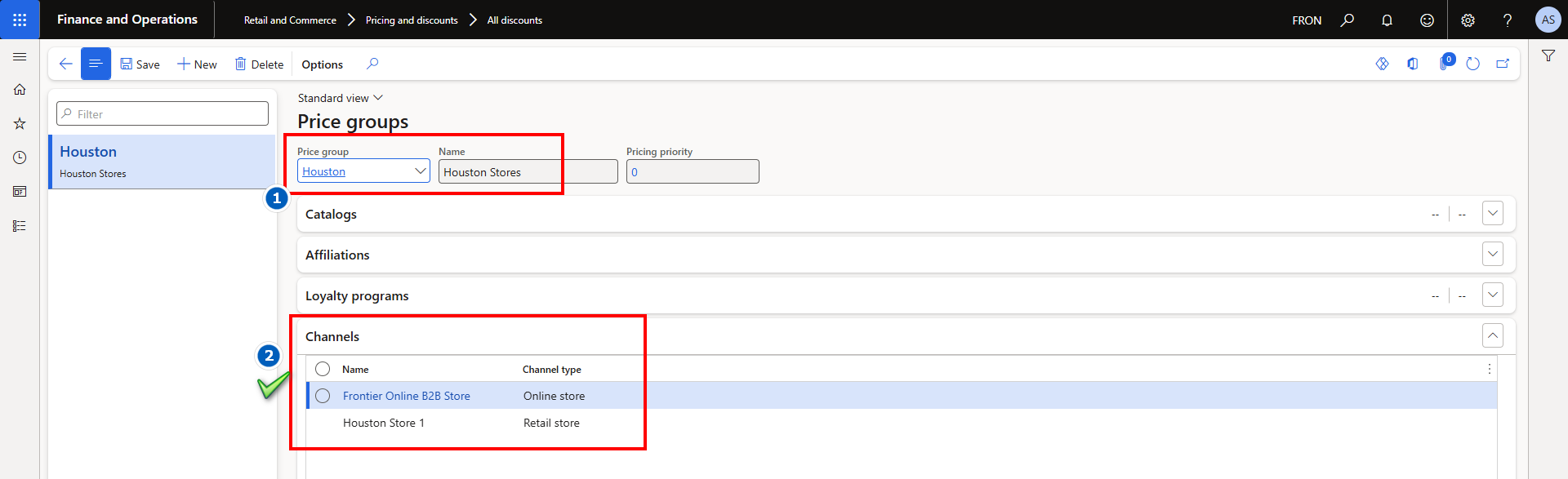

- Finally, enable the discount to apply the price to the stores. Just like trade agreements, the 1020 Prices and discounts distribution jobs needs to be run; this happens automatically when the discount is enabled.

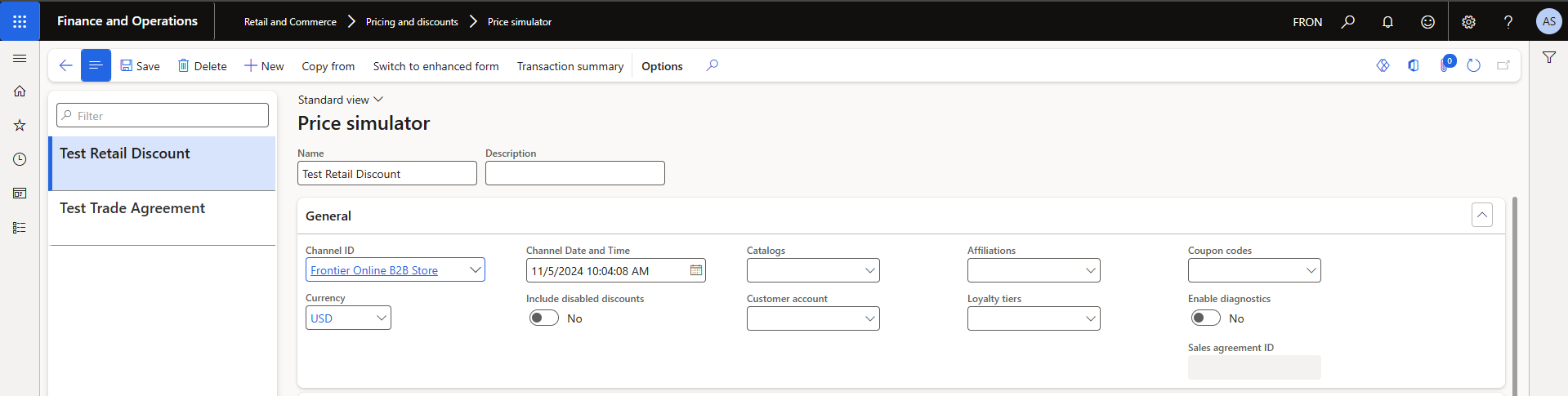
Just like trade agreements, retail discounts can be verified in the Price simulator form.

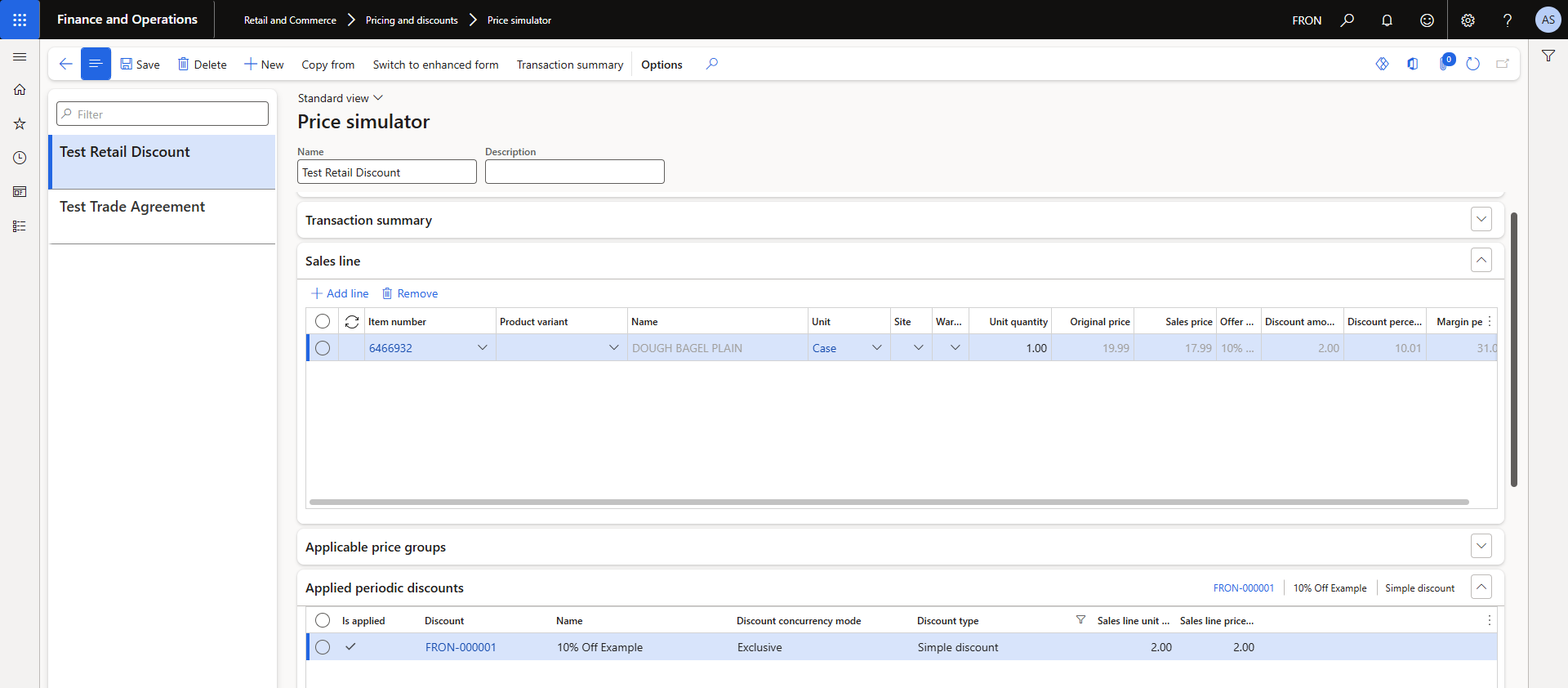

Mix and match discount example:
Mix and match has several variations below (from Microsoft’s documentation of the feature.
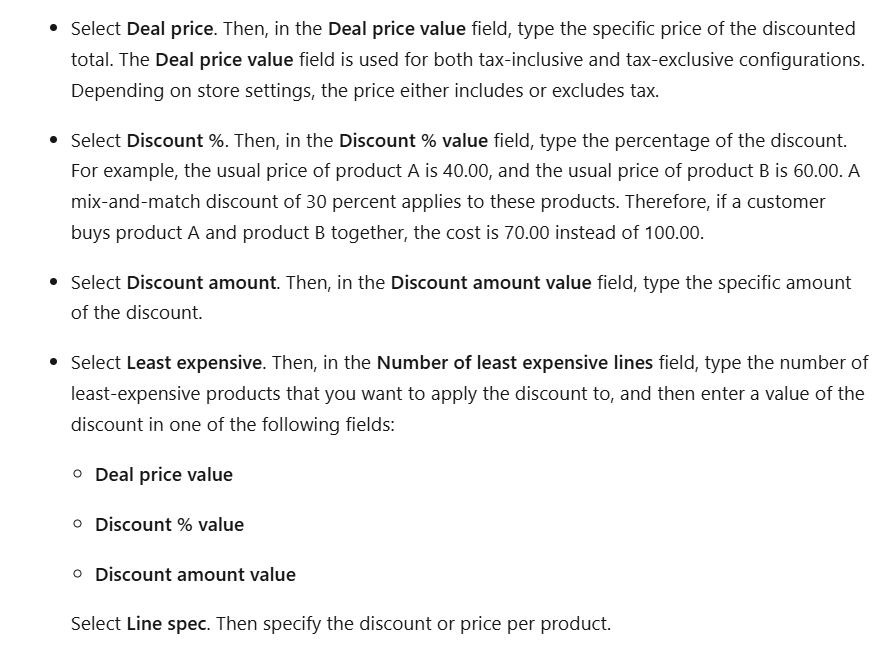

This discount is using 100% off (1) least expensive item.
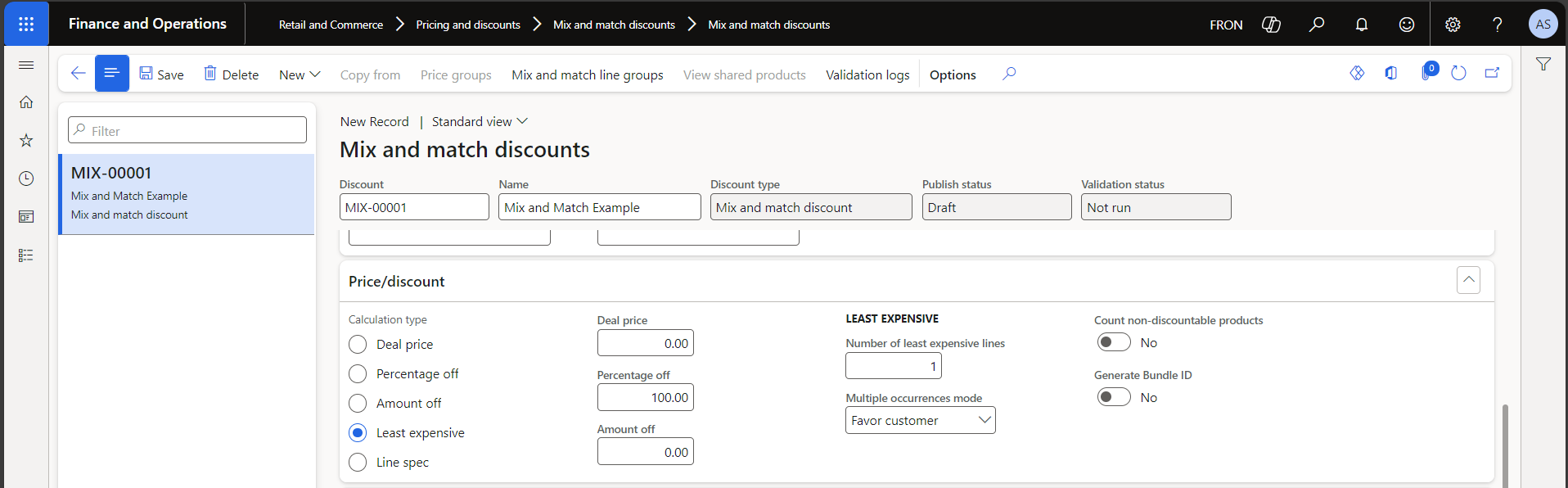

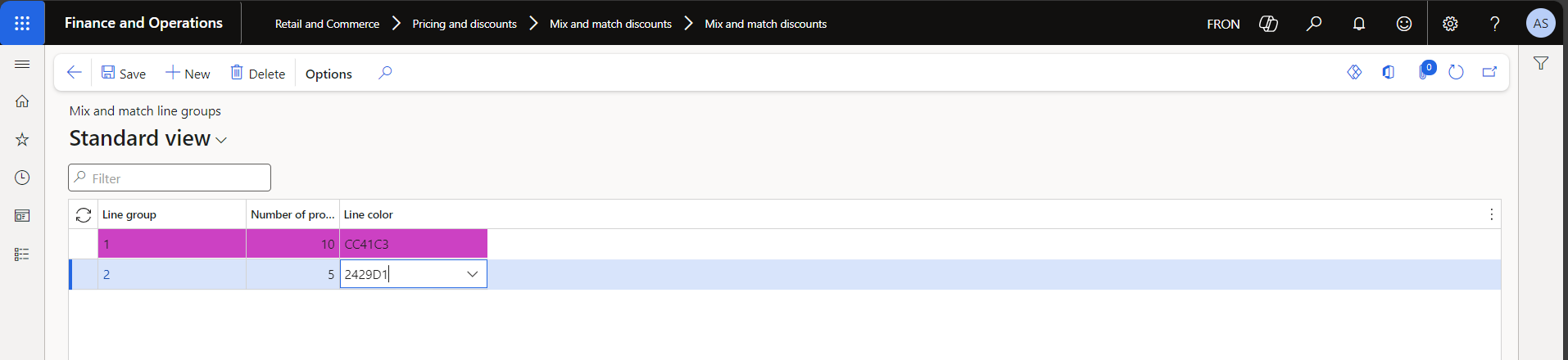
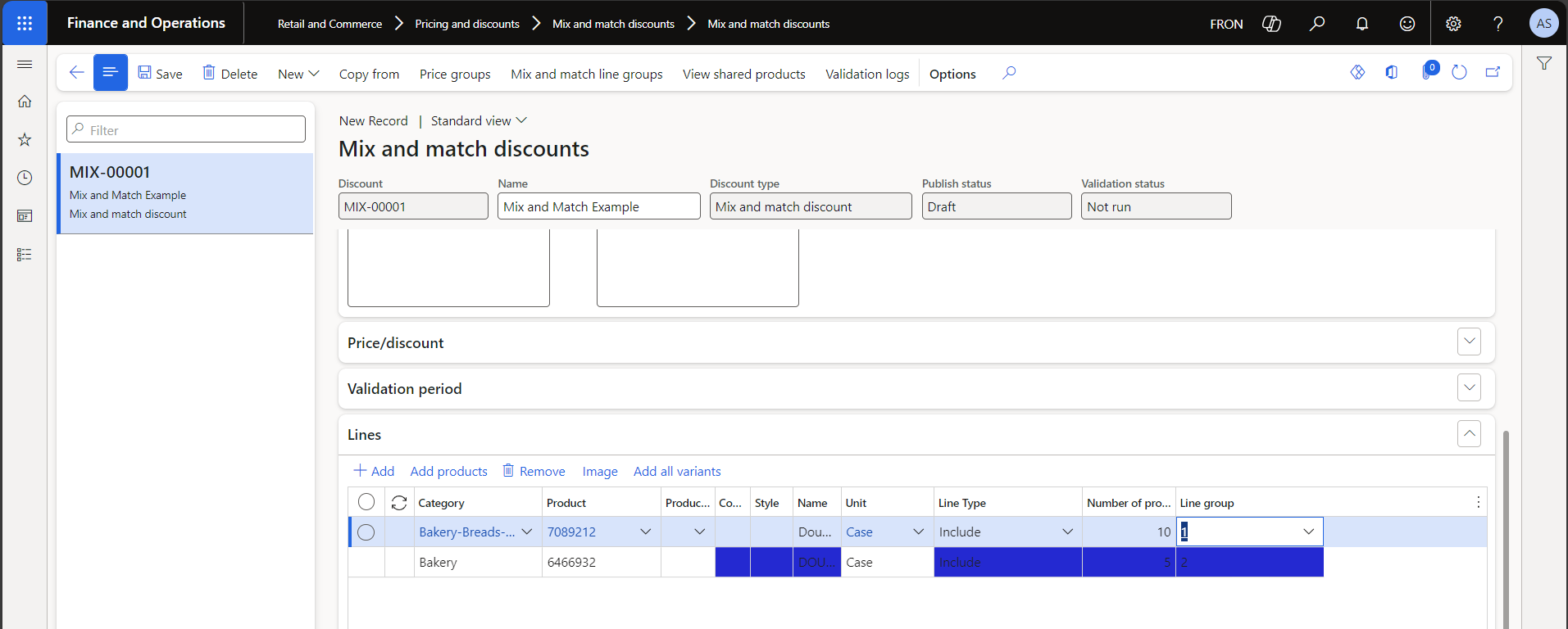
The ‘Mix and match line groups’ set what groups of items must be purchased. For this bread promotion, you must buy 10 of the yeast rolls and 5 of the bagel dough to get 1 bagel dough free.


Quantity discount example
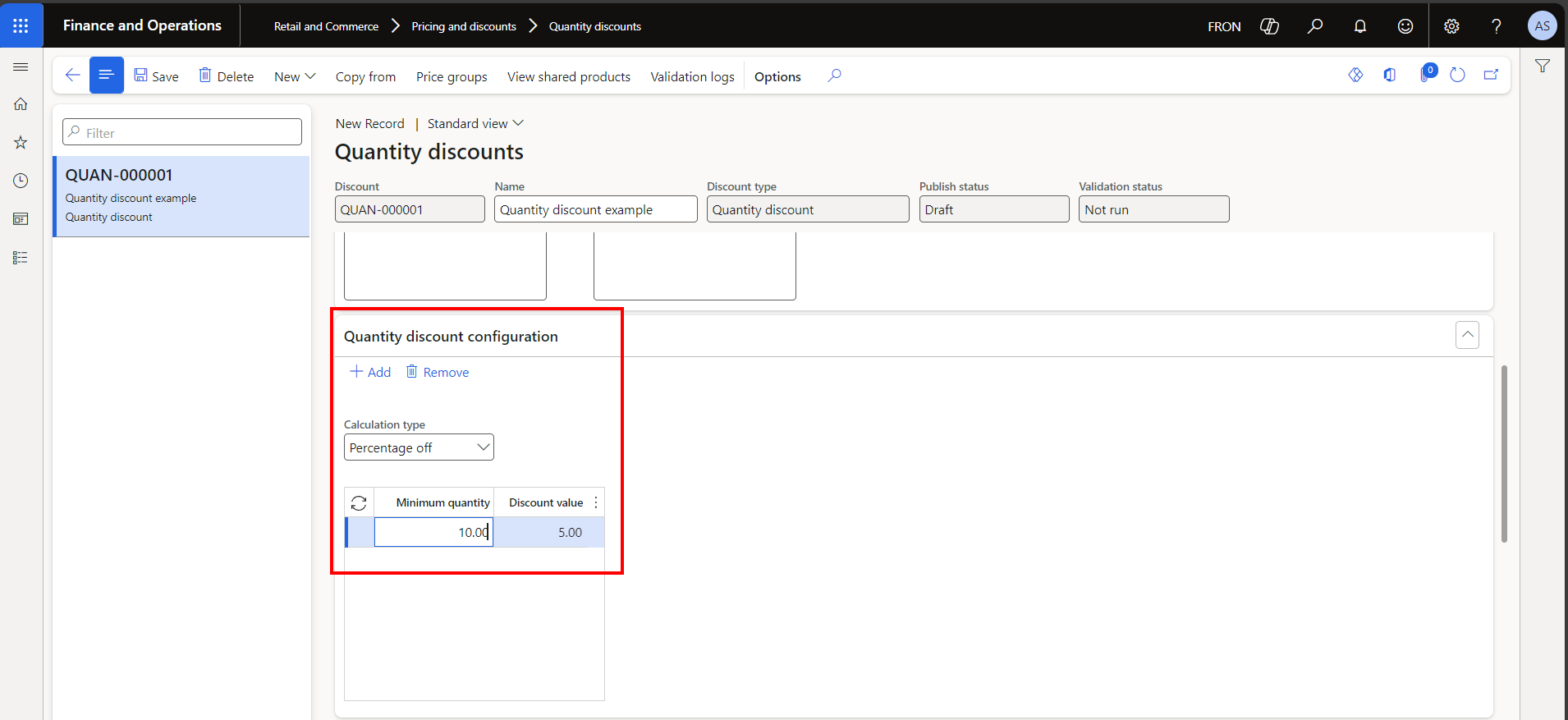

Mayonnaise product selected


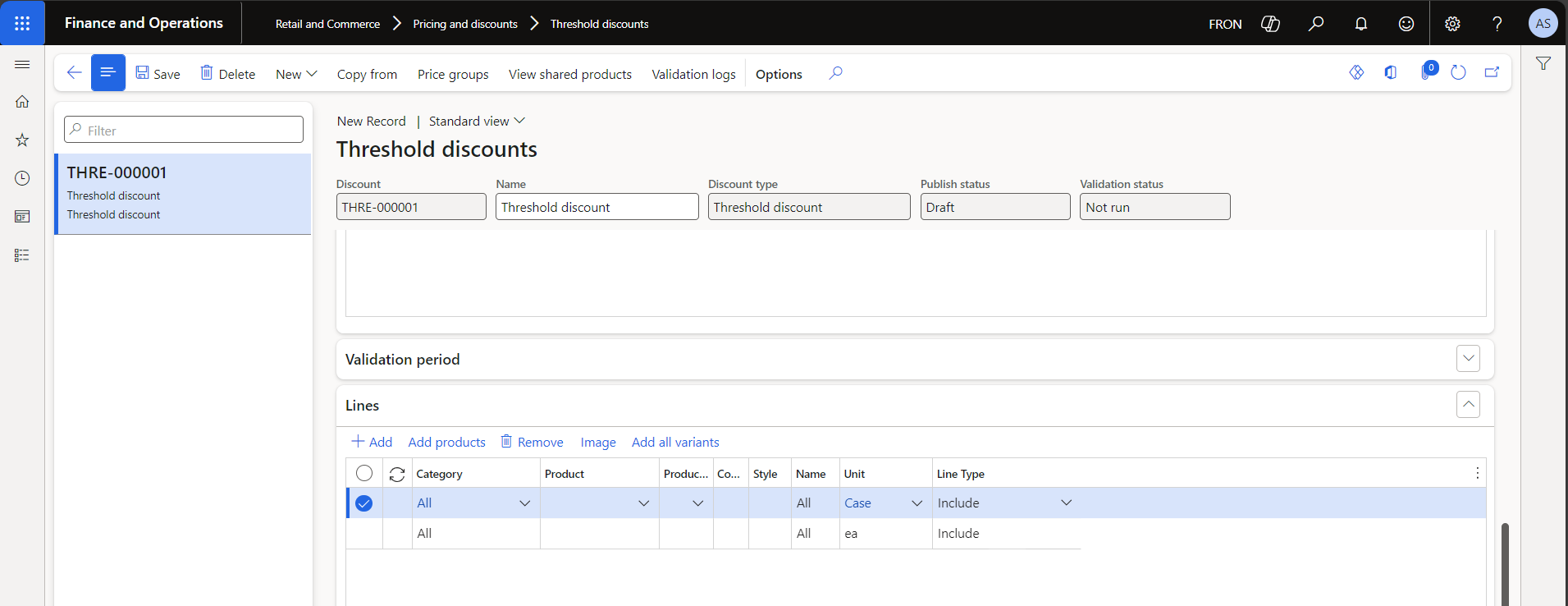
Threshold discount example: options are Amount off, Percentage off, or Line specific discount.


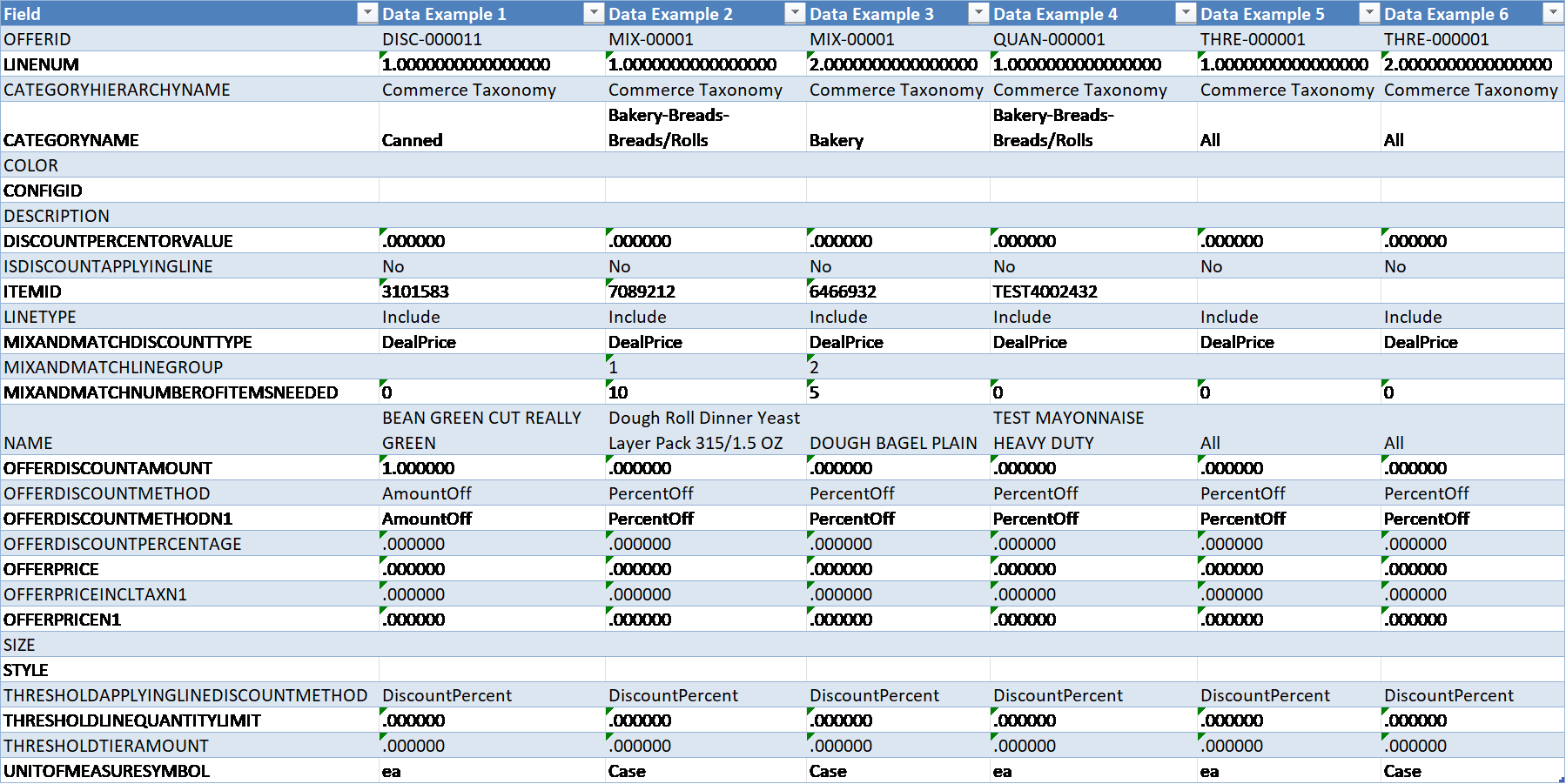
Uploading discounts. Discount lines can be uploaded after adding the promotion details (header fields) using this template (use sheet 1).
Sample data with the fields listed, for the above examples, is below.