
Purchase Return Order
1. Accounts payable 2.Common 3.Purchase orders 4.All purchase orders
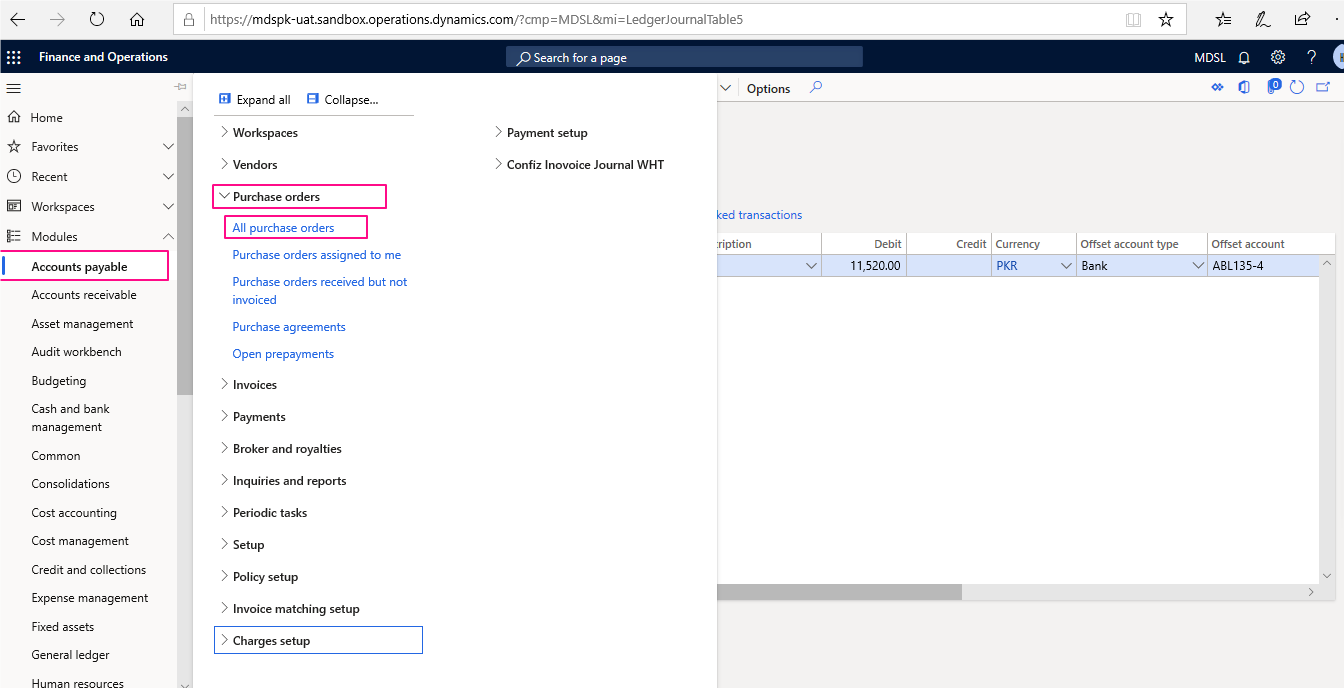

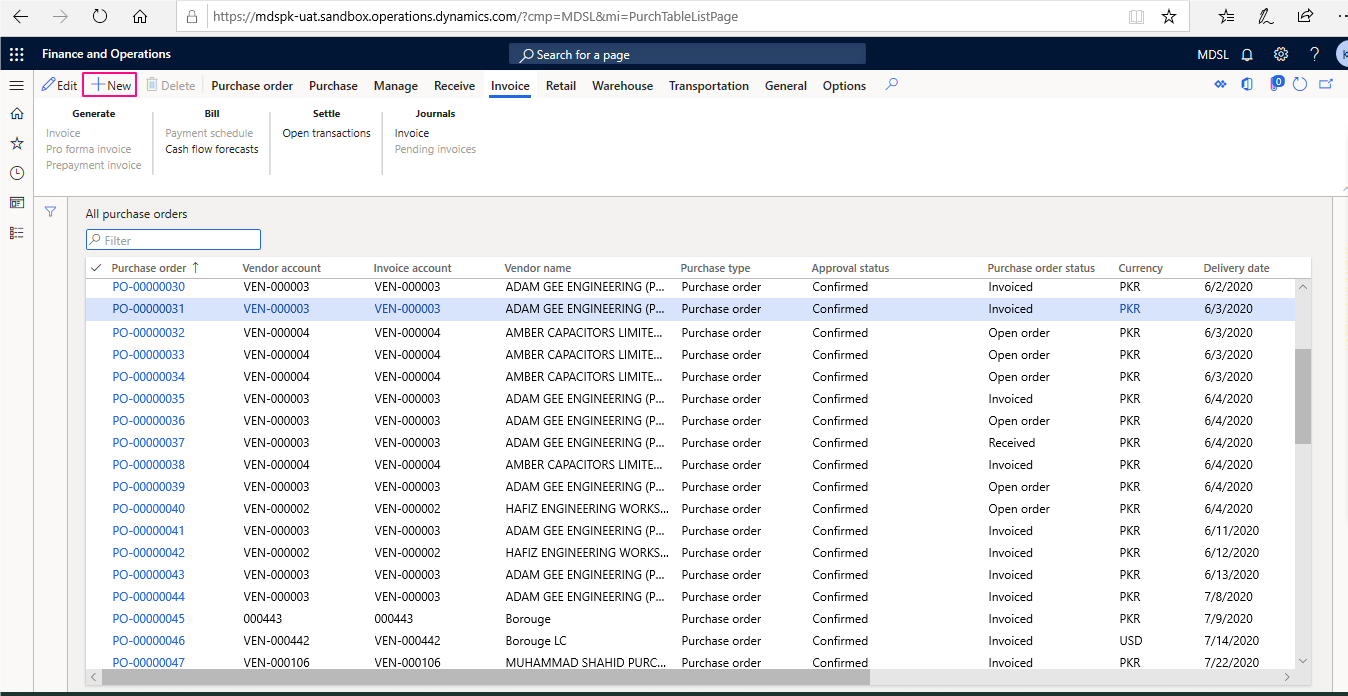
Open All Purchase Orders and create a new one

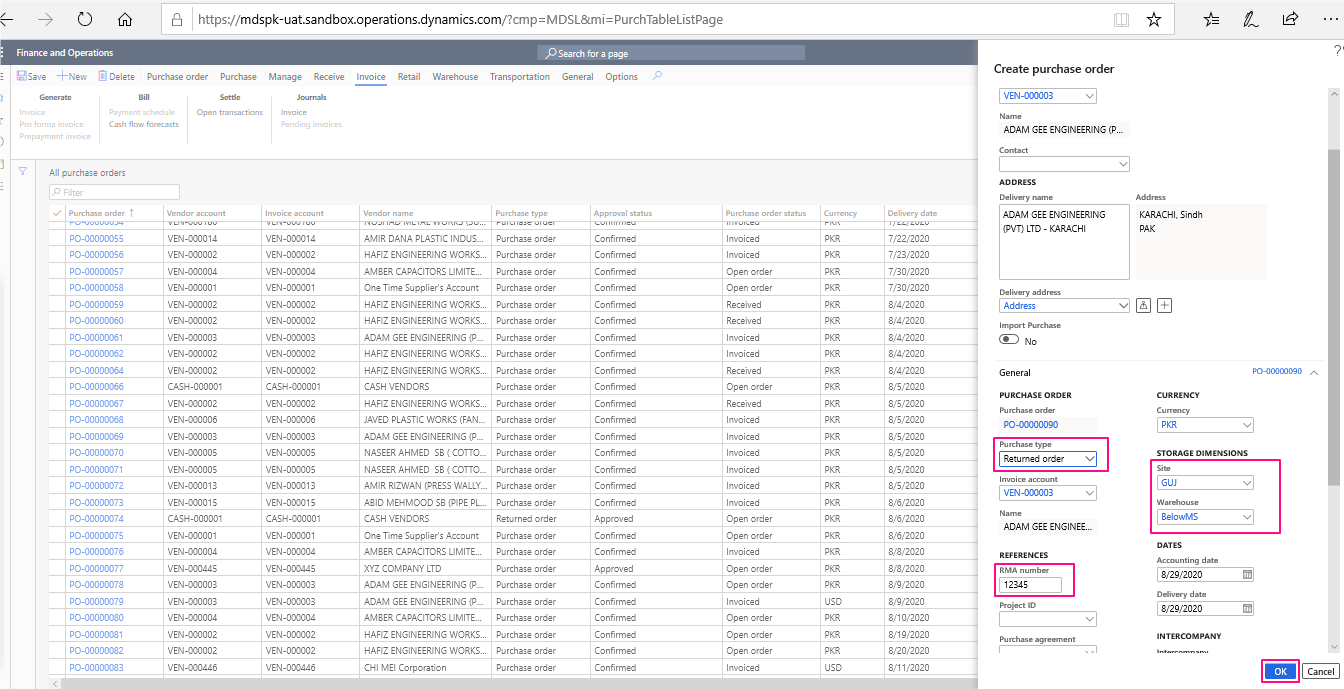
Create purchase Order window will be opened in the next screen. Select a Vendor Account from Vendor Account Drop Down Menu. Once a Vendor Account is selected, Vendor Name and Address Will Automatically be filled along with delivery address. Site and Warehouse needs to be selected. Select “Return Order” in Purchase Type. Click OK in bottom right corner to create the Return Order.

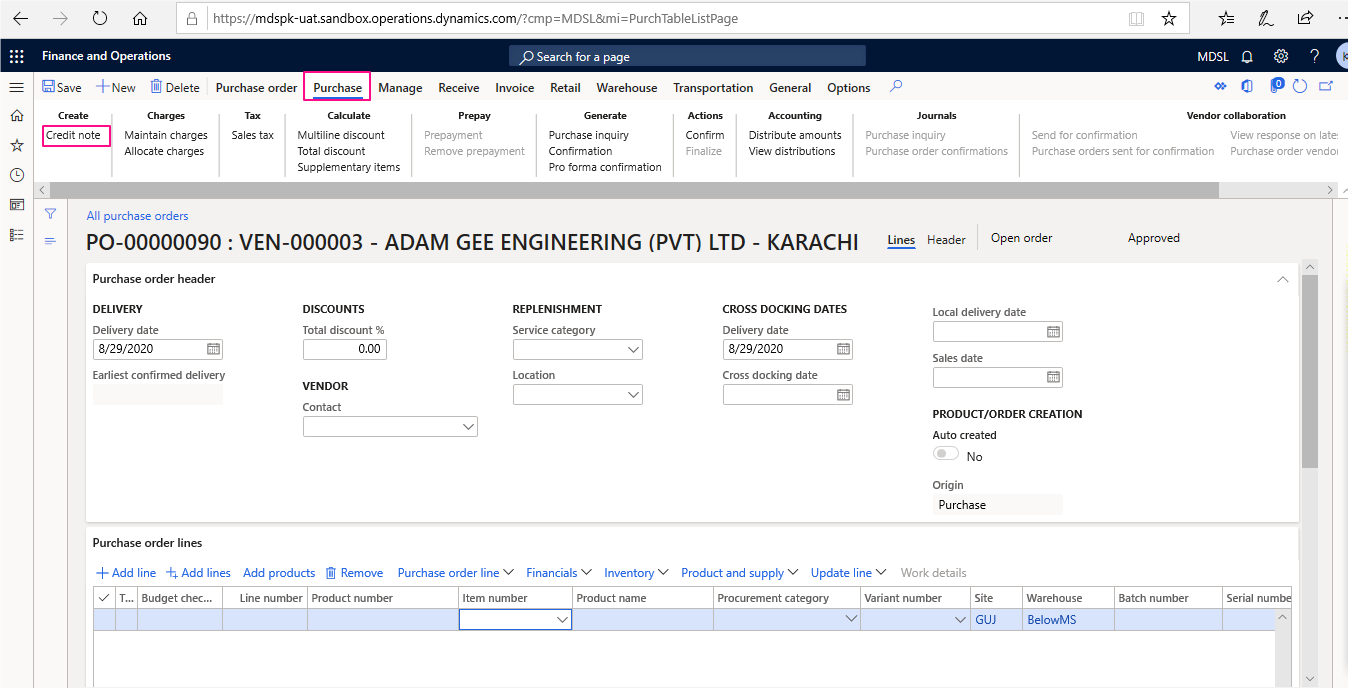
After entering all the details user will create credit note by going into purchase tabclick on credit note

After the credit note is opened user will select the transaction and click on OK in bottom right screen.
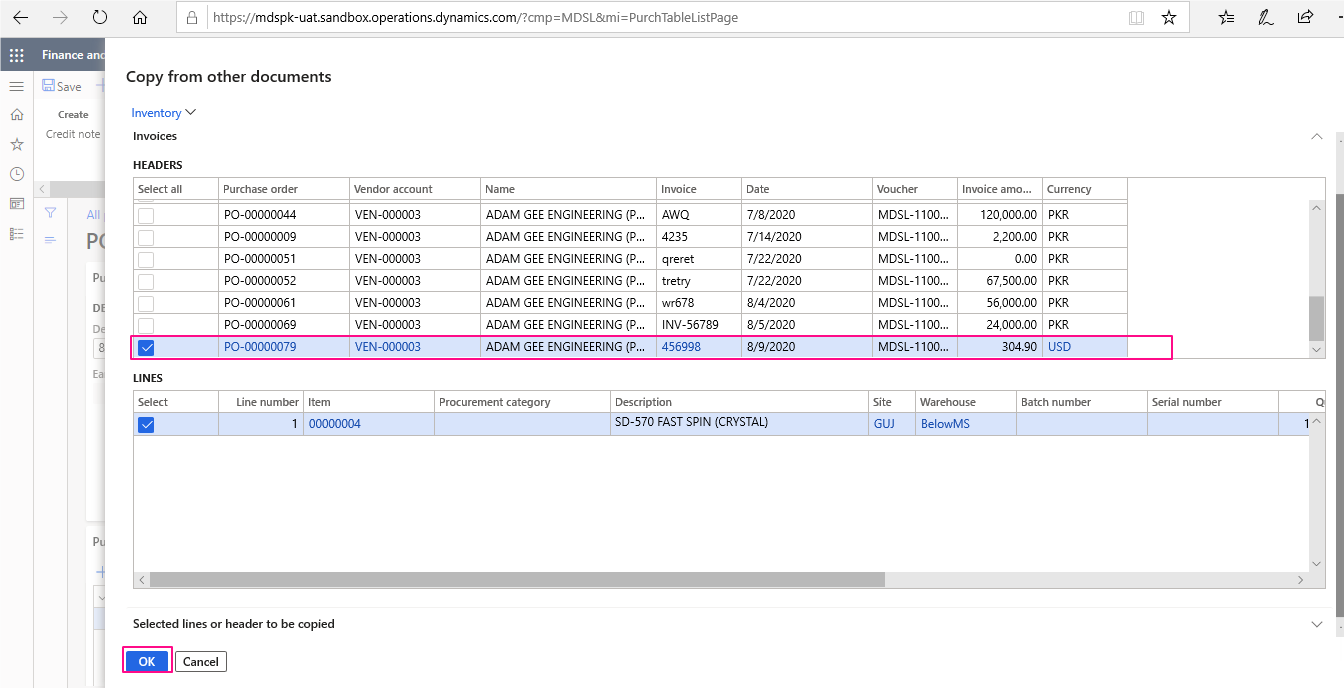
After clicking on OK user will see the below screen where return item will show in negative, user will confirm the return order and now same process will be repeated.
Press OK button after selection of purchase order and quantity.
Confirm the return order.
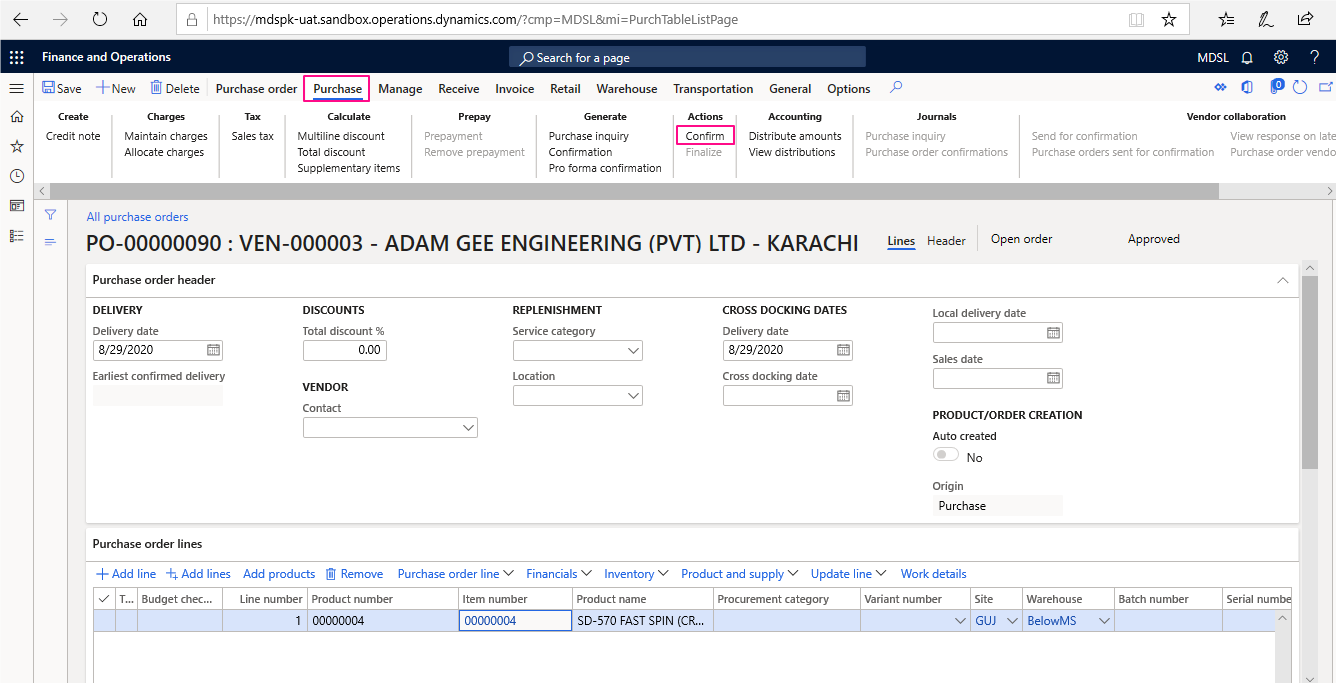

After creating Return Order, Confirm the return order same as done in Purchase Order. Then post Product Receipt and generate Invoice.