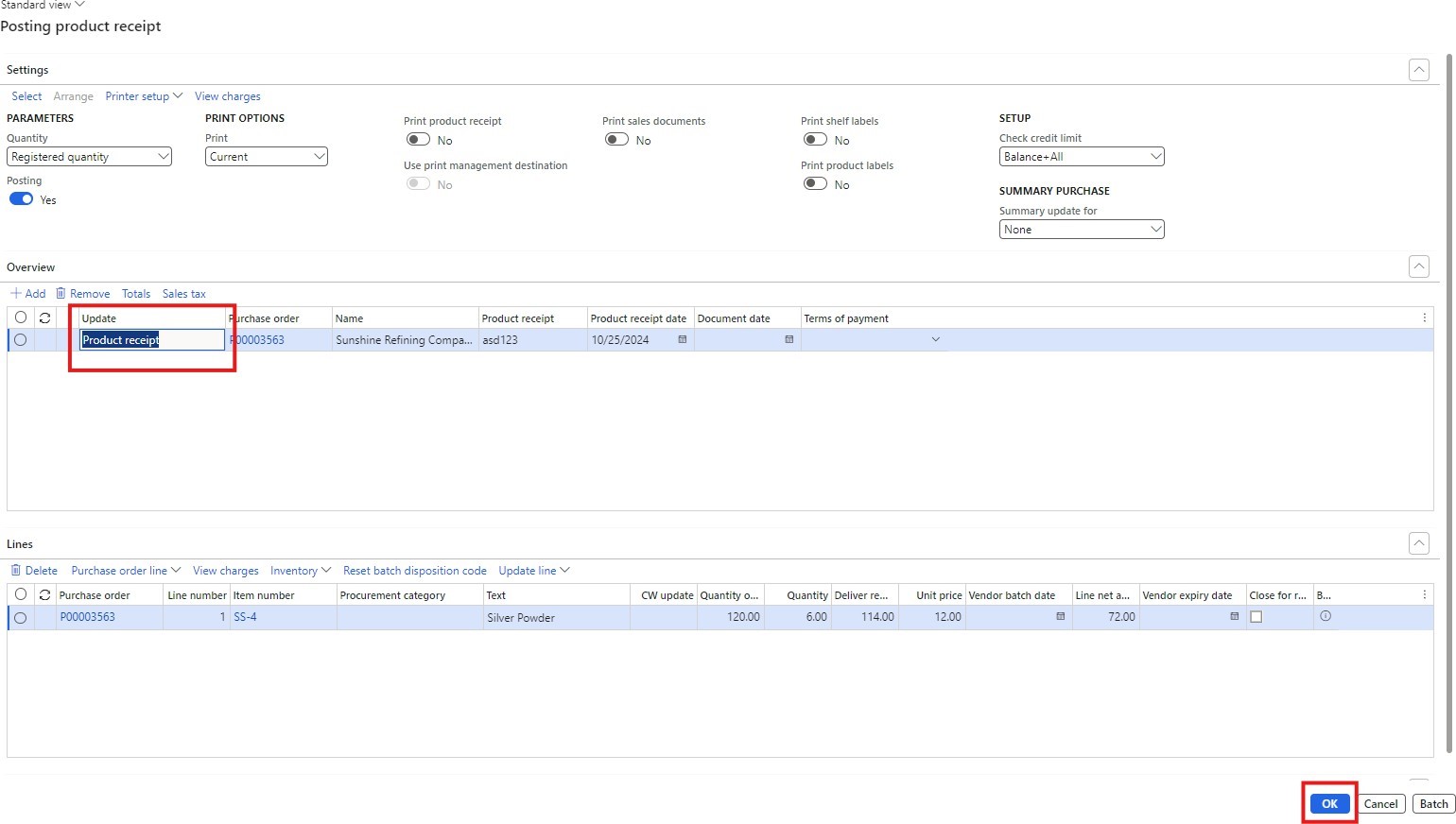
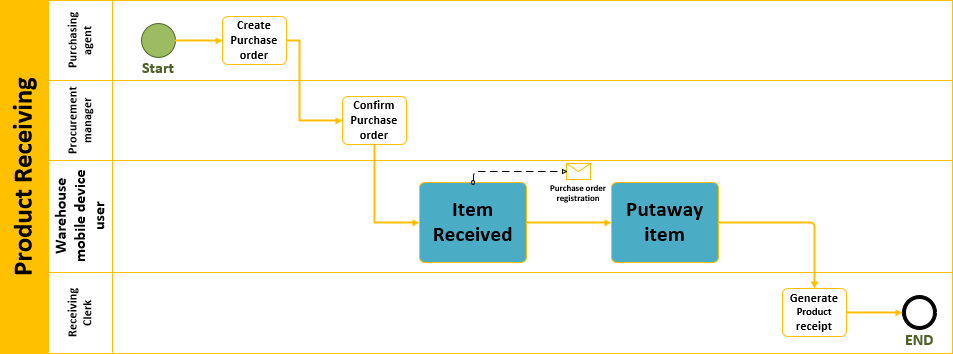
Process flow diagram:

Steps for Dynamics D365:
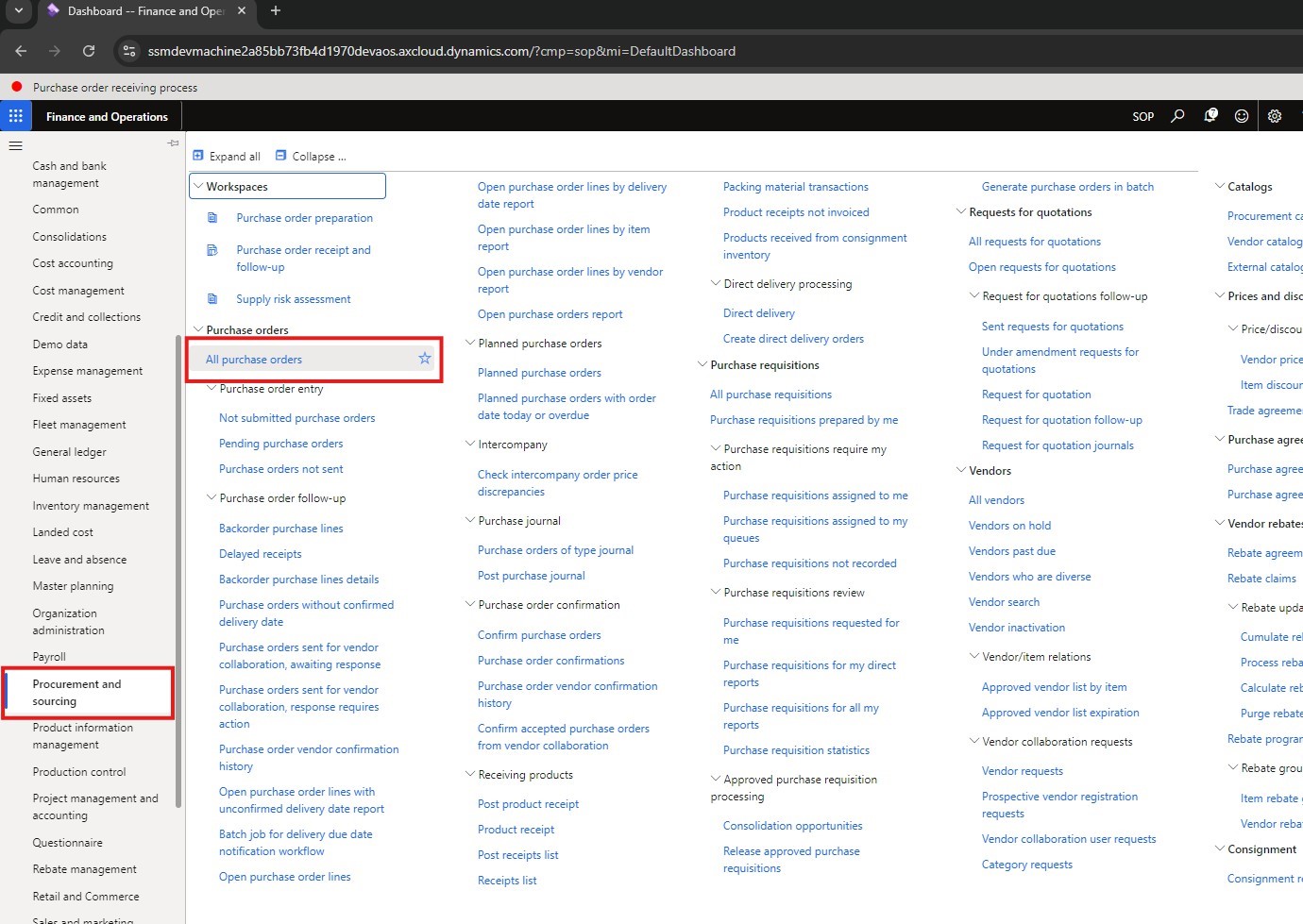
Step 1. Navigate to Procurement and Sourcing > Purchase orders > All purchase orders.

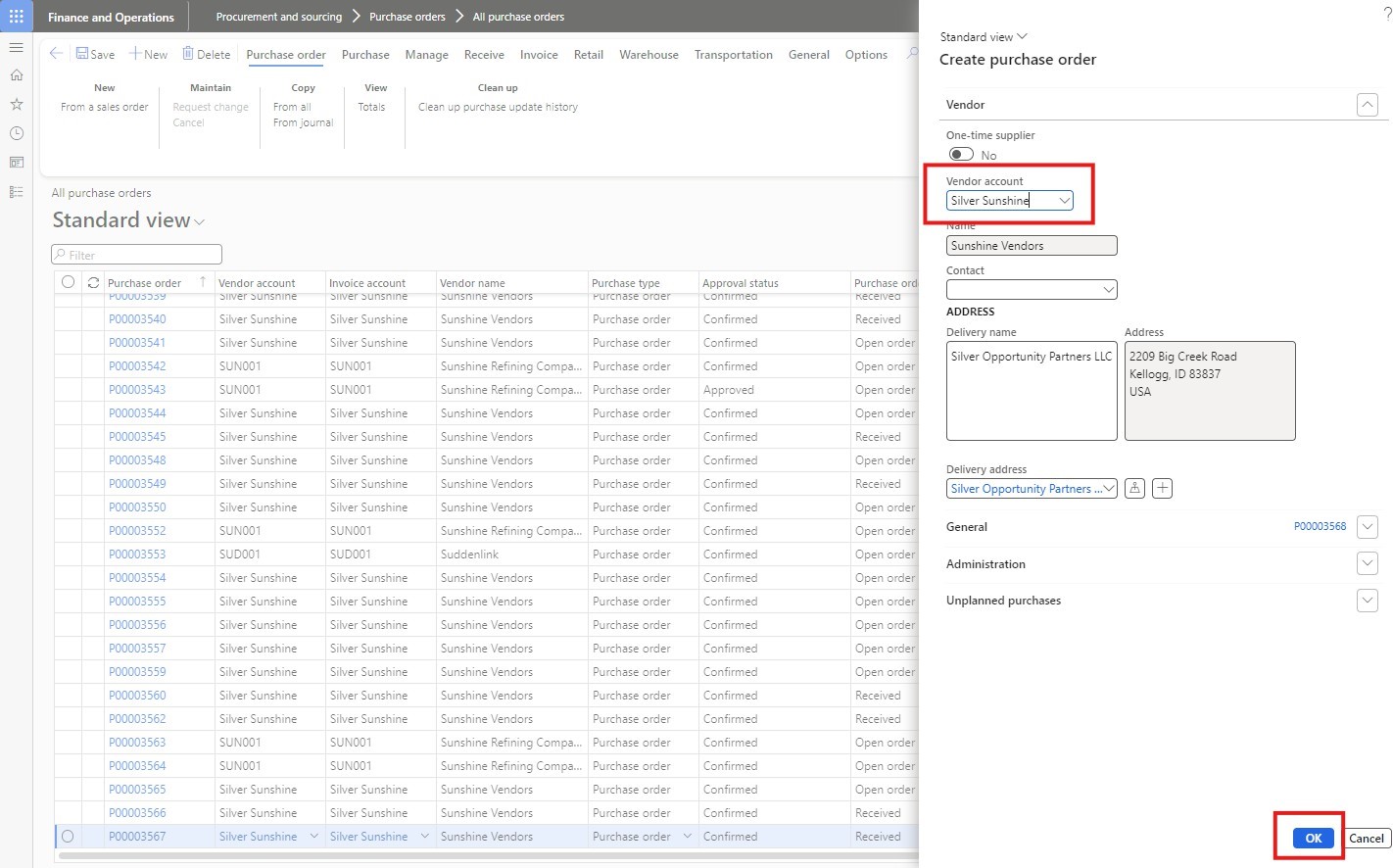
Step 2. On the action pane, Click “+New”.


Step 3. In the Vendor account field, select “Silver Sunshine” and click OK.

Step 4. On the Purchase order line, FasTab Click “Add line”. Fill in the fields.
- Item number field, select a “SS-4”.
- In the Quantity field type, “120”.
- Product name “Silver Powder”.
- Unit “Kg”.
- Unit price “120”
- Net amount “1440”
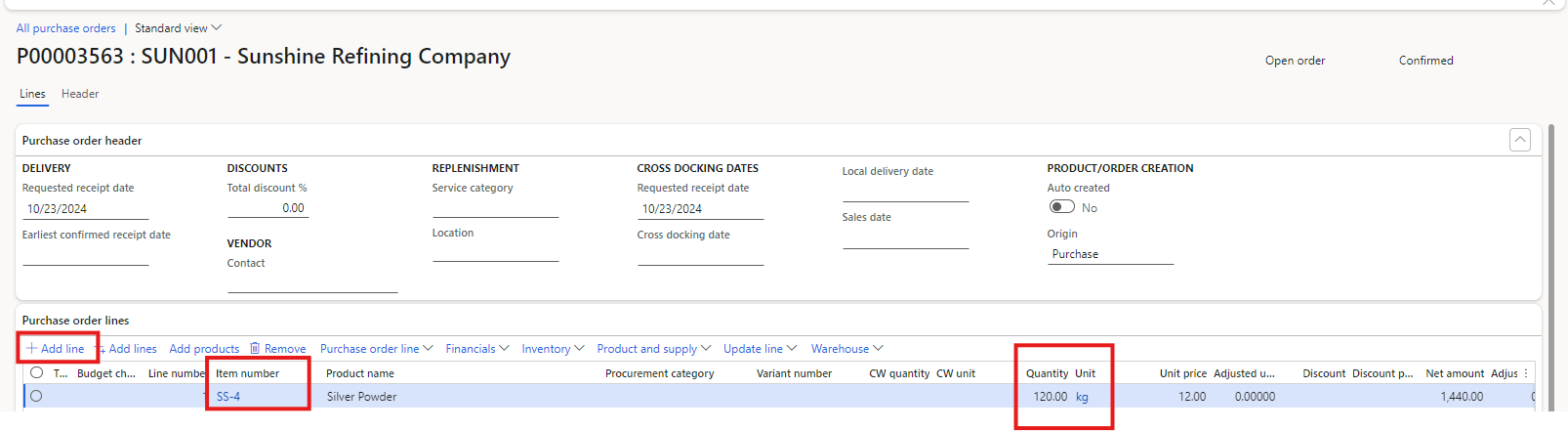

Step 5. On the Action Pane, click Purchase. Then Click Confirm


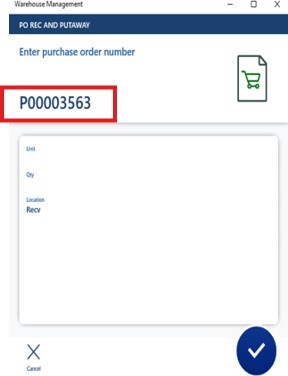
Step 6. Login to the Warehouse management mobile app using user ID “101” and password “1“. Open the “Inbound” menu. Scan the purchase order number “P00003563.” By using mobile app

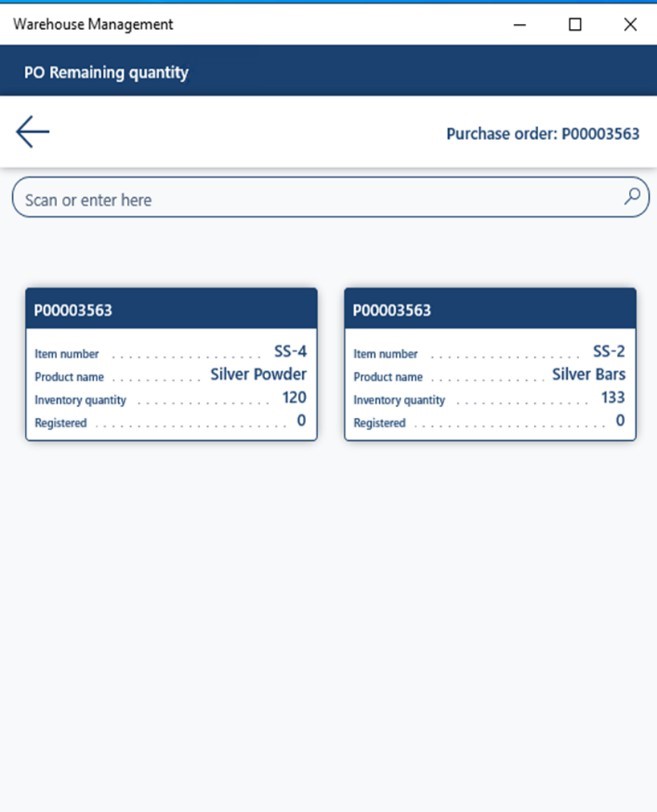
Step 7. Scan/Select the item ID “SS-4” and confirm it.
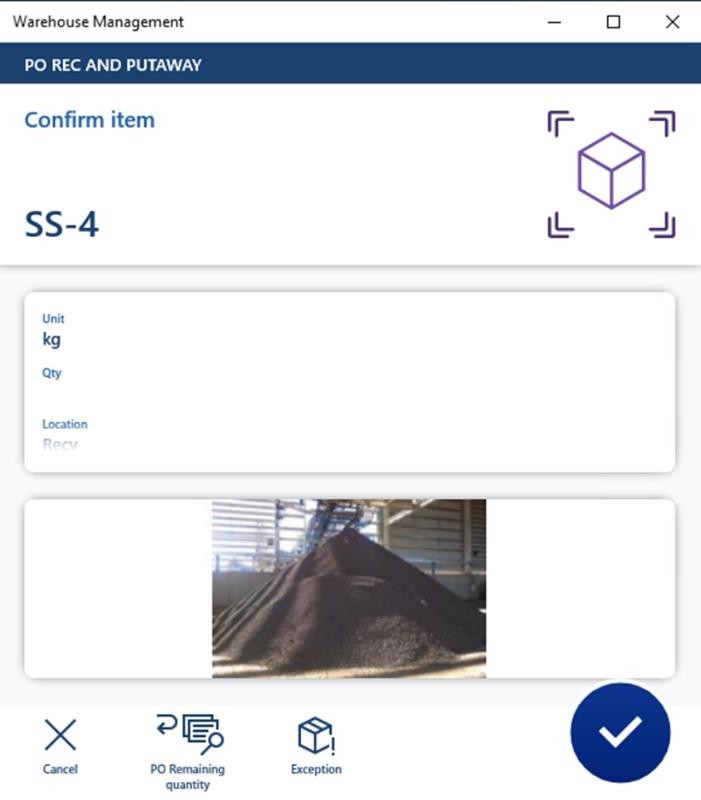


Step 8. Enter the quantity received confirm the putaway action and click enter.
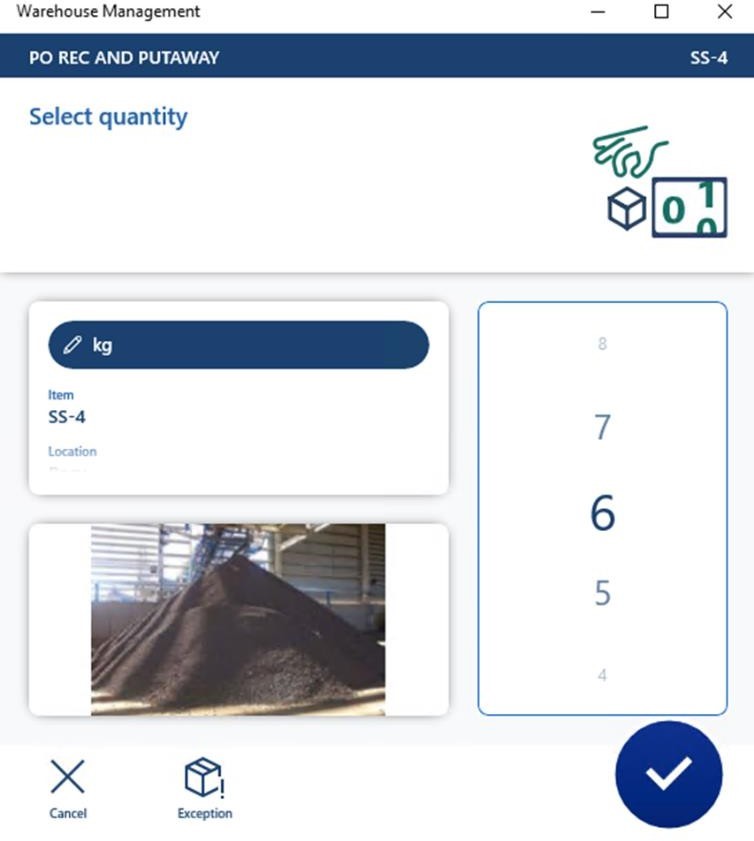
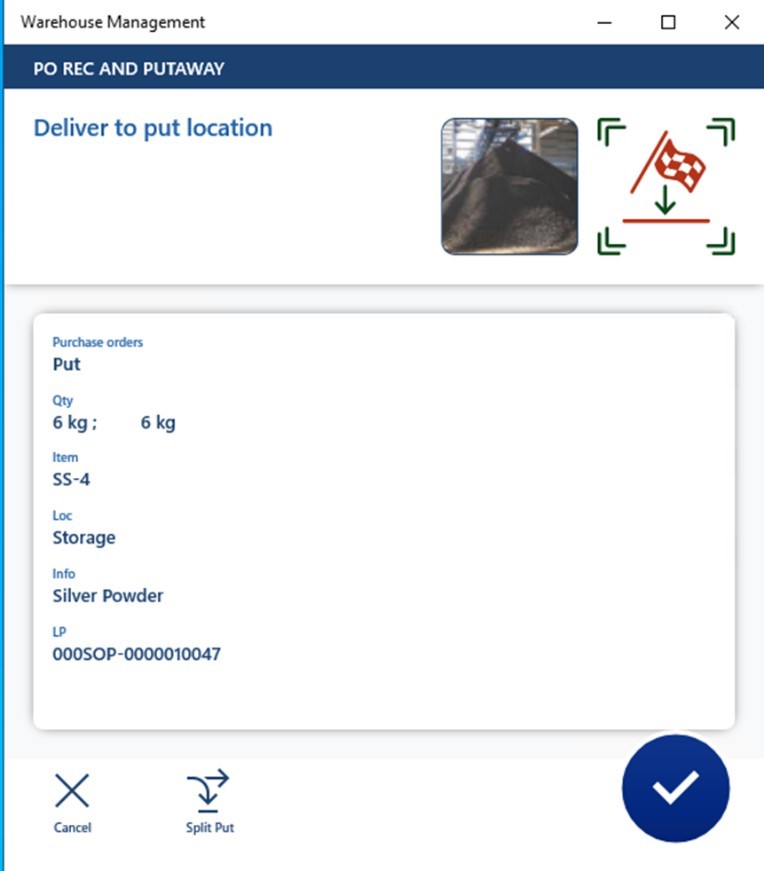


Step 9. Open D365 On the Action Pane, click Receive. Click Product Receipt