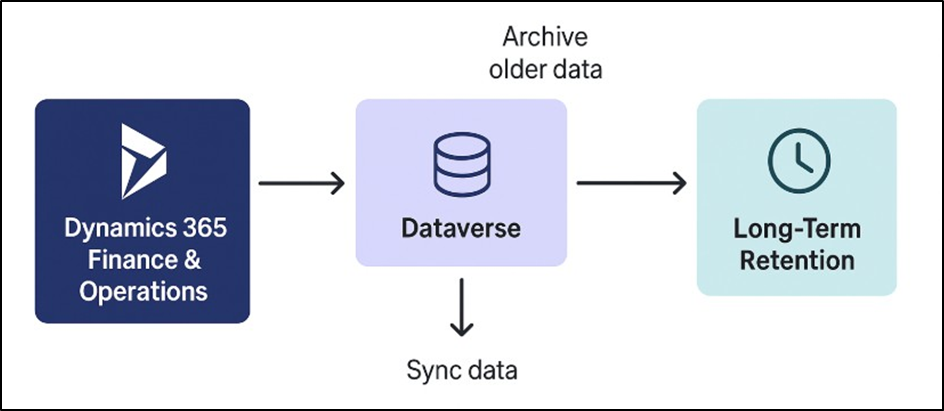
Archiving with Dataverse’s long-term retention helps save space mainly by moving older, less frequently used data out of your primary Dataverse tables into a lower-cost storage tier, while keeping it retrievable if needed.
Note: Archival is also possible if field customizations have been done on these tables where archival has to be performed.

Prerequisites:
- Ensure that your sandbox instance is on the latest version of Dynamics 365 Finance and operations apps version 10.0.39 or later. Be sure to apply the latest quality updates for the version.
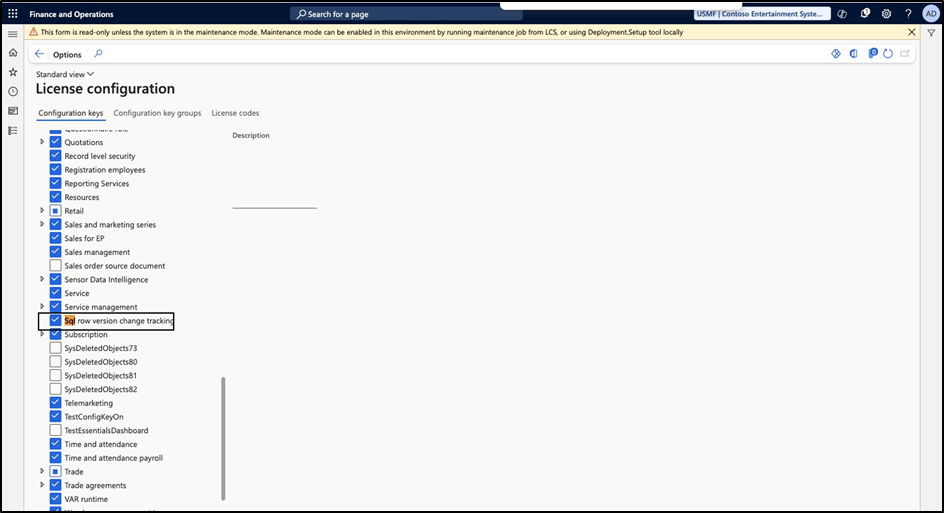
SQL version row tracking must be enabled. Navigate to System AdministrationàSetupàLicense Configuration and check the same

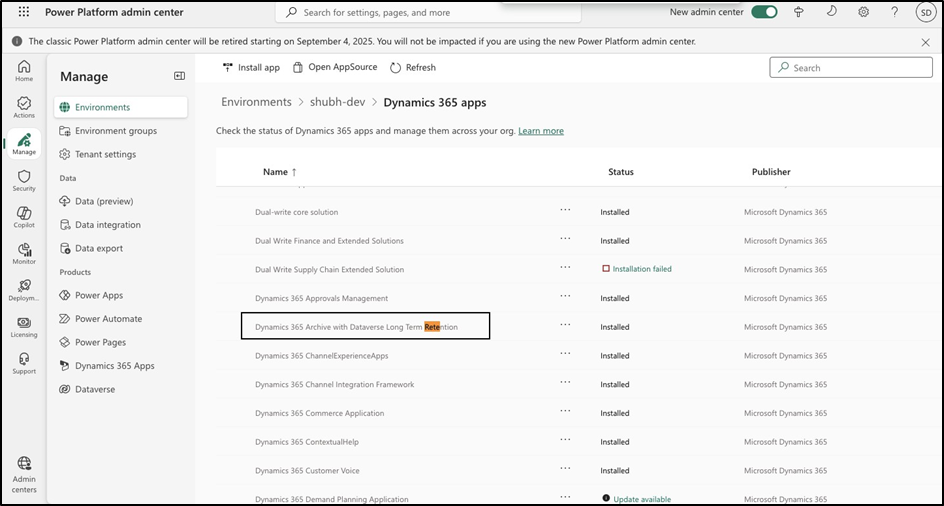
- In Power Platform Admin center, the Dynamics 365 with Dataverse Long term retention Application must be available in the Also, the environment must be a managed environment.

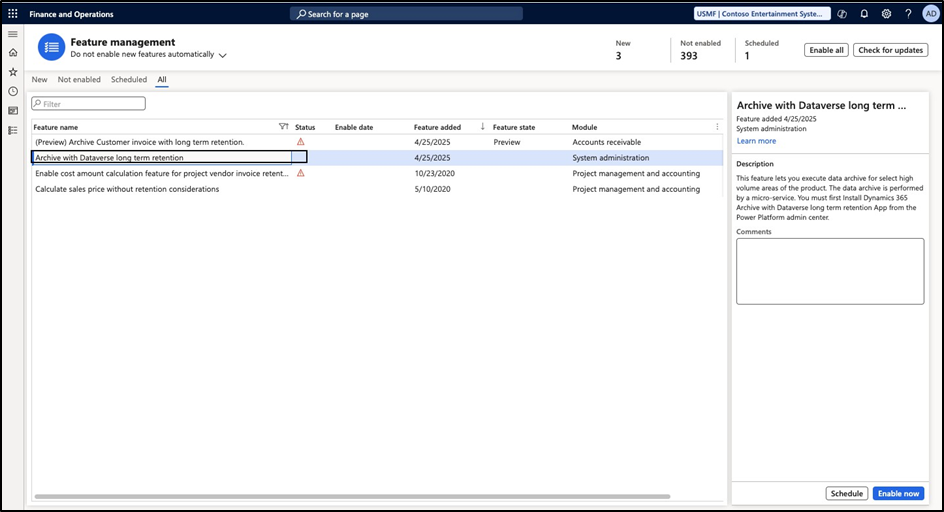
- In the FNO application, navigate to feature management and enable the feature, Archive with Dataverse long term retention.

Roles:
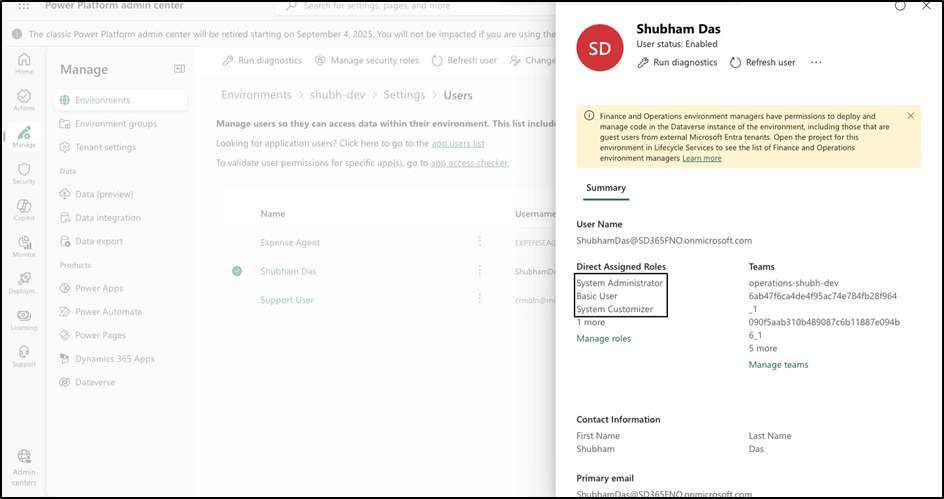
In Power Platform Admin center, the archiving user must have the below roles:
- System Customizer
- System Administrator

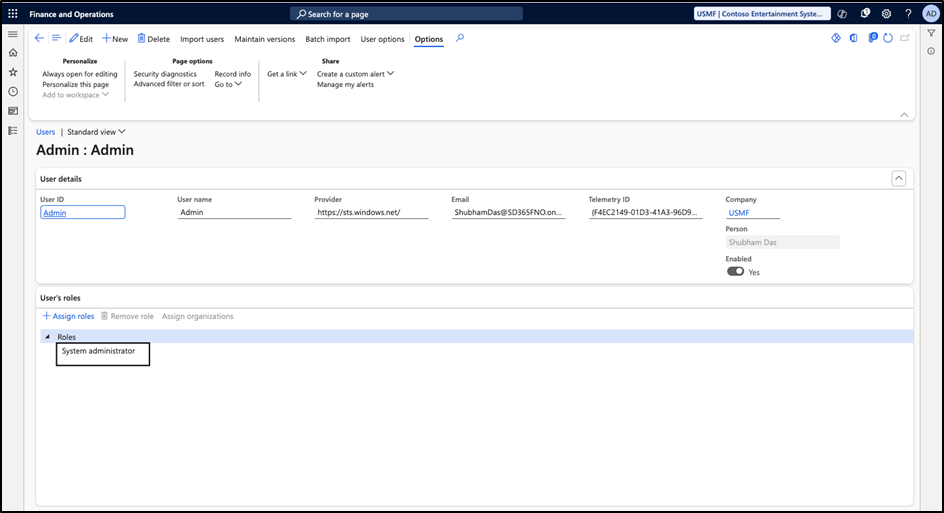
In D365 F&O application, the below roles must be assigned:
- System Administrator
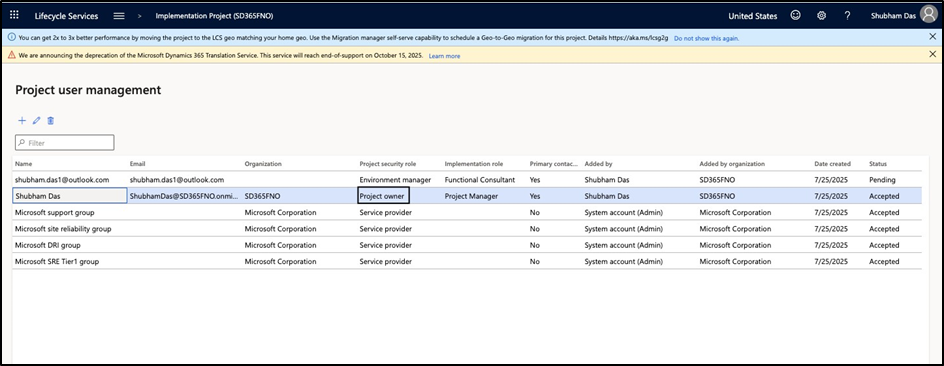
In LCS the below roles must be assigned:
- Project Owner
Or Environment Manager

Logic for archival
To simplify our understanding in layman terms, there are 2 types of tables in D365 FNO as mentioned below:-
- Active table: Which stores the live transactional data
- History table: Which stores the non-active transactional data also referred as historical data which is used for audit and compliance process generally
When archival of data takes place, system will copy all the active data from D365FNO tables to the Dataverse(where the virtual entities have one to one relationship with Data Entities in FNO).
Also, the snapshot of the same data will be kept in history tables for ready referencing in D365 FNO. Please note that at the system level, these records will be marked first and then moved from the Active tables to the Dataverse and the history tables once the archive services(or the batch job as shown later) is triggered by the user.
Note: The reporting is not impacted due to this movement as reporting can still be done from the history tables and the Dataverse.
Reversal of Data Archival is also possible. In this case, the data will be copied from the Dataverse back to the Active table and this dataset will no longer be a part of history table
Steps:
- Jobs triggered
- Initial sync of tables which will be archived
- Reconciliation of Data
- Data movement to history table begins
- Data moves from Staging to History tables
- Archival of all tables completed
- Job finished
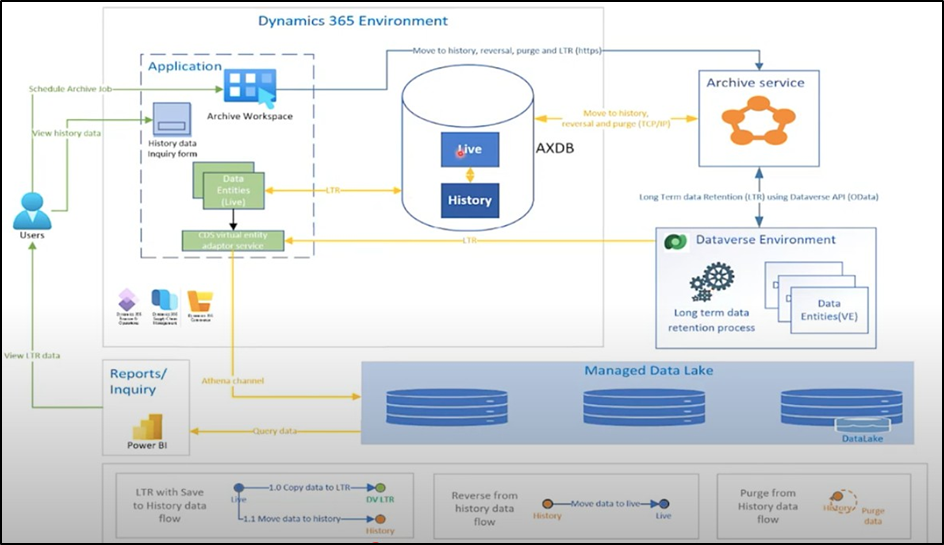

If we are only moving the data, then how are we reducing space?
The answer is simple. When this data movement happens from the Active table to the history table the indexing on this data is removed. As a result the storage reduces by about 70%. Talking in numbers, let us assume that our Active data contributes only 20GB to the total data 100GB. If we do a Data Archival with long term retention, then the 20 GB data will remain as-is. The space reduction will happen on the 80GB data which will sync with the Dataverse environment and will be available in the Managed Data Lake.
Also, the history table will only take up 24 GB of space as opposed to 80 GB which it was taking earlier(assuming 70% space freed due to removal of index)
Why do we need indexing then?
Indexing helps in improving the performance and faster retrieval of data. Since the historical data need not be queried very frequently or at all, it is best to save space by removing the index on such data set and moving it to a separate history table with read- only access.
New feature in 10.45
Purge from history archive
Since the data we are storing in the history table may not be required at all, we can enable the feature Purge from history archive, which will cleanup such history tables and further free up the space. In the above example, the entire 80 GB space will get freed if we enable the Purge from history archive. The purge process removes data only from the operational history tables in Dynamics 365. The archived data in Dataverse long-term retention remains unaffected and securely accessible. Users can still retrieve archived records that are stored in Dataverse for compliance and reporting purposes.
Extra Advantages in the F&O context
- Performance boost in Dataverse → queries, Power BI reports, and Power Automate triggers run faster on smaller Database performance improves — fewer rows to scan in queries.
- Compliance-ready → archived data still available for audits without bloating production No permanent loss — you can restore archived data if needed.
- Predictable growth control → automated retention policies prevent storage overage fees and automated archival rules keep your environment from ballooning in size
On which tables/forms can be run the Data Archival with long term retention?
- General Ledger
- Inventory Journal
- Inventory transaction
- Sales Orders(which are invoiced)
- Tax Transaction
In order to perform the archival on these, there are certain prerequisites that must be met before we perform the archival.
General Ledger:- Prerequisites:
- Sequence has to be followed. The archival needs to run from the very first year which holds the transaction. Let’s say if we have data in USMF starting 2015, the archival for 2016 cannot be done until we have performed the archival for Moreover, the archival job needs to run individually for all companies
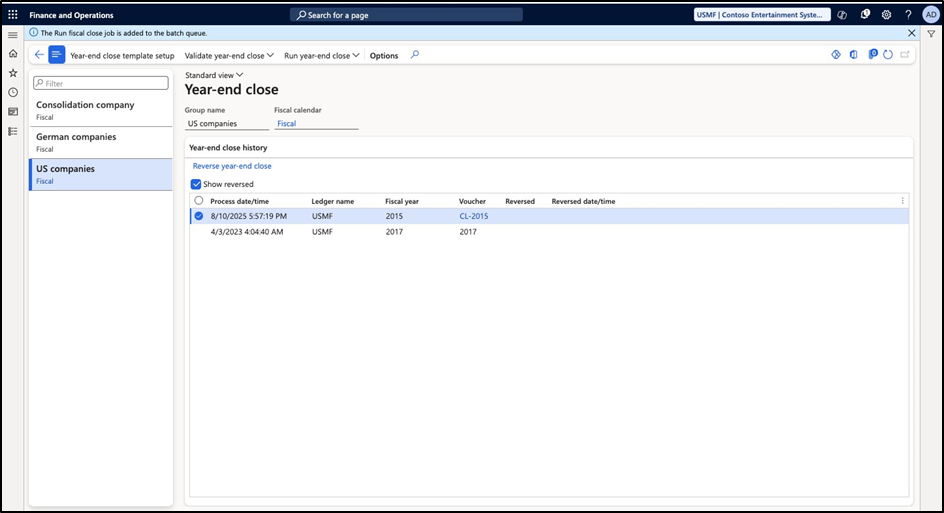
- The year end close must have run for that fiscal year to archive the data
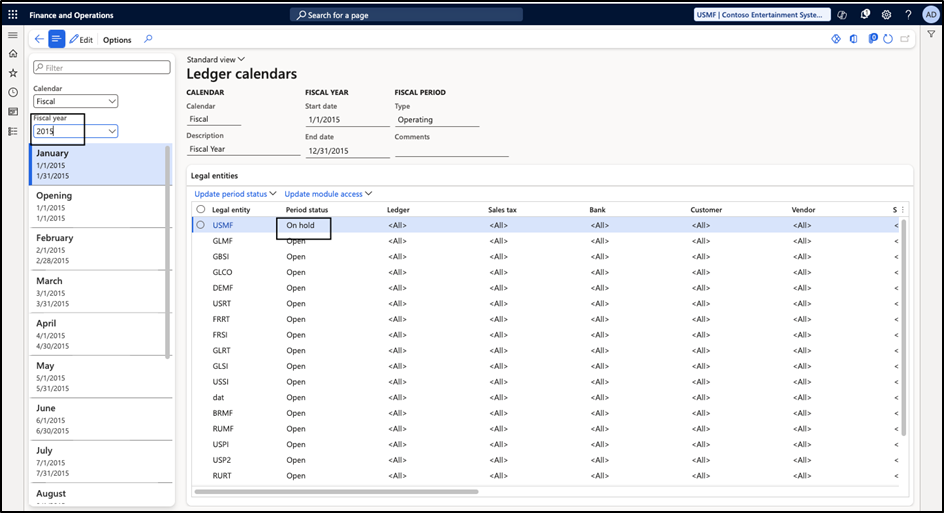
- No period of that year should remain open
Let us run the archival for 2015 for USMF. Navigate to System Administrator and under workspace navigate to Data Archival with Long Term Retention.
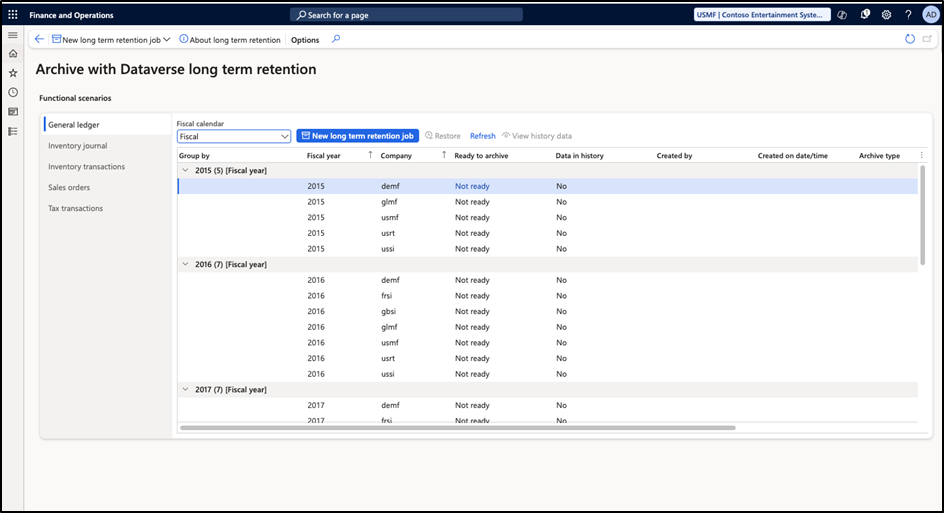
I have performed the prerequisites as mentioned earlier to run the archival
- YEC run for 2015
- Period for 2015 updated from Open to On Hold
The status of the archival changes from ‘Not Ready’ to ‘Ready’
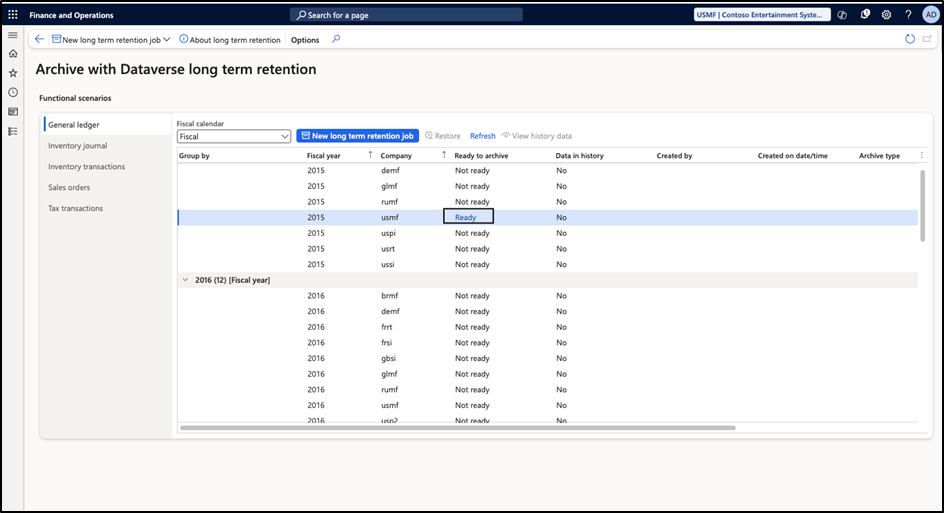
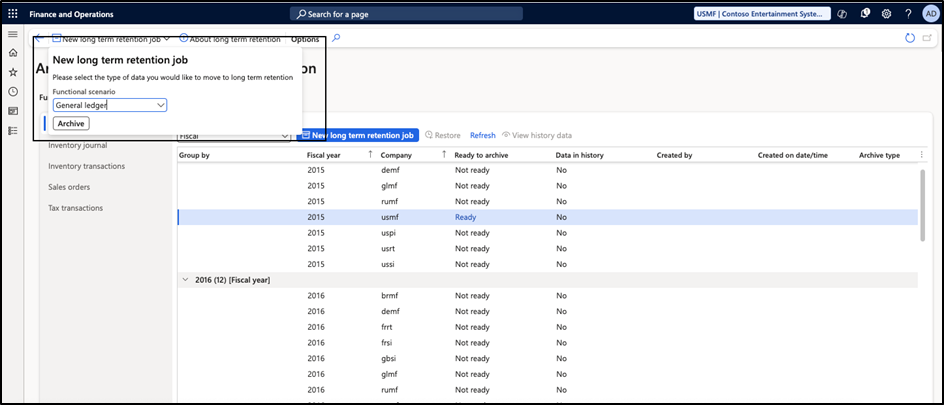
Click on the New Long term Retention Job and Select the Functional scenario as General Ledger for GL Archival and then select Archive

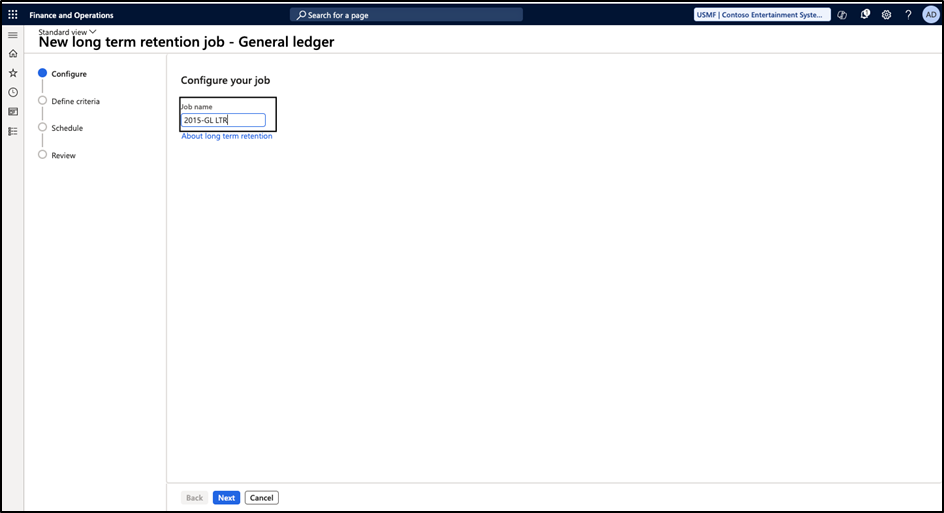
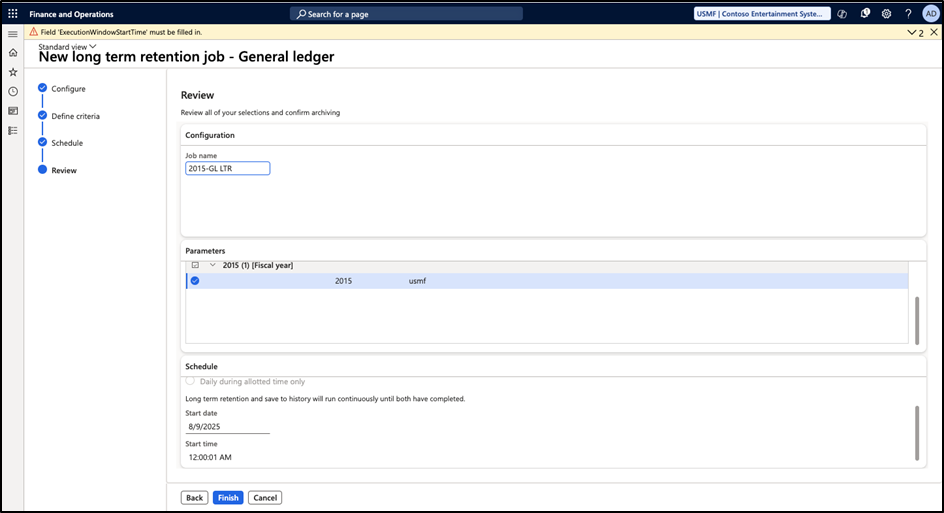
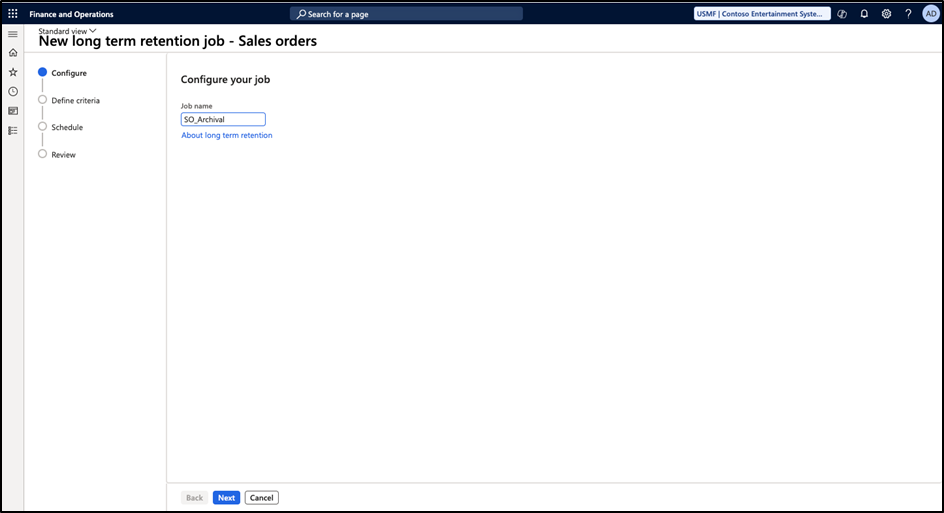
Provide a Job name and click on Next
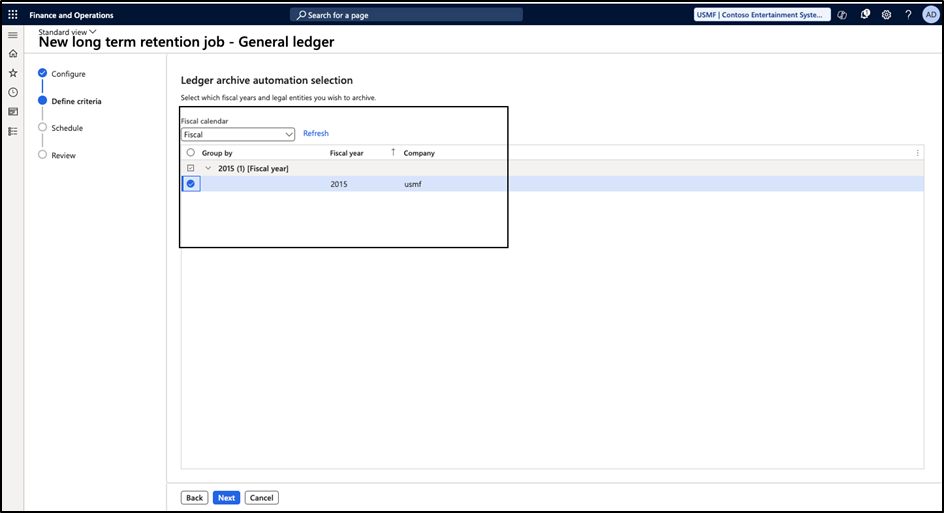
Select the only eligible and available option as show below
Schedule a run for this batch job. It can be completed in one go or can be run partially during the allocated time on each day until the job gets completed. For our documentation, we are considering a single run scenario as shown below.
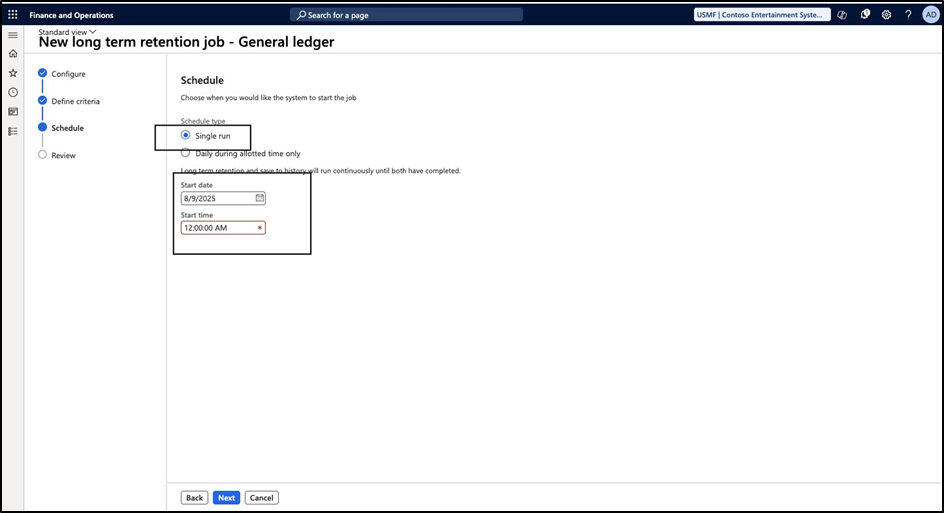
Click on Next and confirm after review all the values selected in previous step. Click on
Finish to run the batch job
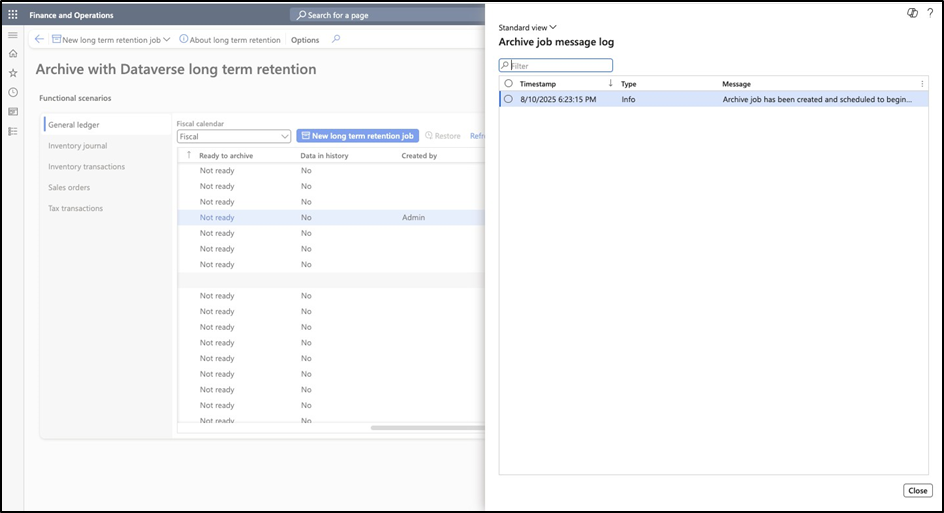
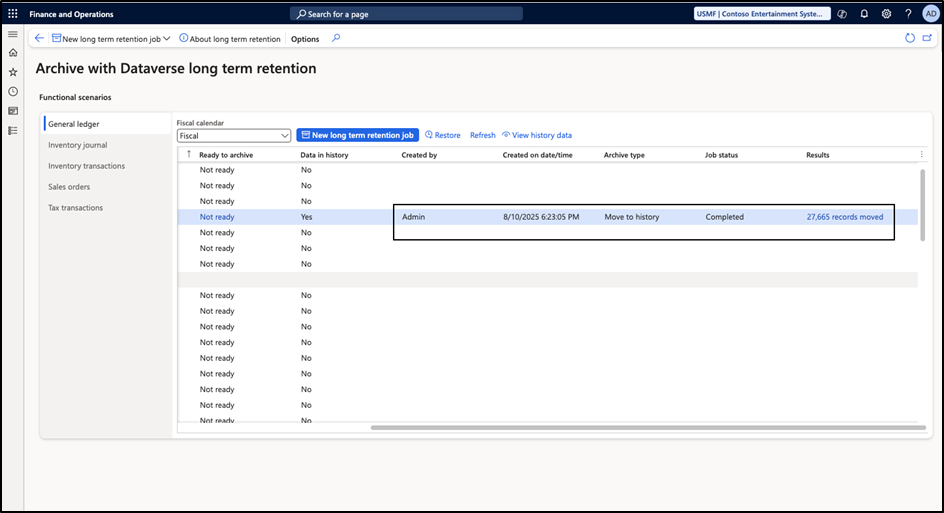
Once the archival is completed, the archive job status is completed and system shows the number of records transferred to history.
Results:
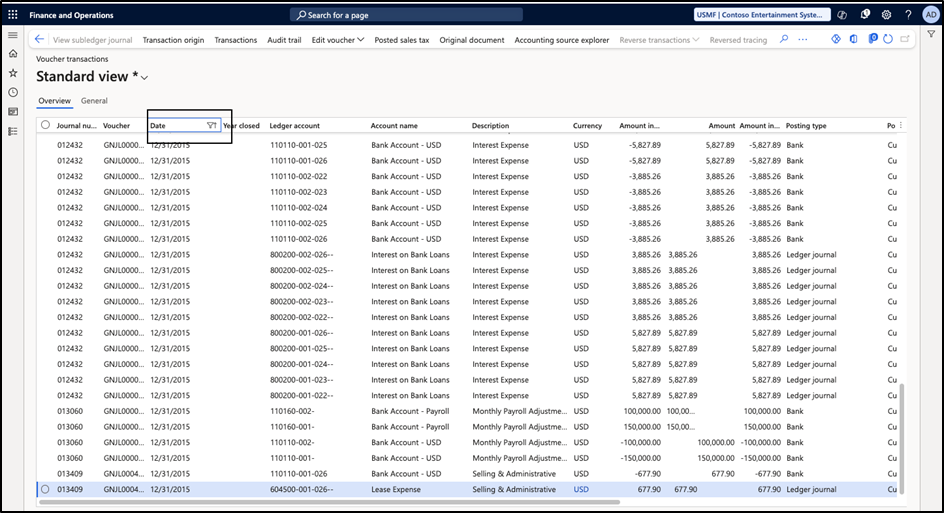
Before archival
The voucher transaction table shows the data between 01/01/2015 and 31/12/2015
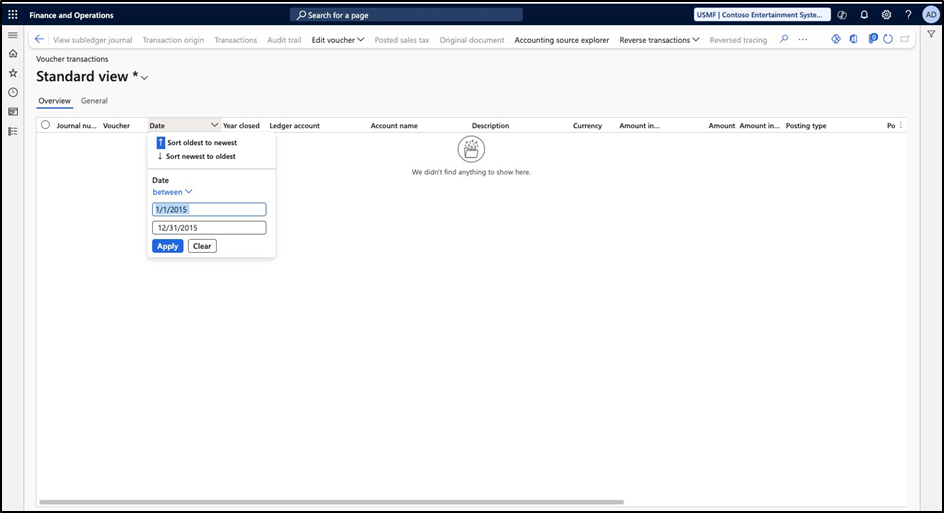
After Archival
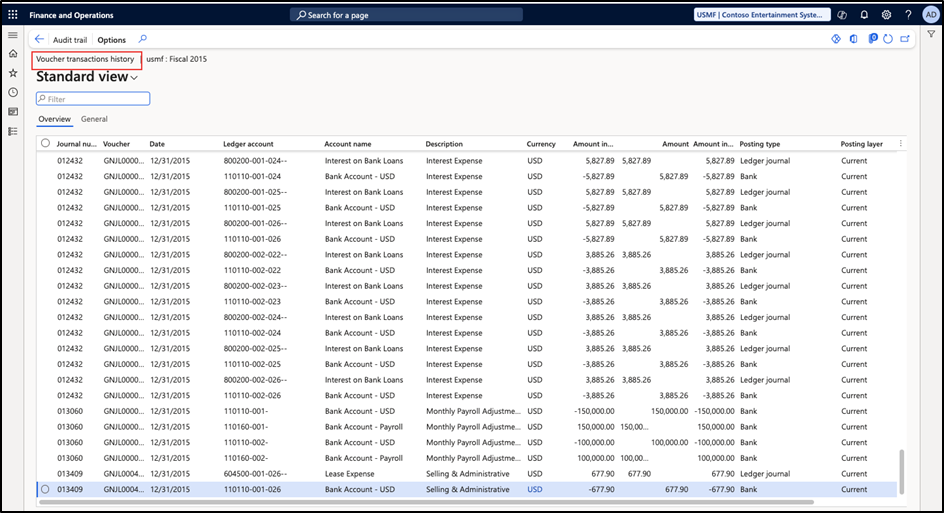
The data is not present in the active table but the same will still be visible in the history table(until we purge it).
Sales Order Retention
Prerequisite:
- Customer invoice data can be archived only for fiscal periods that are on hold or closed.
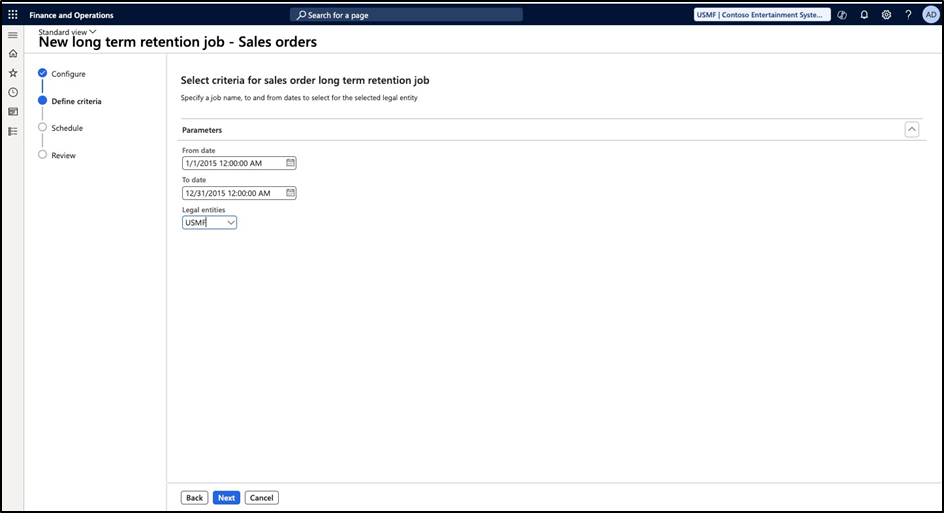
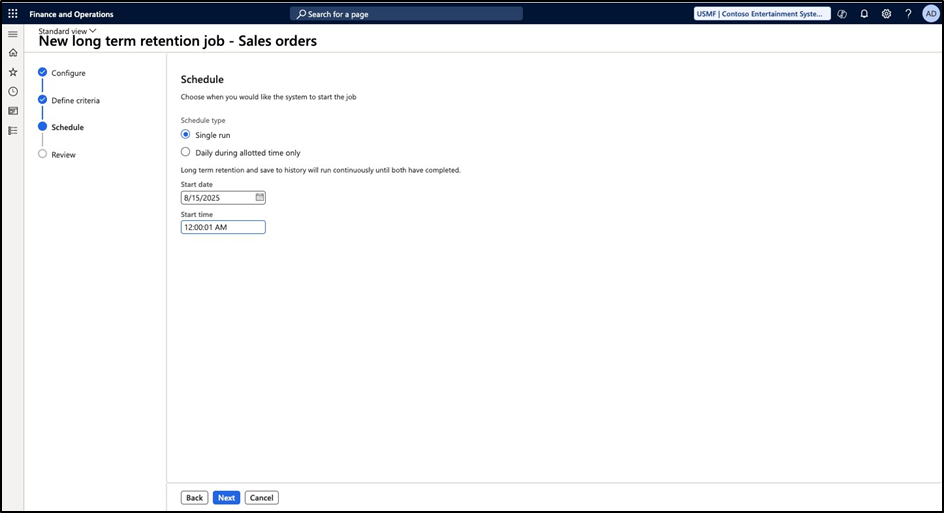
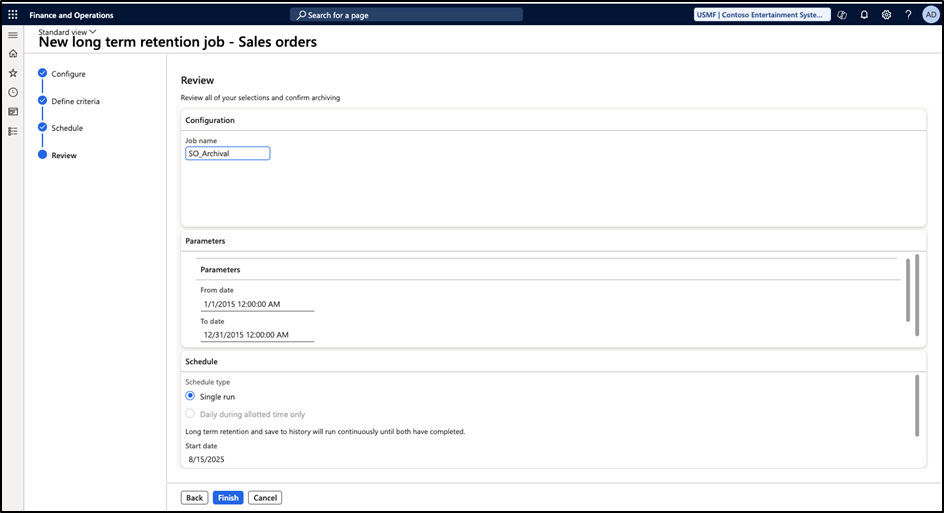
Result
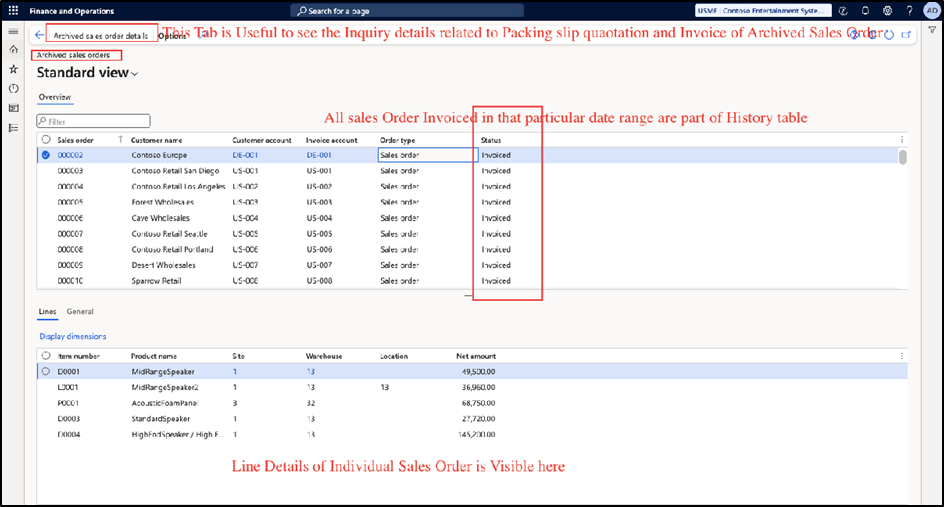

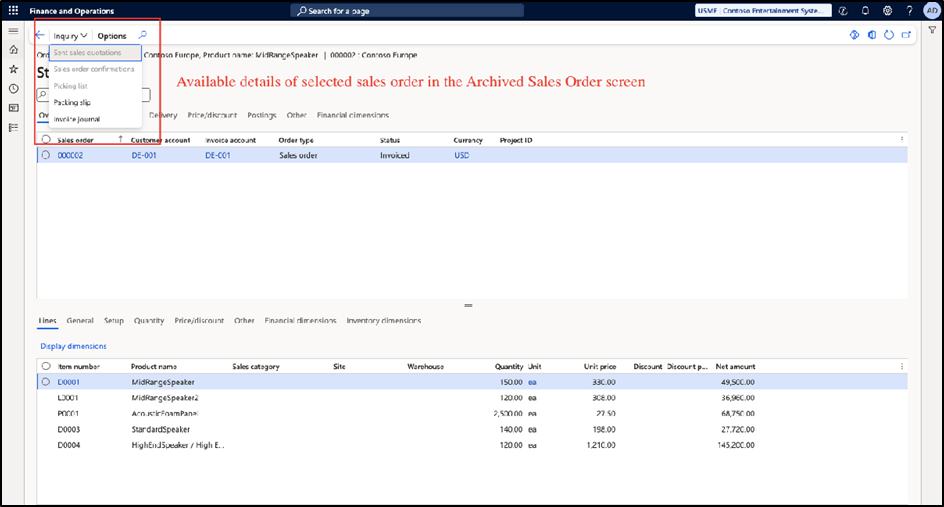
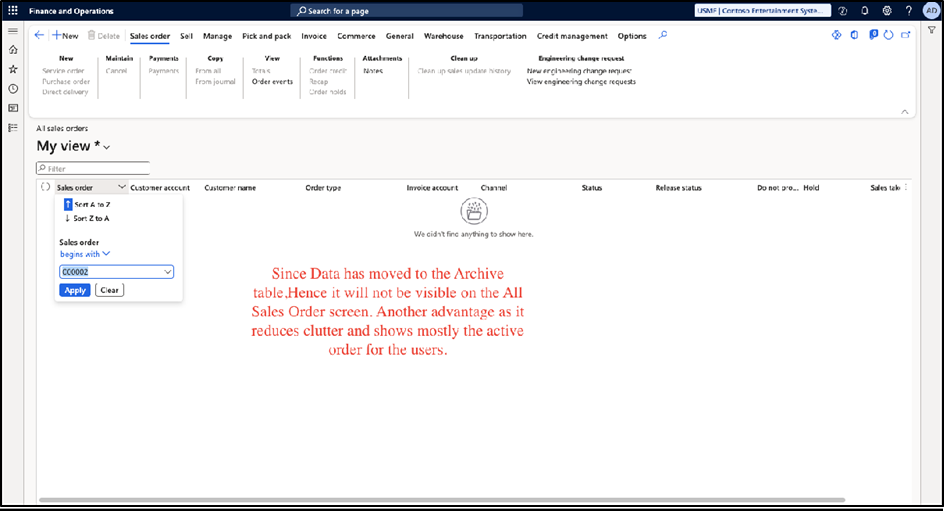
On the Active table(All Sales Order Inquiry)

Inventory Journals
Prerequisite:
- Data can be archived only for fiscal periods that are on hold or
- Archival is only possible for Journals which are posted at least one year from the current system date.
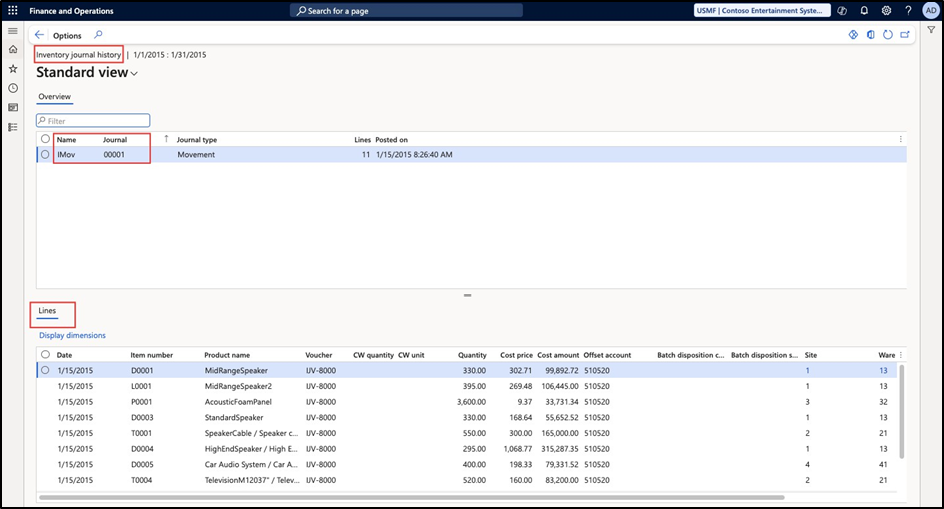
The process to archive is same as sales order where we define the retention job name and fiscal period start date and end date. For this document, the archival has been done from 01/01/2015 to 31/01/2015. Once archival is completed, the archival journal and the lines will be visible in the history form and will move out from the active journal table.
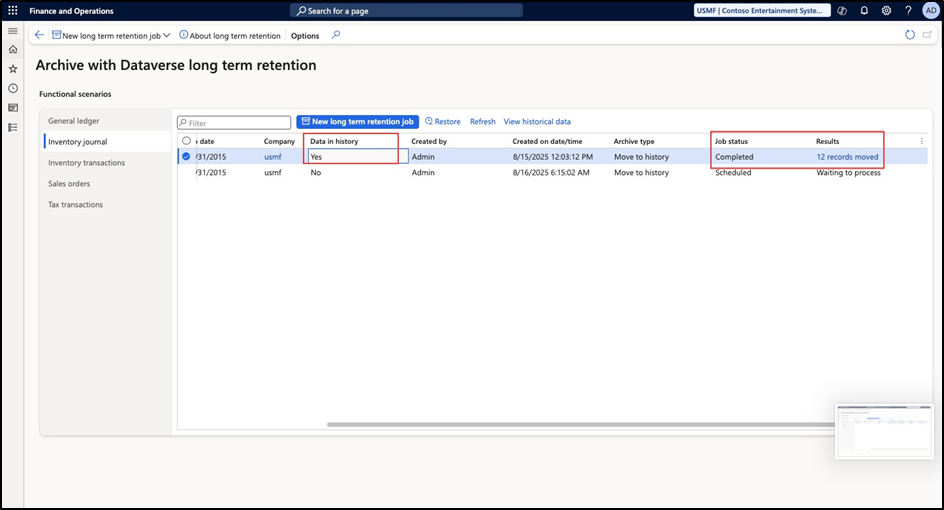

If we dive further we will see that the journal is available in the history table and is unavailable in the active Journal table.

Let us try to find the same in the active table. The same will not be found.
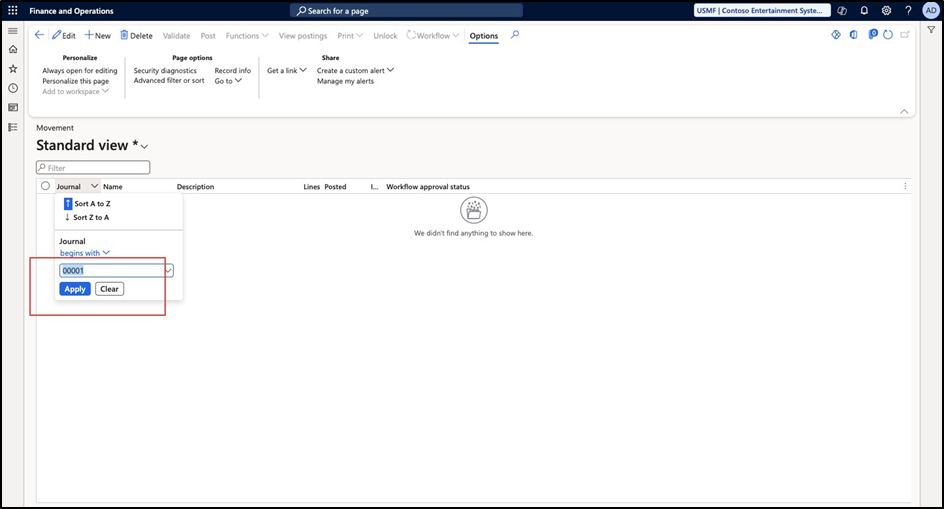
Similar process can be followed for Inventory transactions and tax transactions, which we will not be covering in this document for now. But we will mention the prerequisites for the same below.
Inventory Transactions Prerequisites:
- Inventory closure for the period must be completed
- Data can be archived only for fiscal periods that are on hold or
- Archival is only possible for transactions which are posted at least one year from the current system date.
- Consolidate the Inventory transactions
Note:
- The Reverse function of the Inventory transaction consolidation feature isn’t available for purged inventory transaction records.
- The unpurged activity isn’t available from the Dataverse long term retention to Supply Chain Management
Tax Transactions: Prerequisites are same as General Ledger archival
In short LTR is
- Best for: organizations with large volumes of historical F&O data synced to Dataverse that must be retained but rarely accessed.
- Saves money & improves performance by moving old data out of expensive
- Trade-off: slower access to archived data and need for careful
Archive with Dataverse LTR lets you move old or rarely used records from F&O primary database storage (expensive, high-performance) into a low-cost long-term storage tier (cold storage).This helps manage storage growth, reduce costs, and keep live tables efficient while still complying with audit and retention requirements.