
Enabling Inventory On-Hand Mobile App for D365 Finance and Operations
Use of Inventory On-Hand Mobile App in D365
The Inventory On-Hand mobile app in Microsoft Dynamics 365 Finance and Operations (D365 FO) empowers warehouse and inventory personnel with real-time visibility into stock levels directly from a mobile device.
Key Benefits:
Real-Time Inventory Visibility: Access up-to-date inventory quantities across sites, warehouses, locations, and batches.
Operational Efficiency: Reduce reliance on desktop systems and printed reports— inventory data is accessible anytime, anywhere.
Quick Filters & Insights: Use built-in filters (by site, warehouse, storage dimension, batch, and status) to instantly drill into relevant stock details.
Dynamic Context Switching: Seamlessly switch between legal entities, sites, and warehouses to analyze inventory from multiple business units.
Support for Field Operations: Ideal for on-floor personnel needing quick access to inventory information for decision-making, stock checks, and troubleshooting.
Common Use Cases:
Stock checks and verification during picking, packing, or shipping.
Quick access to product availability while handling customer or vendor queries Support for audits or physical inventory counts
Real-time decision-making in fast-moving warehouse environments
Prerequisites
- Microsoft Dynamics 365 Supply Chain Management version 0.40 or later.
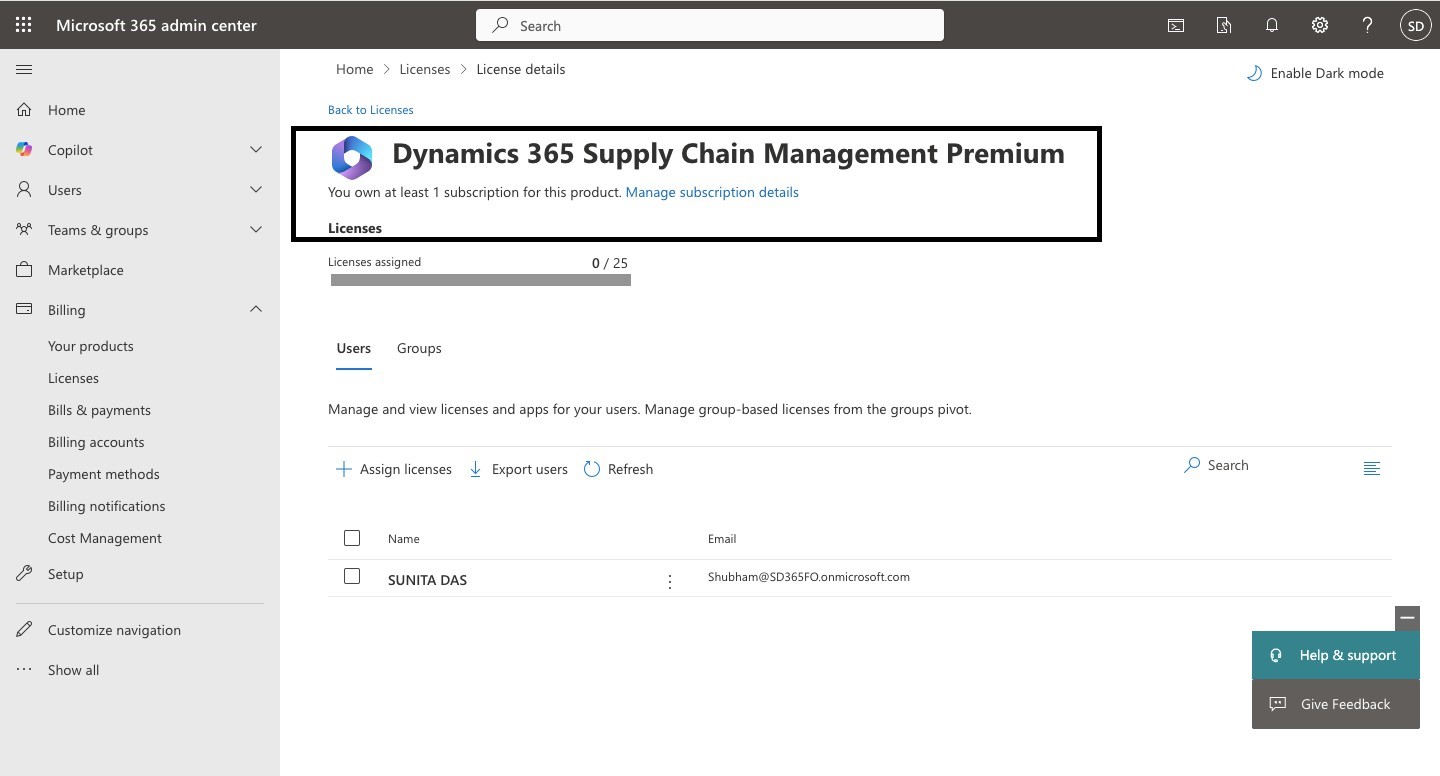
- No separate license is required if a Supply Chain Management license is already
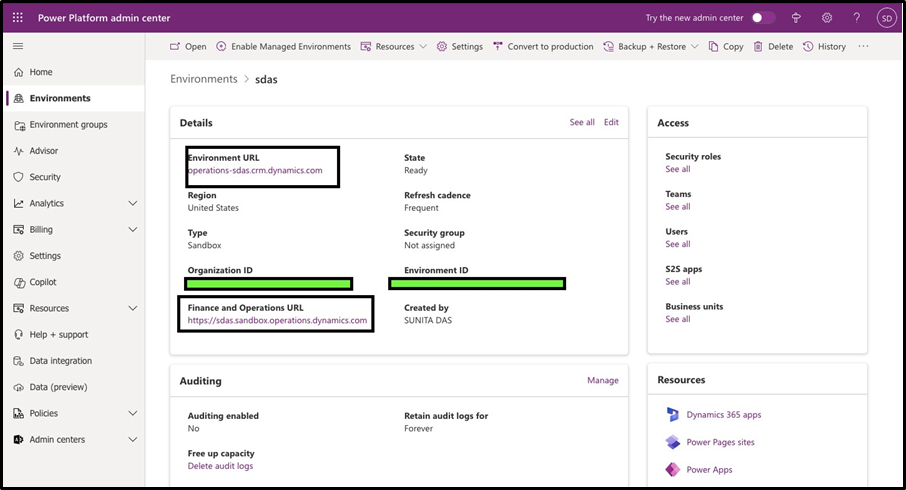
- A Dataverse environment must be connected to the D365 Finance and Operations (FO) environment.
How does the Data flow to this Mobile App?
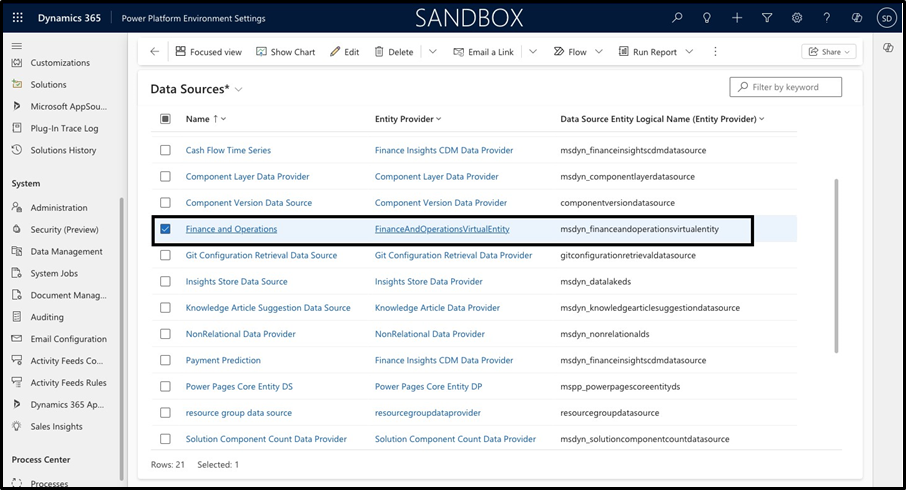
The Inventory On-Hand mobile application utilizes Virtual Entities to retrieve real-time data from D365 FO.
When a Dataverse environment is integrated with D365 FO, transactional data is automatically synchronized to virtual tables. These tables are accessed by the Power Apps solution, enabling the mobile app to display up-to-date inventory information.
To enable this integration, the Virtual Entity Data Source must be registered as an application in Entra ID (formerly Azure AD), and its configuration details must be added to Dataverse.
Power Platform Configuration
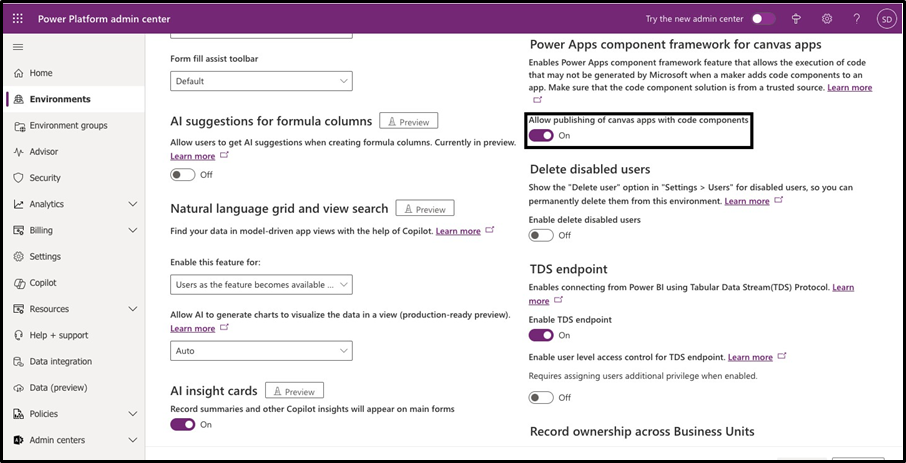
Since this is a Canvas App (not a Model-Driven App), a specific feature must be enabled:
- Go to the Power Platform Admin Center
- Navigate to:
Environment > Select your Environment > Settings > Features
- Enable the necessary feature related to Canvas app integration (refer to screenshot or documentation for exact toggle).
App Installation Steps
- Go to:
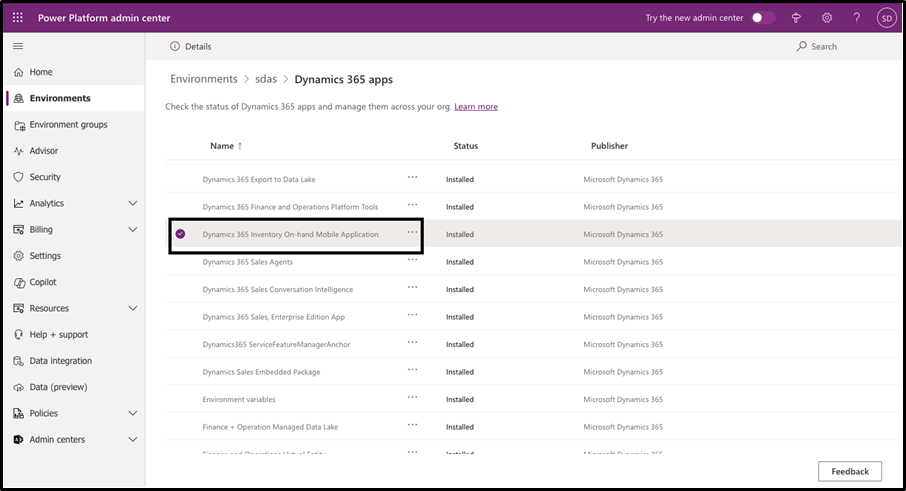
Power Platform Admin Center > Environment > Resources > Dynamics 365 Apps
- Search and install the Inventory On-Hand Mobile
Post-Installation Setup
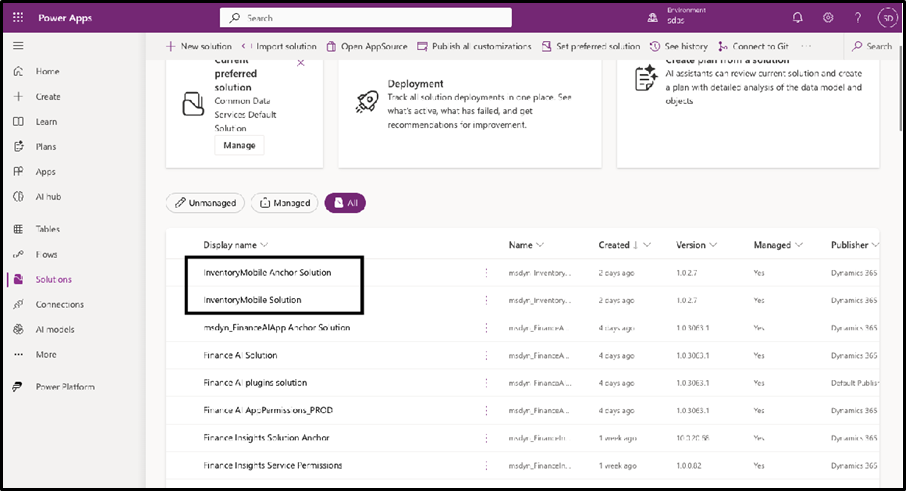
- After installation, the corresponding solution will appear under Power Apps >
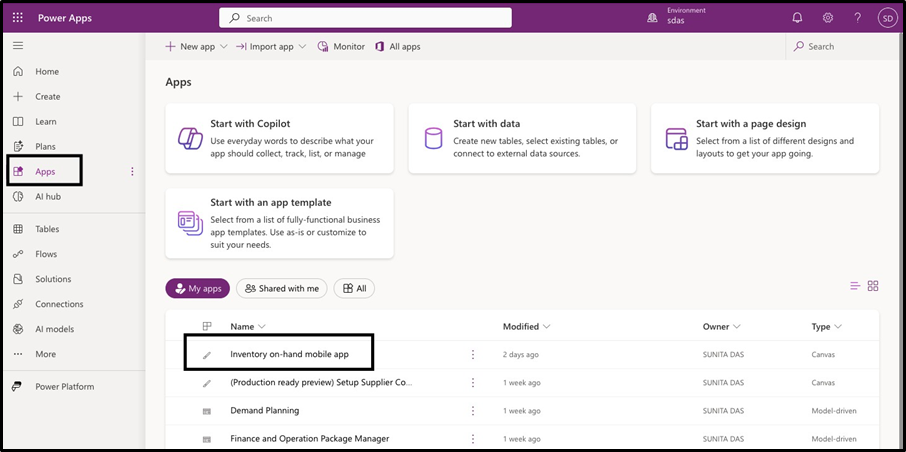
- The Inventory On-Hand App will also be listed under the Apps section in Power
Sharing the App
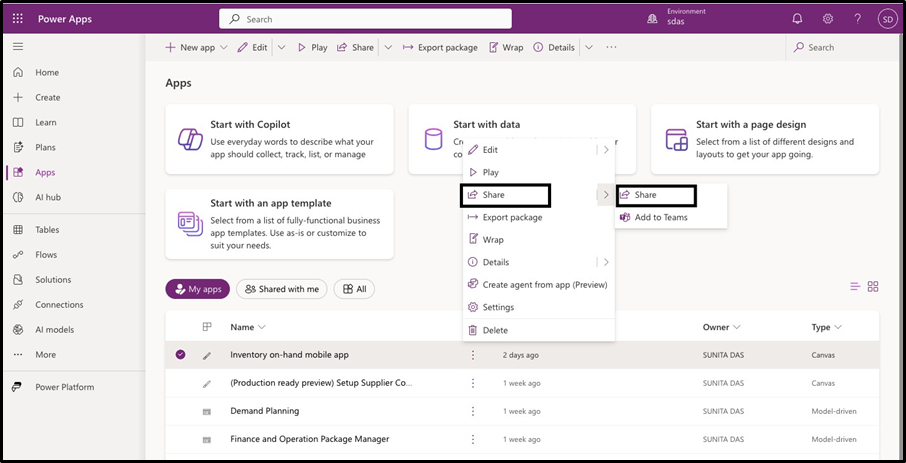
To share the app with other users:
- Click the three dots next to the
- Select
- Add the users and assign appropriate
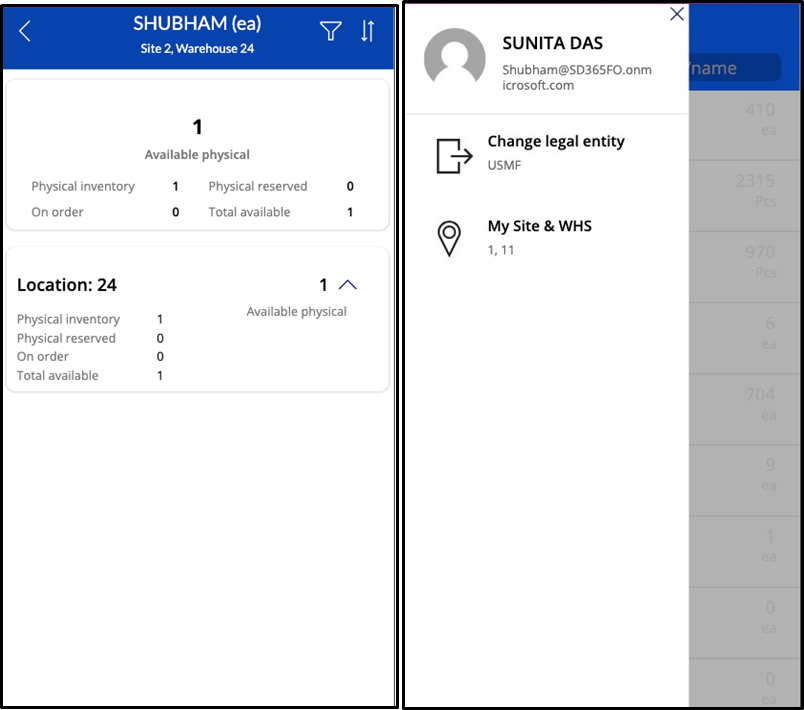
Key features include:
- Ability to set a default Site and Warehouse
- Option to switch between Legal Entities dynamically
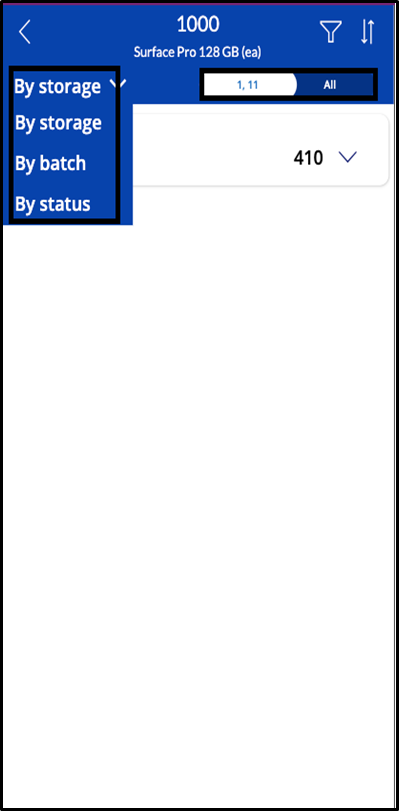
- Multiple filters available:
- By Storage
- By Status
- By Batch
Screenshots
Important Note
If the backend configuration in Supply Chain Management is modified after the mobile app is installed (e.g., changes in legal entity settings), users may need to clear the Power Apps cache on their mobile device to reflect the updated setup.




Leave a Reply
You must be logged in to post a comment.