
Engineering Change Management in D365(Part-2)
Create New Versioned Engineering Product process
Note: – Here we are taking “USMF’ as a parent company and “DEMF” as a child company.
To Create a new versioned engineered product, I D365 we need to follow below mentioned steps
- Navigate to Released Products: – Go to the Released products page within the system
- Initiate Product Creation: – Click on New to start creating a new product
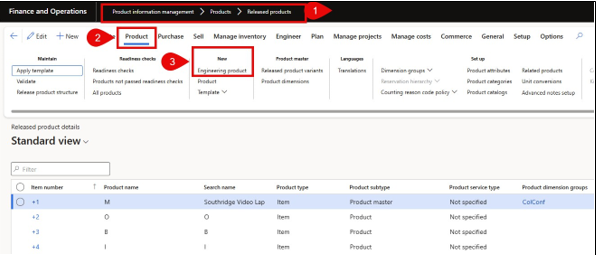
- Select Engineering product Category: – Choose the appropriate Engineering product category. This section will automatically drove default setting such as product templates and configurations relevant to engineering requirements.
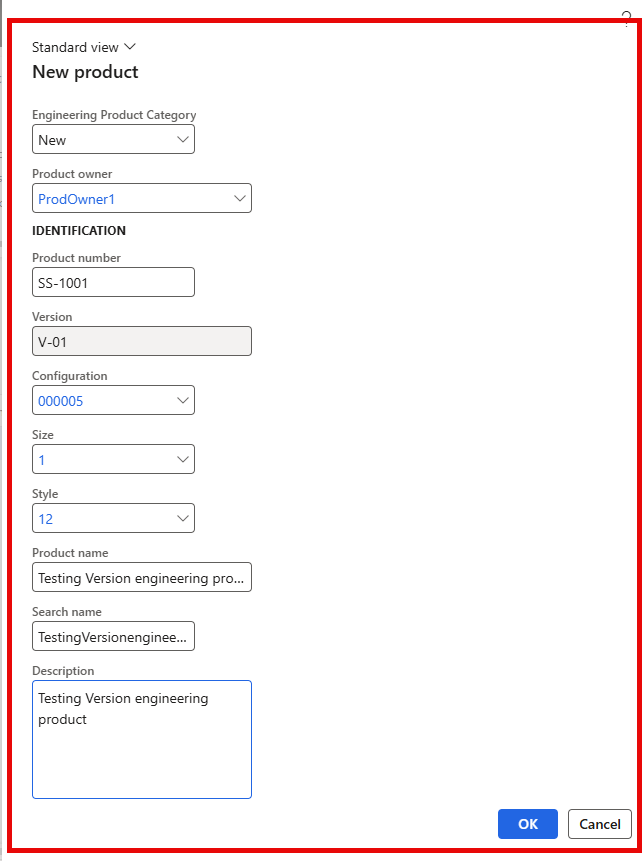
- Product Owner: – Provide a product owner form drop down list
- Product Name: – Provide a descriptive name for the product
- Product Number: – Assign a unique product number for
- Description: – Provide a product description as per the requirement
- Finalize Creation: – Click Ok to create the product record
Our versioned product is now created and ready for further configuration or version control as per engineering change management process
Viewing engineering Versions
Once the versioned product has been created
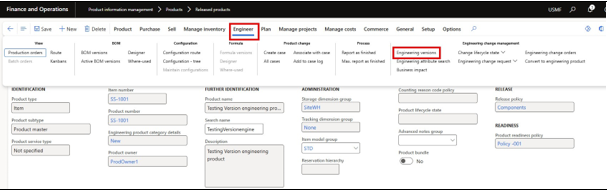
- Navigate to the Engineer Tab: – Go to the engineer tab on the product
- View Engineering Versions: – within this tab we will see a list of all associated Engineering Versions of the
- Select a specific version: – Click on the version we want to view and this will display detailed information related to that version , including version status, active dates, associated engineering attributes, and ay linked documents or approvals.
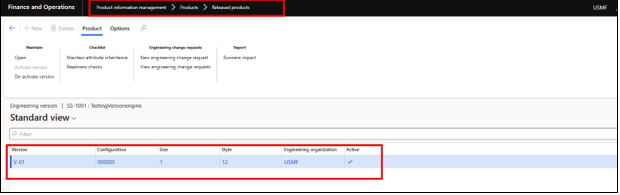
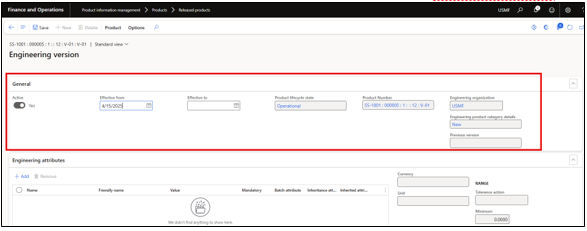
- This allows for efficient tracing and management of product versions throughout the product
Create BOM for the new created version product
After creating our versioned engineering product, follow below mentioned steps to create a BOM
- Navigate to the Engineer Tab:- Open the Engineering Tab and click on the engineering version
- Select the Engineering Version :- Choose the relevant engineering version of the product for which we want to create the BOM

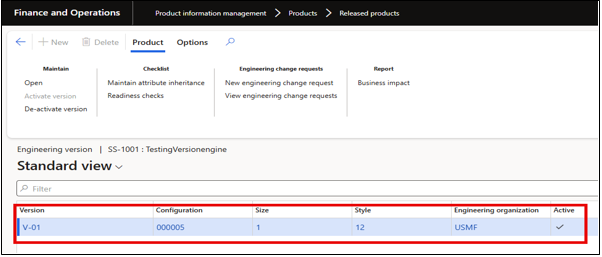
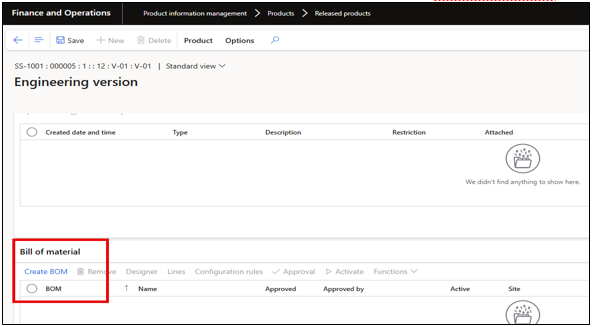
- Create BOM:- Click on the Create BOM button under the Bill of Material
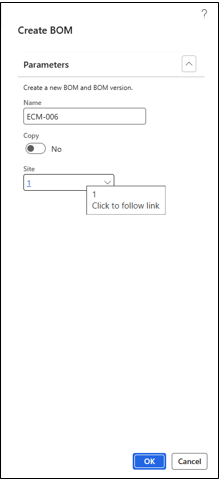
- Assign a name and Site
BOM Header will be created a mentioned below to add BOM lines click on the Lines.
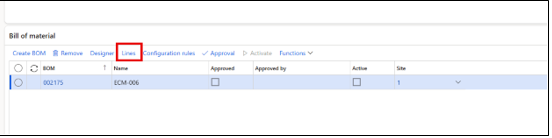
- Click on the new button to add BOM lines
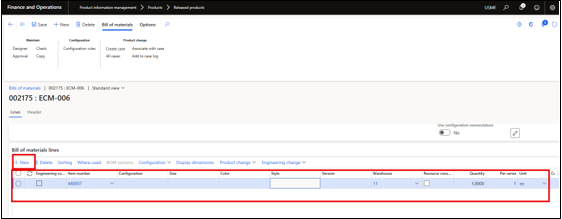
- Add the required components/Items, along with quantities , sites, and any relevant BOM lines type (e.g. Phanom , vendor , etc)
- Validate and approve the BOM:- Use the BOM validation function to check for any configuration or data issue
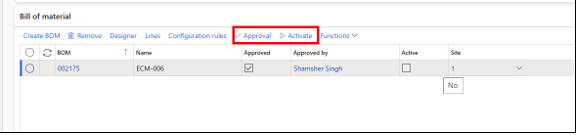
- Active the BOM version:- Once approved, mark the BOM version as active to make it available for use in production orders or planning.
Release Engineering version product From USMF to DEMF
- Navigate to Released Products: – Go to Product information Management >Released Product and find the product which we have created with an engineering version
- Open the product details: – Select the product form the list, open the product record to access the engineer tab and ensure the engineering version exists.
- Navigate to product Tab: – On the Product form click on the “Release product structure” button
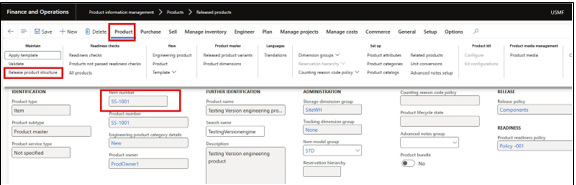
- Release product screen wizard will get open:- Provide the site and ensure that the correct version item is selected then click on the Next button
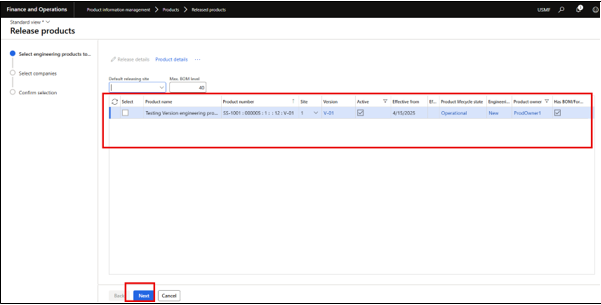
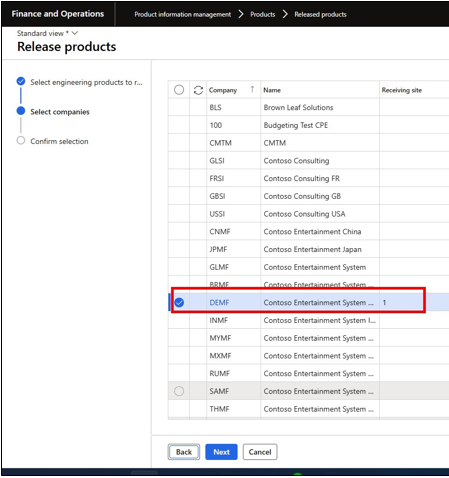
- Select the Target legal entity:- Choose the legal entity to which we want to release the product and tick the checkbox for that entity. Also provide the receiving Site and press Next button
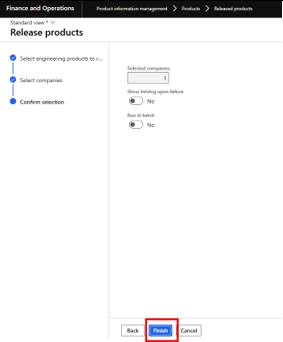
- Press the Finish button to complete the release
Verify New Release product in DEMF
- Navigate to the DEMF entity
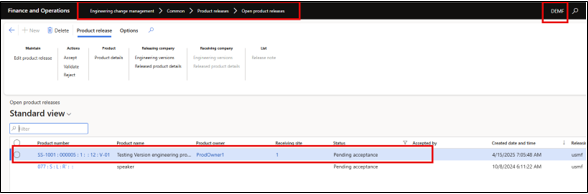
- Navigate to open product release: – Go to Engineering Change Management >Product Releases> Open product releases
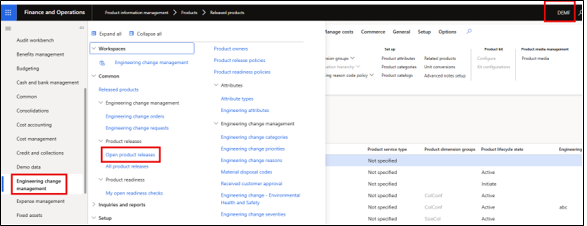
- Go to the open product releases form and we can find the item which we have recently released from
USMF to DEMF with the status “Pending acceptance”
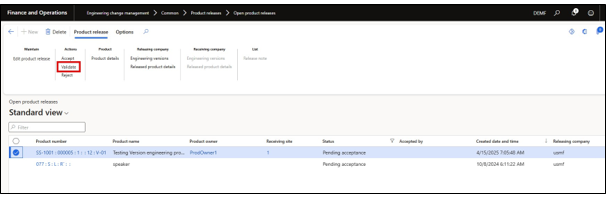
- Validate the Product:– Click on the Validate button to ensure that the new release product have all the required information before provide acceptance.
- Accept/Approve the Product: – Click on the Accept button to provide acceptance for this product if workflow not enabled else submit the workflow and approver can review and approved the
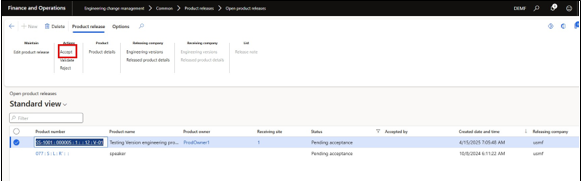
- User can notice that as well as we accept this item, this will not loner available on this “Open product releases form” Now this item is available on the release product under DEMF.
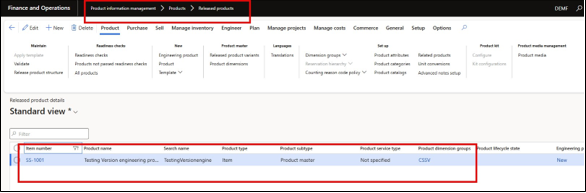
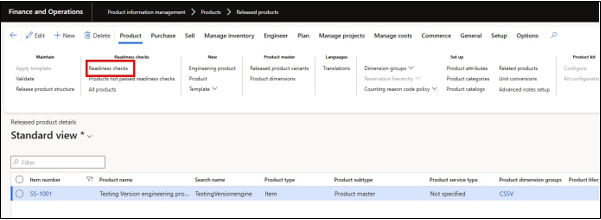
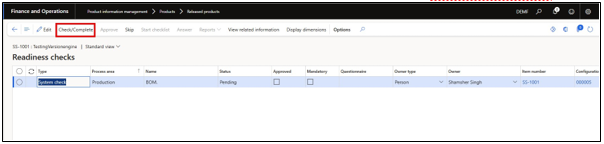
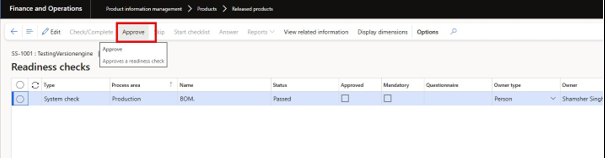
- Readiness Check :- Click on the Readiness check to ensure that all the required information and setup are available under item before it will available for user transactions. Approve the readiness check and after this item is ready for use.
Note :- This option will be available if the Readiness setup is applicable, Else the item is ready to use




Leave a Reply
You must be logged in to post a comment.