Understanding MCP Server Part 1
Working with MCP
Understanding MCP
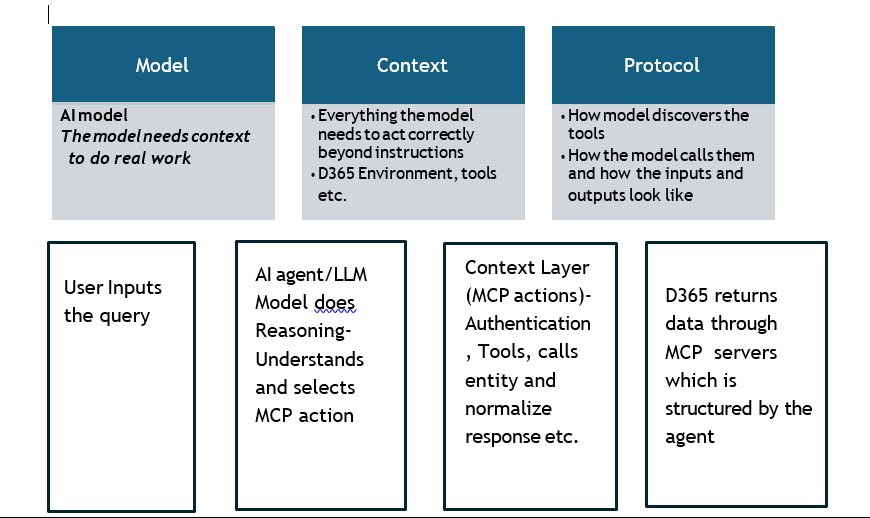
An MCP server works like a safe middle layer between an AI agent and existing systems or APIs.
• The actual APIs still do all the real work
• The MCP server just wraps them in an AI-friendly way
This allows the AI agent to:
• Clearly understand what actions are available
• Use those actions in a consistent and standard way
MCP servers are designed specifically for communication between AI agents and data sources.
Because of this, MCP:
• Help AI agents interact with enterprise systems like D365 Finance s Operations
• Does so safely and reliably
• Without putting business logic, credentials, or API details inside the AI model itself
Enabling MCP in D365 FO
Key Prerequisites:
1. D365 FO should be running on 10.0.46 – Recommended to have the latest quality update
2. Tier 2 or higher box or Unified Developer Environment. Dev and Cloud Hosted Environments are not supported
3. Check for below D365 Apps:
1. Required: Copilot for Finance and Operations apps – Update to latest version
2. Required: Finance and Operations Virtual entities- Update to latest version
3. Recommended: The Entra id application should be created for virtual entities with client secret and API permissions (with admin consent) and registered in D365 FO under system administration (Microsoft Entra Id Applications). The
details should also be maintained in the Dataverse under Administration
4. Recommended: Refresh Data Entities in D365FO
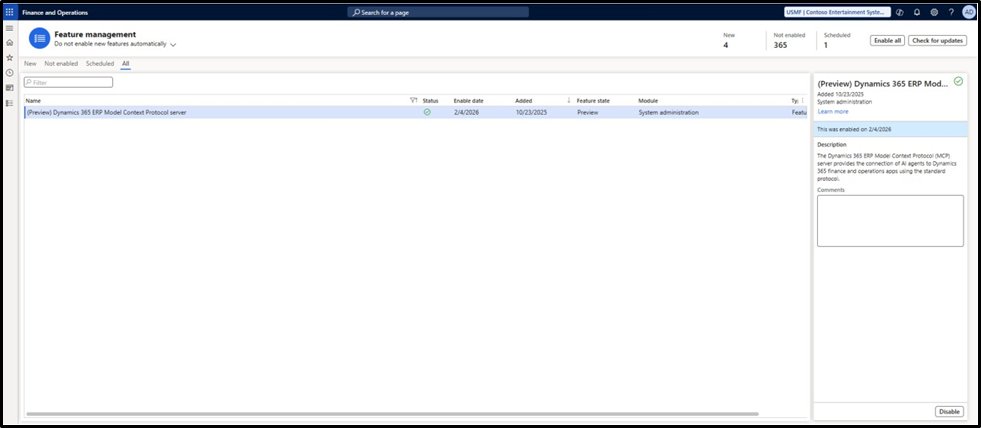
Enable (Preview) Dynamics 365 MCP server through Feature Management in D365 FO.
Navigate to System Administration > Setup > Allowed MCP Clients and enable the Copilot Studio as Allowed MCP clients (this will be enabled by default).

We are Set ●•^-
Let Us Build our First Agent: Inventory Evaluation Agent
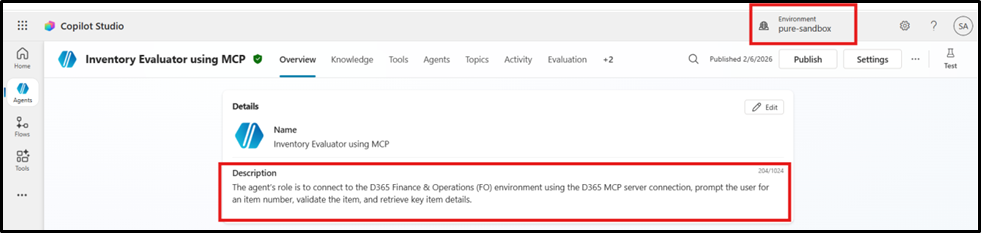
#Objective: The agent’s role is to connect to the D365 Finance C Operations (FO) environment using the D365 MCP server connection, prompt the user for an item number, validate the item, and retrieve key item details.
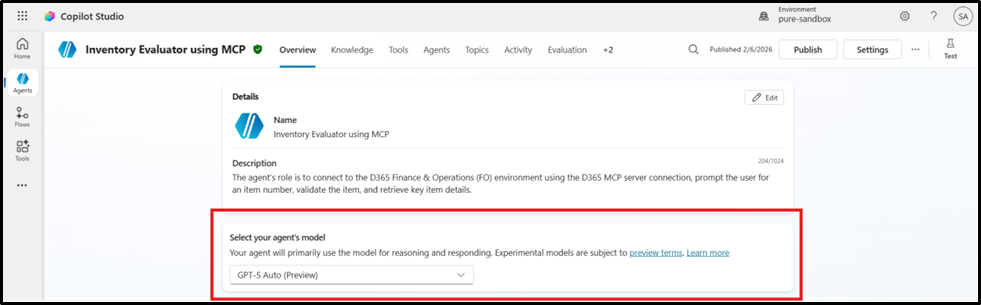
Selecting the model
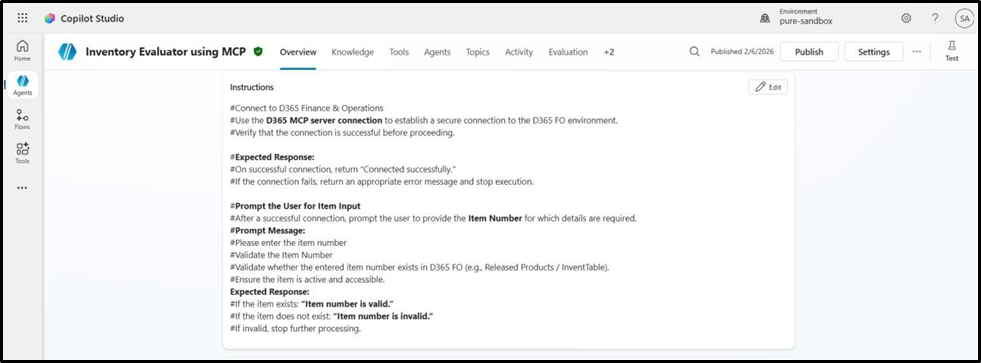
Giving the Instruction:
This should be as detailed as possible. It is as if you are explaining a digital cower who has been newly onboard in your company on what needs to be done and what needs to be recorded and published.
#Goal: To fetch the data for the queried inventory item such as Item group, Item name, related orders, on-hand quantity etc.
#Source: D365 Finance and Operations system
#Expection: To get the response from D365 FO which would help the user evaluate the inventory.
Adding Tools
The most important setup is where we connect the MCP server with the Agent using the connectors (created in Power Apps)
Navigate to Tools and click on Add a Tool

Filter by MCP and select the required MCP
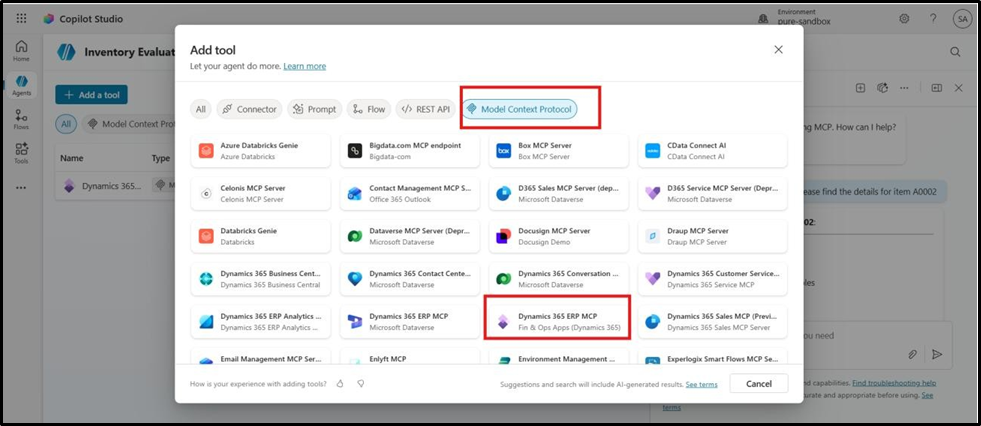
Select the connector to establish the connection to be used for this agent.
It is done. That simple ●•^-
Time to Publish the agent and do a test run
I am entering a query for details of Item 1000. Agent will start acting the same using the
tools available through MCP which is a simple click process (a person would follow to fetch the details). The Highlighted boxes below highlight the tool being used to find the response to the query.
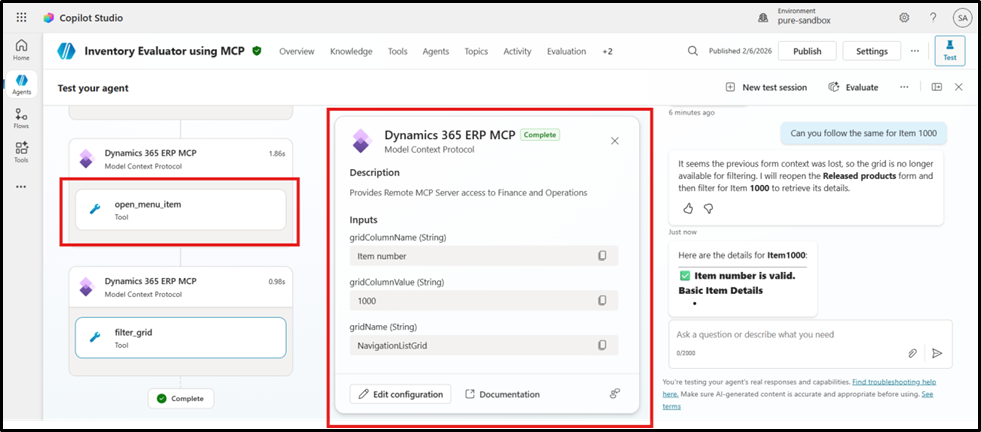
The output being processed by the agent can also be seen in real time before it responds to the query in the format we want to visualize.
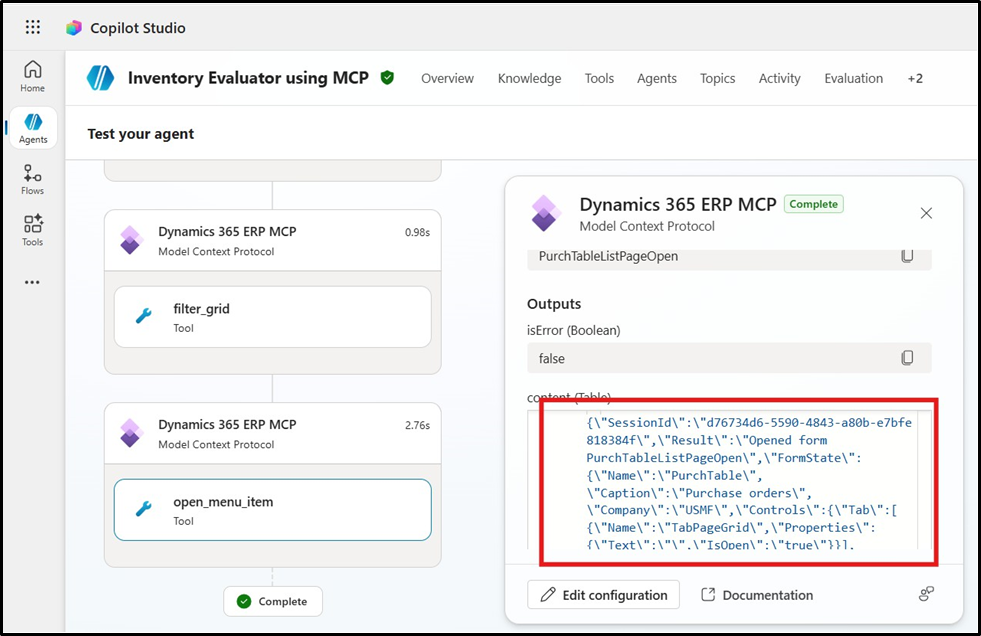
The desired output
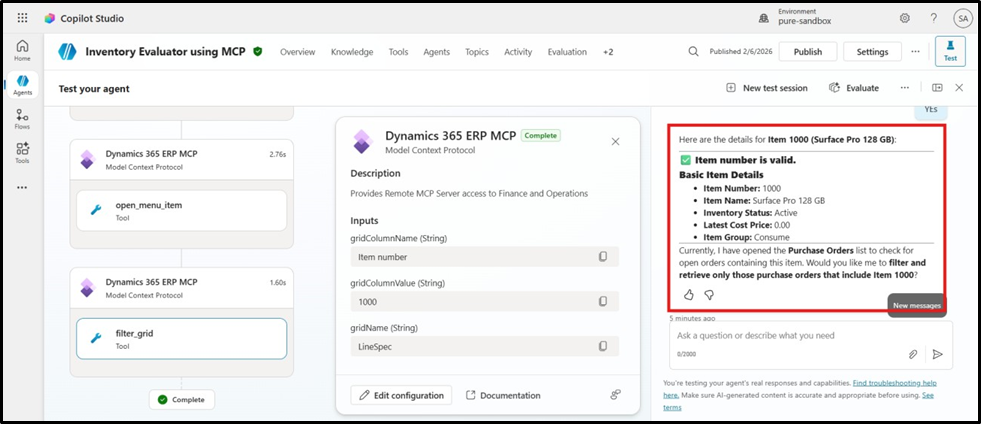
I went a step further and queried for the Purchase Orders which include this item Voila ●•^-
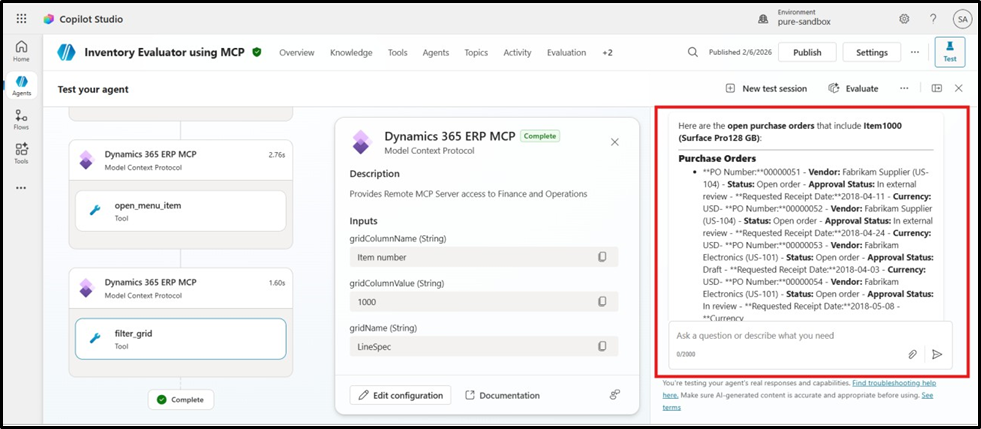
I have a correct response from the agent. On top of this it is also ready to prepare an excel or pdf and share the details with me.
For now, I am resting my Inventory evaluator agent here. This is a basic use case involving MCP as a tool. My next goal would be to configure another agent which goes beyond
retrieving details and creates a new record on the form (may be PO or Chart of Accounts).



Leave a Reply
You must be logged in to post a comment.