Difference between Inventory Value Report and General Ledger Value
At the end of every month, it is common for finance and operations teams to encounter discrepancies between
the Inventory Value Report and the General Ledger (G/L) inventory account balances. These differences often
lead to questions regarding the accuracy of inventory accounting and the underlying causes of mismatches.
While reconciling the general ledger inventory accounts with the inventory subledger is a critical month-end
activity, understanding the root causes of discrepancies is equally important. In many cases, mismatches are due
to configuration issues, incorrect posting profiles, or manual adjustments that bypass standard inventory
processes.
This document outlines the recommended steps to identify and analyze discrepancies between the Inventory
Value Report and G/L balances in Microsoft Dynamics 365 Finance and Operations (D365). It aims to provide a
structured approach to help users:
• Understand the nature of common discrepancies.
• Investigate the potential root causes.
• Prevent similar issues in the future through better configuration and control.
By following these steps, organizations can improve the accuracy of their financial reporting and maintain better
control over inventory accounting.
Process to Identifying Inventory Discrepancies
Use the Potential Conflicts Report
The Potential Conflicts Report is the most effective starting point when identifying discrepancies between the
General Ledger (GL) and the inventory subledger in Microsoft Dynamics 365 for Finance and Operations. This
report provides a list of transactions that are likely causing mismatches, along with the reasons for each conflict. It
highlights issues such as:
• Inventory transactions that did not post to the GL.
• Manual journal entries made directly to inventory GL accounts.
• Misconfigured posting profiles or item model group settings.
To ensure accurate output from the Potential Conflicts Report, it’s important to configure your ledger integration
policy parameters correctly:
• Navigate to: Cost Management > Setup > Ledger integration policies > Parameters
• Under “Inventory accounts for cost reconciliation”, select the inventory GL accounts that should be
considered for reconciliation.
Note: This setup applies specifically to Dynamics 365 for Finance and Operations. For earlier versions
such as AX 2012, you will need to use a totaling account instead. Please contact your system
administrator or support team for guidance on configuring totaling accounts in earlier versions.
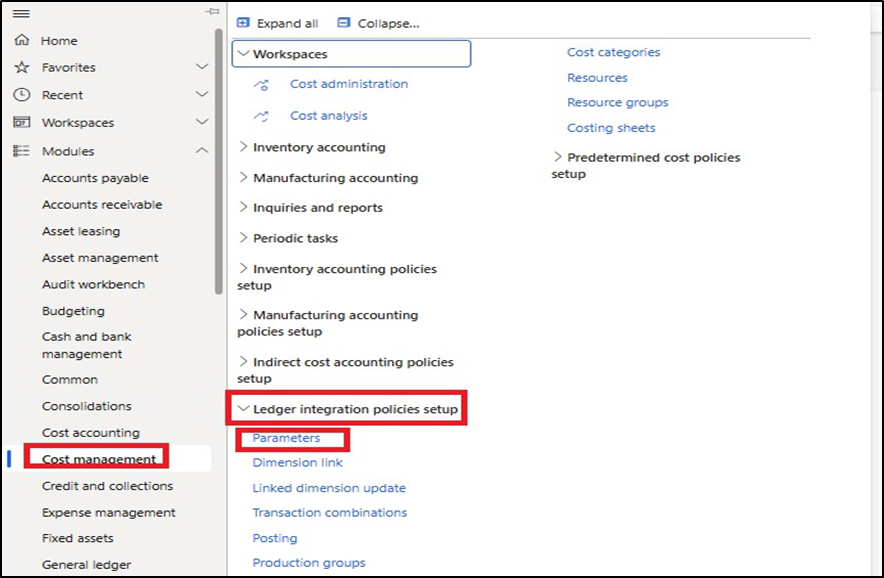
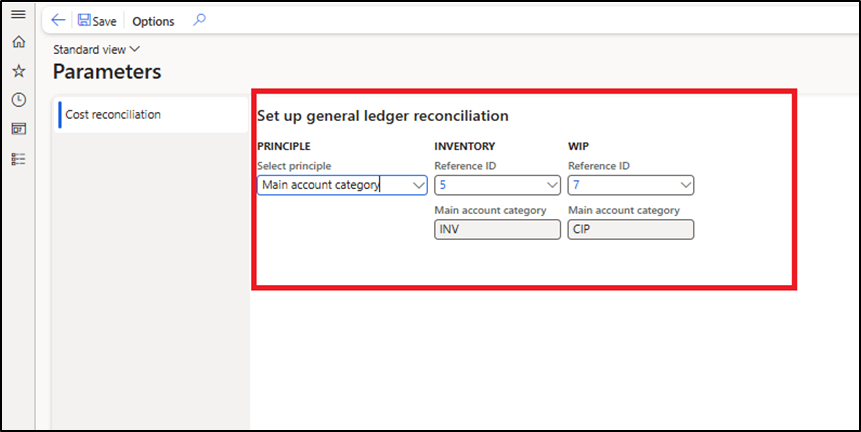
Within the Parameters form, it is essential to define the Main account category associated with your inventory accounts:
- In the “Inventory” field, select the Main account category that is assigned to your inventory GL
- Once selected, the Potential Conflicts Report will recognize all main accounts that fall under this category as inventory accounts.
This categorization enables the system to include the correct accounts in the reconciliation process. Without this step, some valid inventory transactions might be excluded from the report, leading to incomplete or inaccurate results.
- After completing this setup, proceed to run the Potential Conflicts Report.
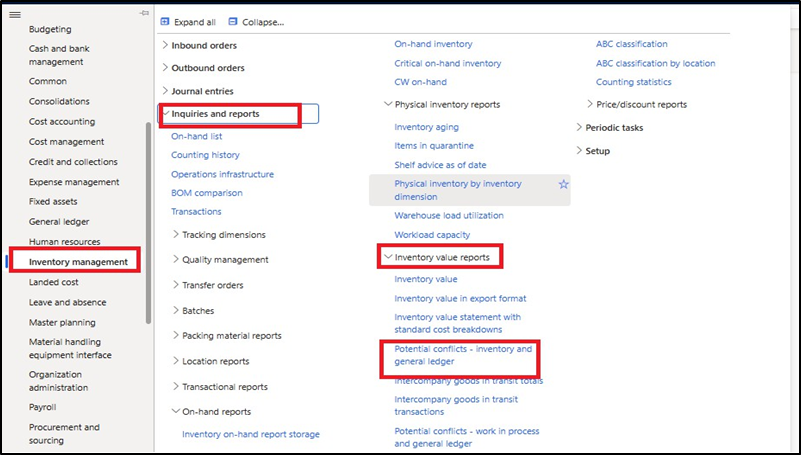
Once We have setup our inventory accounts for reconciliation, we can now effectively run the Potential Conflicts Report to run this report navigate to Inventory Management > Inventory Value Reports > Potential conflict – Inventory and general ledger
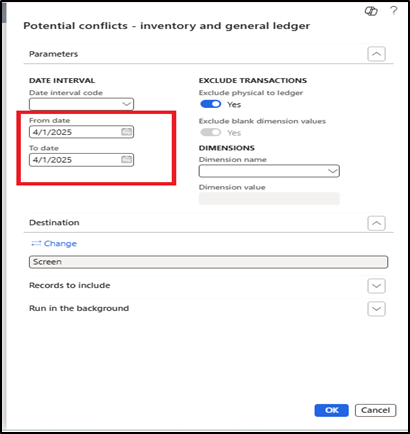
When running the Potential Conflicts Report, selecting the appropriate date range is crucial for narrowing down the data and making the output more manageable.
Best Practices for Selecting a Date Range:
- Choose a smaller date range (e.g., a week or a specific month-end date) if you know there are discrepancies. This helps reduce the volume of results, making it easier to analyze the data and pinpoint the source of the issue.
- Once smaller periods are reviewed and issues are resolved, you can run the report for broader date ranges for full reconciliation.
Review Results from Reports
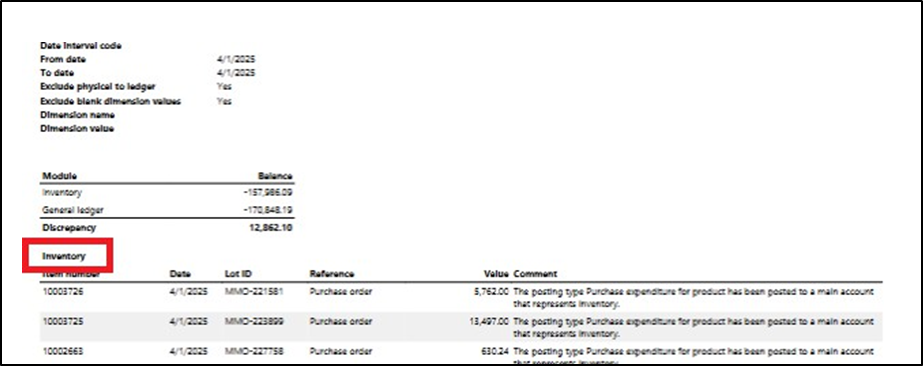
After running the Potential Conflicts Report, you’ll be presented with a summary of potential mismatches between the General Ledger and the Inventory Subledger. Below is an example of what a clean report output looks like:
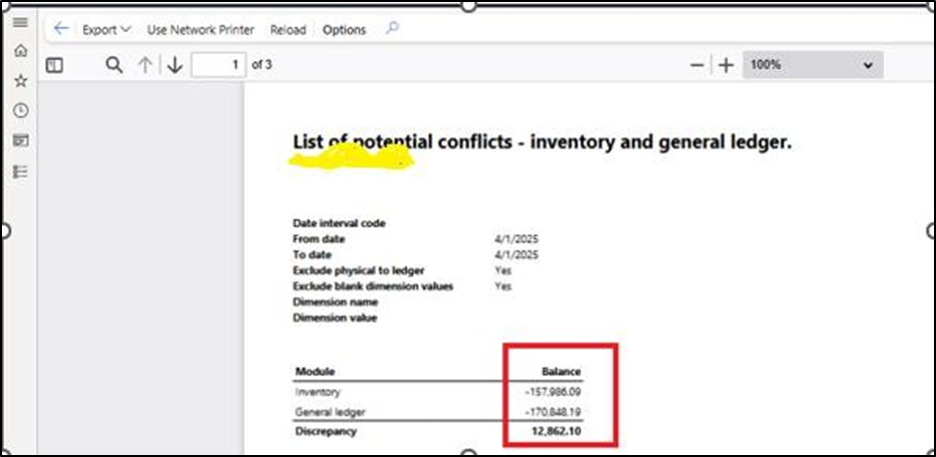
When reviewing the Potential Conflicts Report, the first and most important field to observe is the Discrepancy field.
- The discrepancy field shows the difference between what was posted to the inventory GL accounts and what was posted to the inventory subledger (Inventory Value Report) for the specified period.
- In our example, the discrepancy is $12,862.10, which indicates that the GL balances differ from the inventory subledger by this amount.
After identifying the discrepancy amount in the report, the next step is to examine where the mismatch is occurring. The Potential Conflicts Report is typically divided into two key sections:
- Inventory Section: -This section lists transactions that were posted to the inventory subledger but not posted to the inventory GL
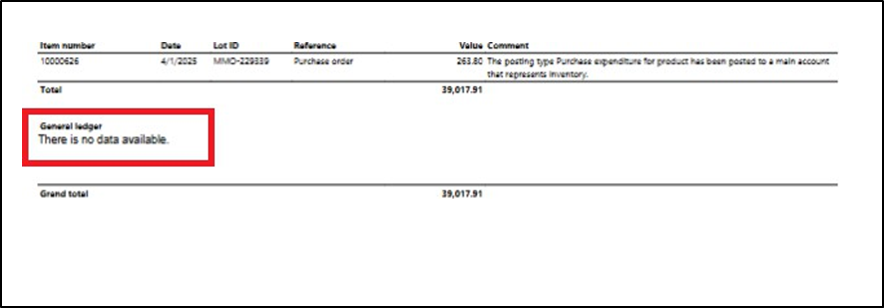
- The second section of the Potential Conflicts Report is the General Ledger This section lists transactions that were posted directly to the inventory GL accounts but do not have corresponding entries in the inventory subledger.
Review a Sample report with Discrepancies
The following screenshot shows an example of a Potential Conflicts Report that includes a discrepancy between the inventory subledger and the general ledger. (As per my system report).
In this example, the discrepancy field displays a non-zero value, indicating that certain transactions were either posted to the subledger but not to the GL, or vice versa. The entries listed under the Inventory and General Ledger sections highlight the specific transactions contributing to the mismatch.
To help interpret the Potential Conflicts Report more effectively, the screenshot and data shown below have been recreated in Excel format. This allows for a clearer view of the transactions, their classifications (Inventory vs.
General Ledger), and the corresponding causes of the discrepancy.
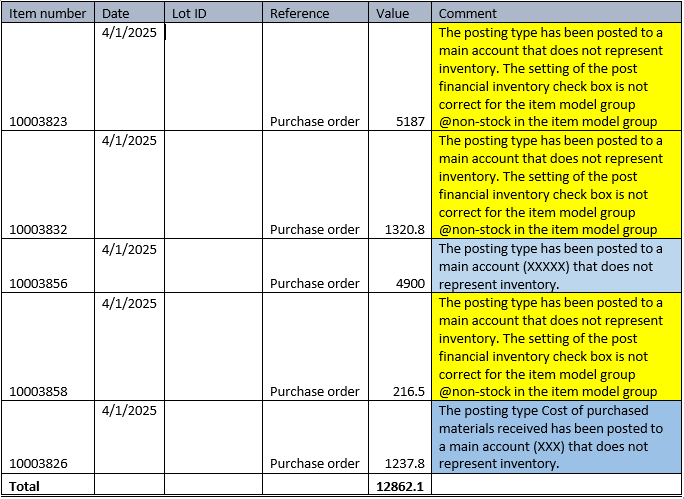
- Issue A :- In the Excel breakdown, (highlighted in yellow) represents a transaction that was posted to the inventory subledger but did not post to the inventory GL.
From the conflict comments provided in the Potential Conflicts Report (above excel screen shot), we can identify the issue as follows:
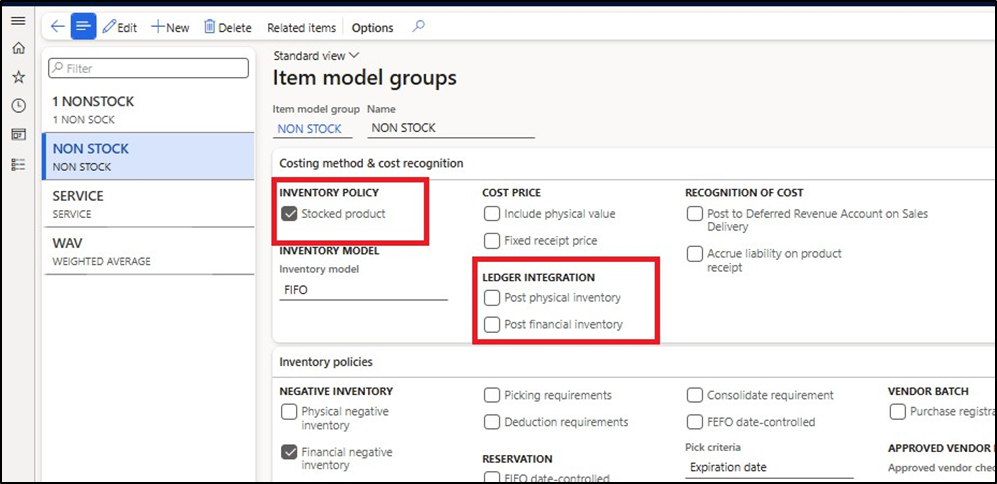
The item is assigned to an Item Model Group where:
- The item is marked as Stocked = Yes
- But the checkbox “Post financial inventory” is not set to Yes
Since financial updates were not enabled, the system posted the transaction physically in the subledger but did not generate a financial ledger entry in the GL, resulting in a discrepancy.
- Issue B:-In the Excel analysis, (highlighted in grey) shows a General Ledger discrepancy where transactions were posted to the inventory GL, but do not have corresponding entries in the inventory subledger.
According to the conflict comments from the Potential Conflicts Report:
- The transaction in question was not related to inventory, yet it was posted to an inventory GL account.
- This typically occurs when a non-inventory posting type (e.g., purchase accruals, charges, freight, or service items) is incorrectly mapped to an inventory GL account via the posting profile.
Since these transactions do not involve inventory items (no subledger record), they appear only in the GL, leading to an imbalance with the Inventory Value Report. To research this issue, we need to look the item groups again to see if we have any non-inventory postings setup to post to an inventory account.
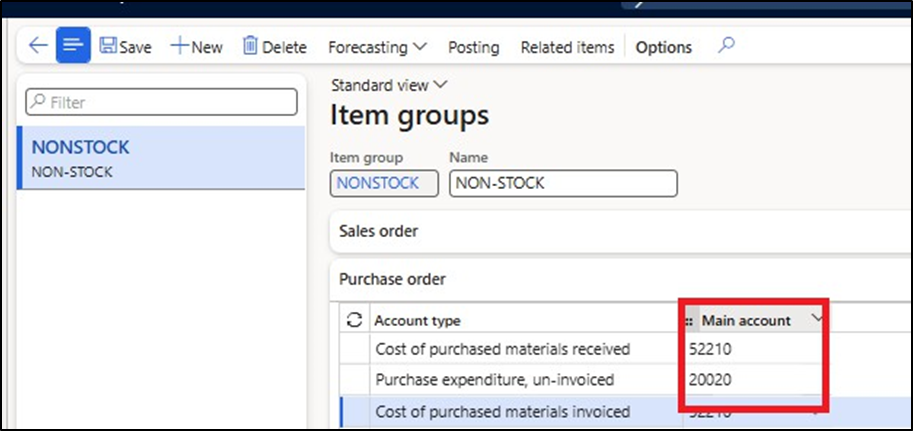
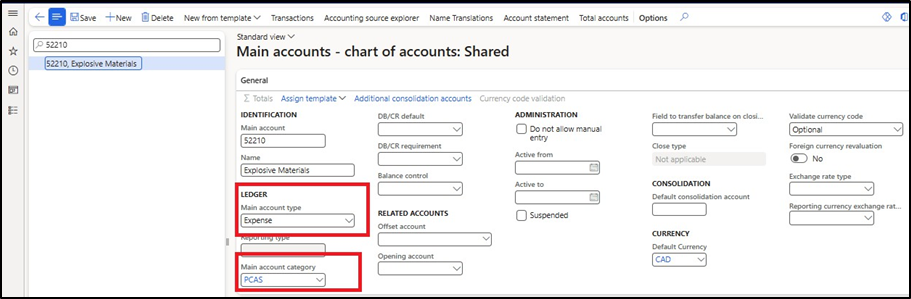
From the Excel-based report and the supporting screenshot, we can observe another important discrepancy —
this one tied to incorrect GL mapping in the item group setup.
- Our standard inventory account is 52210.
- However, the Item Group named “Non stock” is configured to post inventory receipts to a different account, which is not recognized as one of the defined inventory accounts for reconciliation.
While the previous sections covered issues observed in the current scenario, there are other common causes of discrepancies between the inventory subledger and the general ledger. These issues may not have appeared in your example but are frequently encountered during month-end reconciliation in Dynamics 365 Finance and Operations.
- Issue C:-In this scenario, is identified as a General Ledger-only transaction, meaning the entry was posted directly to the inventory GL without any corresponding transaction in the inventory subledger.
According to the conflict comments in the Potential Conflicts Report:
- This was a manual journal entry (e.g., using a general journal)
- Since inventory subledger updates are only triggered through inventory-related modules (e.g., purchase orders, production, inventory journals), a direct posting to the inventory account bypasses the subledger.
Now that we are familiar with the types of messages generated in the Potential Conflicts Report, it is important to understand that resolving the underlying posting issues will not retroactively clear the conflicts listed for the current reporting period. The corrections made will apply only to future transactions.
Once the necessary fixes have been implemented, it is critical to regularly monitor the Potential Conflicts Report to ensure:
- The previously identified issues no longer
- No new conflicts are
The Potential Conflicts Report is a powerful diagnostic tool when properly understood and interpreted. We hope this guidance helps you use the report more effectively moving forward.



Leave a Reply
You must be logged in to post a comment.