
Engineering Change Management in D365 (Part-3)
Introducing ECM-Post implementation with Existing items
It has been observed that in many cases, organizations consider introducing Engineering Change Management after the implementation of Microsoft Dynamics 365, where items are already set up and actively used within legal entities.
Scenario Example
Let’s consider a simple example to better understand this scenario.
An organization is already operating within a legal entity (e.g. DEMF), and all the required items, Bill of Materials, Formulas, and routes are already created and in use.
Assumptions: –
- The Legal entity DEMF is fully configured and
- All items, including their respective BOM/Formulas and Routes, already exist in
Now, if organization decides to implement Engineering Change management without deleting or discontinuing the existing items in D365, the following steps should be followed to enable ECM for those items.
Steps to introduce Engineering Change management for Existing items.
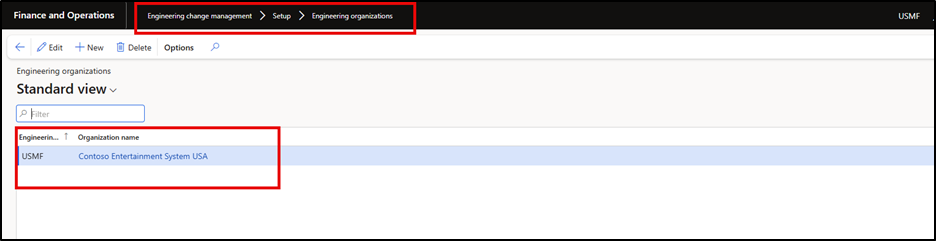
- Create a Master data Management Legal Entity: – Set up a new legal entity (E.g USMF) to function as the data management entity. This will serve as the control point for all ECM based versioned items.
- Release existing items from DEMF to USMF: – Use the Standard items release functionality in D365 to release existing items from DEMF to USMF.
- Convert Items to ECM product in USMF: – In the USMF legal entity, Convert the released items into ECM-compliant product by enabling version control.
- Maintain BOM/Formulas and Routes: – Once the items are ECM-enabled, create their BOM, Formula and routes under the version control in USMF.
- Release items with ECM versions to DEMF: – User the “Release product structure” feature to release the versioned ECM items from USMF to DEMF.
- Accept items under DEMF with ECM functionality: – These items will now be enabled wit ECM functionality and are ready for use with version control.
Create a Master Data Management Legal Entity
This entity will serve as the central control point for managing ECM-enabled items. By using a separate legal entity for master data, we ensure consistency and governance over product versions, BOM’s , Formulas and Routes information. Here as example, we are using USMF as the master entity, but organizations may choose a different name as per their internal standards.
Purpose
- Isolate ECM setup form live transactional
- Avoid duplication or conflict with existing
- Streamline future maintenance and
Release Existing items from DEMF to USMF
Using D365 standard product release functionality, we can push items form DEMF to USMF. This makes them available for conversion into ECM-compliant products.
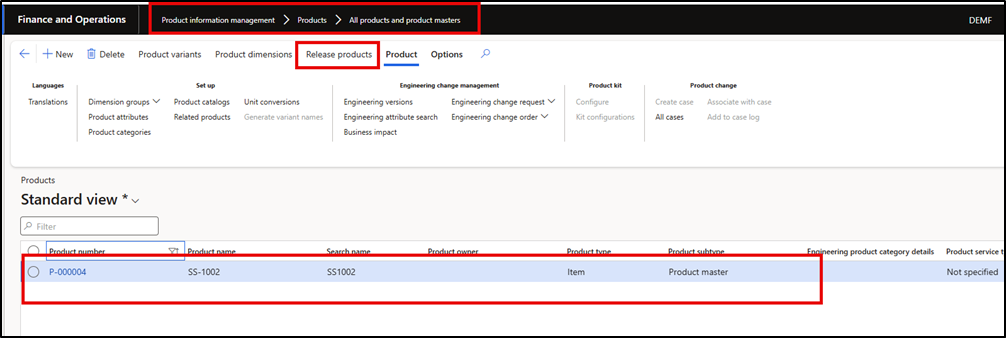
- Go to the product information management module and navigate to “All products and product masters”.
- Select the products to
- Use the “Release products” functionality to send them to
Note: Ensure all required product attributes and configurations are correctly transferred.
Convert items to ECM products in USMF
Once items are available in USMF, we need to enabled version control (ECM) for each product. This involves associating the items with an engineering product category and enabling version tracking.
Steps
- Navigate to the Release products under the USMF
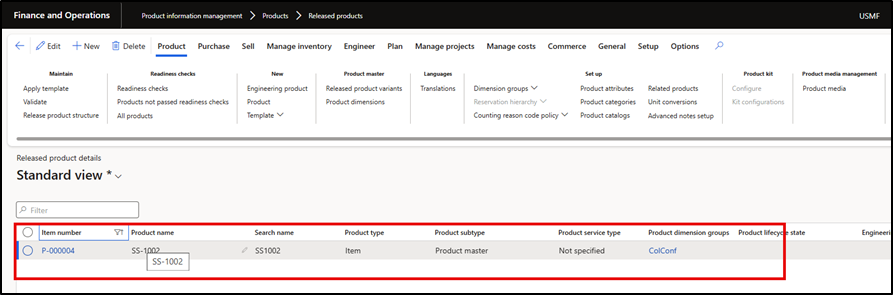
- Select the product and click on the “Convert to Engineering product” under Engineer Tab
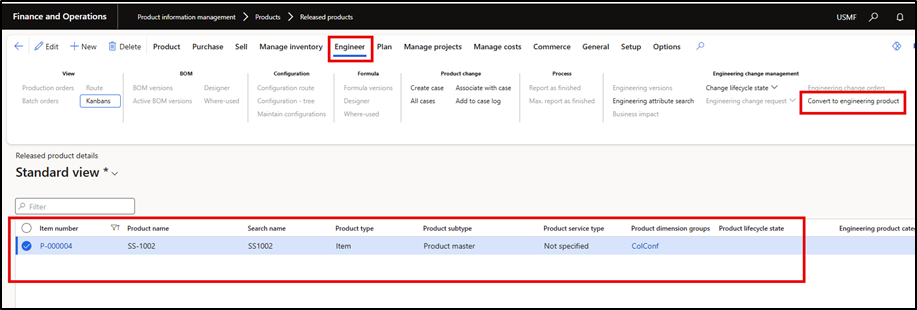
- New wizard form will get open click on the next and fill the required information like Engineering Category ,Version ,Product life cycle stage etc and click on the Next button

- Click on the Finish
- Now user can validate the Engineering version which is now available and have In active
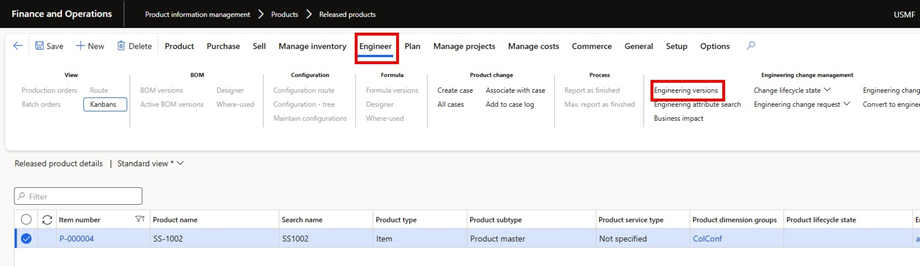

Outcome
The item is now managed as a engineering product with full ECM capabilities lie version tracking and approvals.
Maintain BOM/Formulas and Routes
After enabling ECM, the next step is to create or update the BOM and routs under version control. These production components are now linked to specific versions of the product.
Benefits:
- Any future chages on BOM and routes can be version-controlled
- Reduces productio errors caused by outdated
- Provdes a clear autdit trail of hanges
Always validat the BOM and rouge with the engineering team before releasing the product back to transactinal entities.
Steps
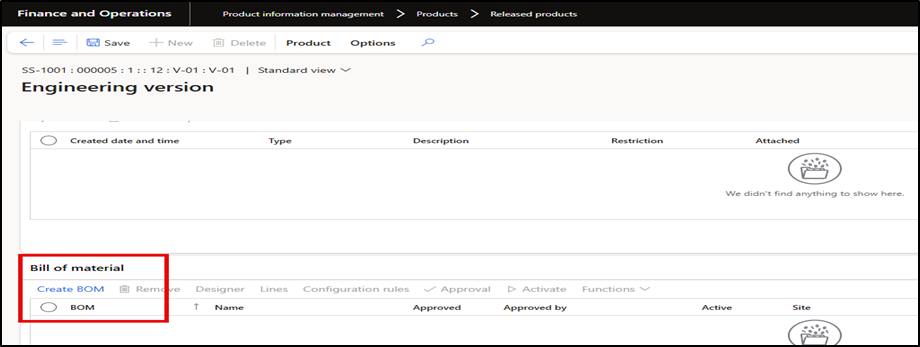
- Navigate to the version and click on the version

- Create BOM:- Click on the Create BOM button under the Bill of Material
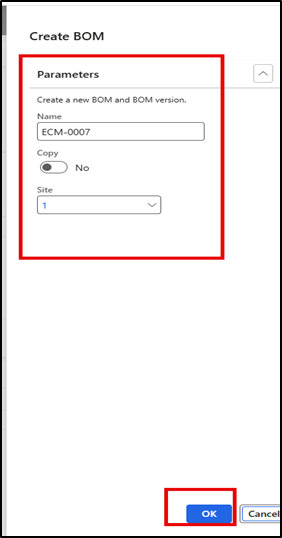
- Assgn a name and site
BOM Header will be created a mentioned below to add BOM lines click on the Lines.
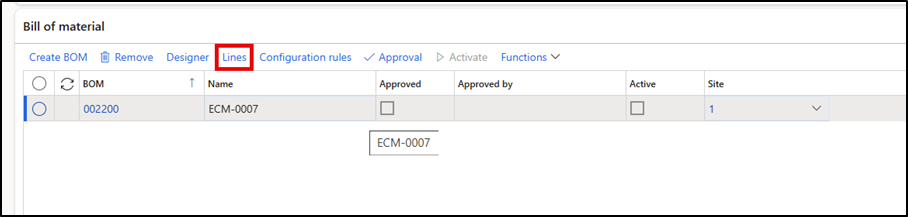
- Click on the new button to add BOM lines
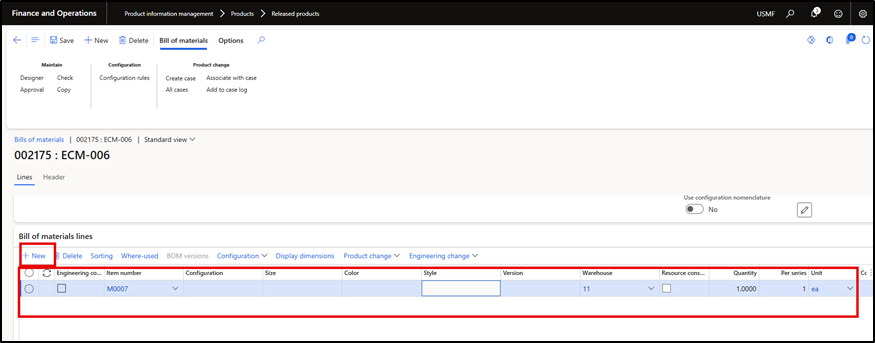
- Add the required components/Items, along with quantities , sites, and any relevant BOM lines type (e.g. Phanom , vendor , etc)
- Validate and approve the BOM:- Use the BOM validation function to check for any configuration or data issue
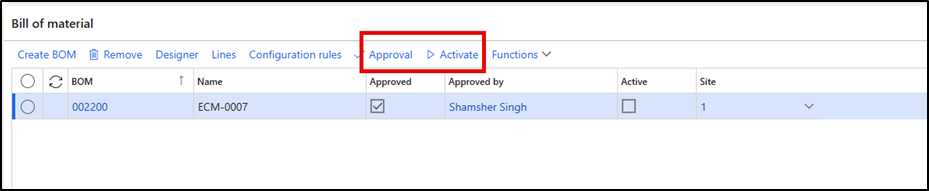
- Active the BOM version: – Once approved, mark the BOM version as active to make it available for use in production orders or planning.
Release Engineering version product From USMF to DEMF
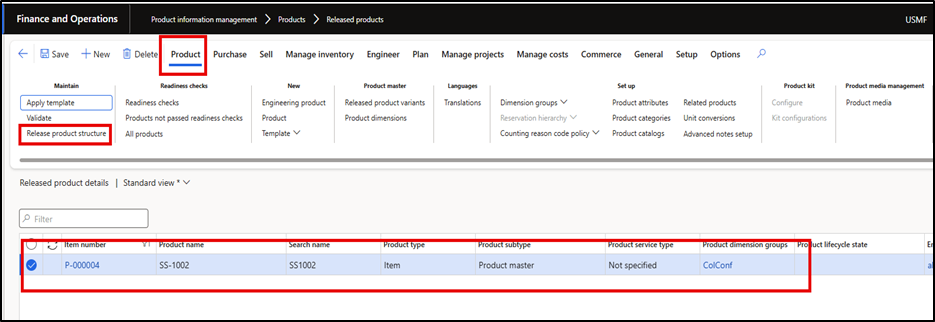
- Navigate to Released Products: – Go to Product information Management >Released Product and find the product which we have created with an engineering version.
- Open the product details: – Select the product form the list, open the product record to access the engineer tab and ensure the engineering version exists.
- Navigate to product Tab: – On the Product form click on the “Release product structure”
- Release product screen wizard will get open: – Provide the site and ensure that the correct version item is selected then click on the Next button

- Select the Target legal entity: – Choose the legal entity to which we want to release the product and tick the checkbox for that entity. Also provide the receiving Site and press Next button.
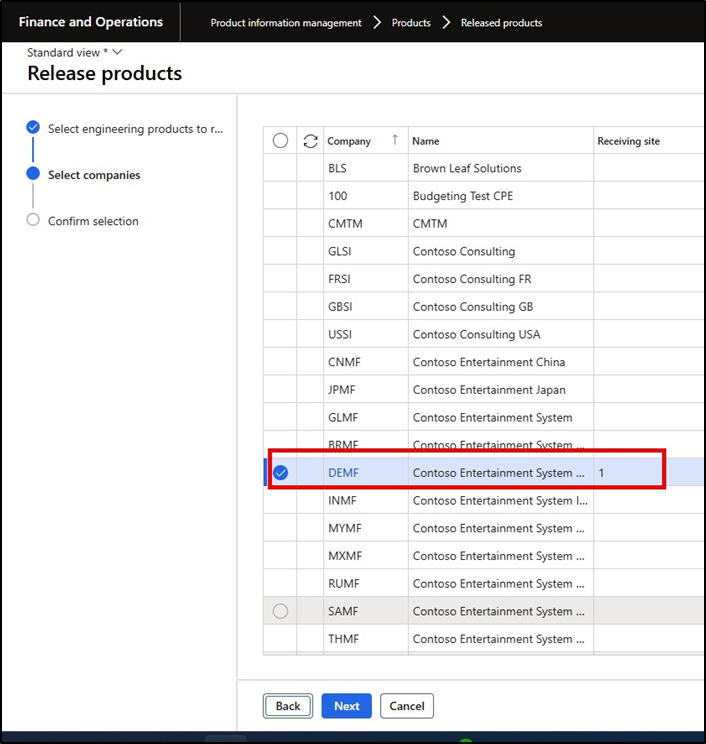
- Press the Finish button to complete the release

Verify New Release product in DEMF
- Navigate to the DEMF
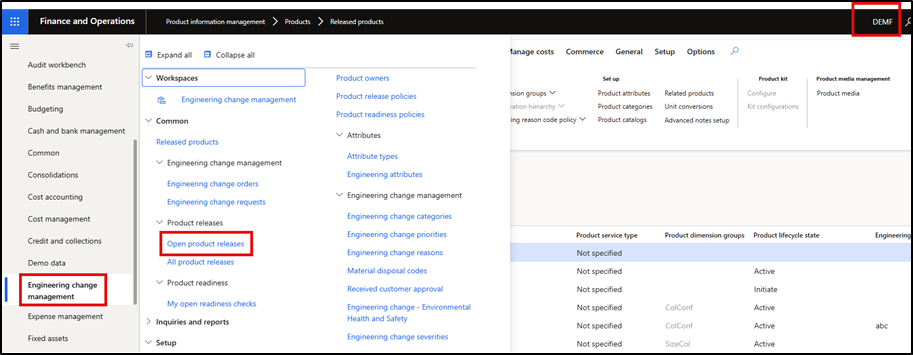
- Navigate to open product release: – Go to Engineering Change Management >Product Releases> Open product releases
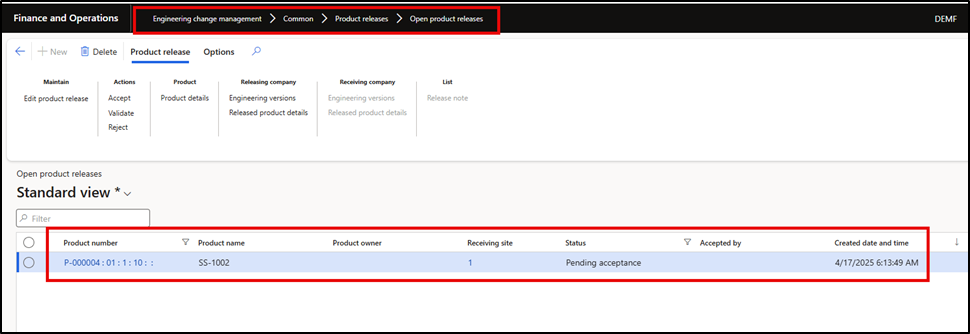
- Go to the open product releases form and we can find the item which we have recently released from
USMF to DEMF with the status “Pending acceptance”.
- Validate the Product: – Click on the Validate button to ensure that the new release product have all the required information before provide acceptance.
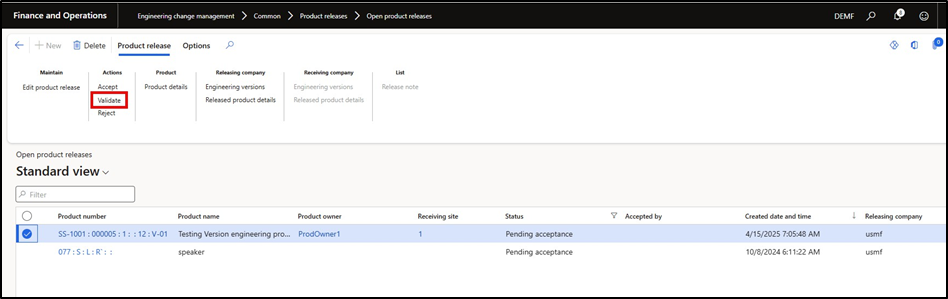
- Accept/Approve the Product: – Click on the Accept button to provide acceptance for this product if workflow not enabled else submit the workflow and approver can review and approved the

- User can notice that as well as we accept this item, this will not loner available on this “Open product releases form” Now this item is available on the release product under DEMF.
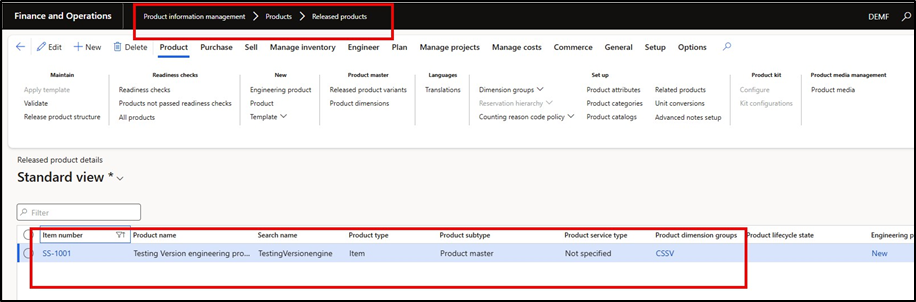
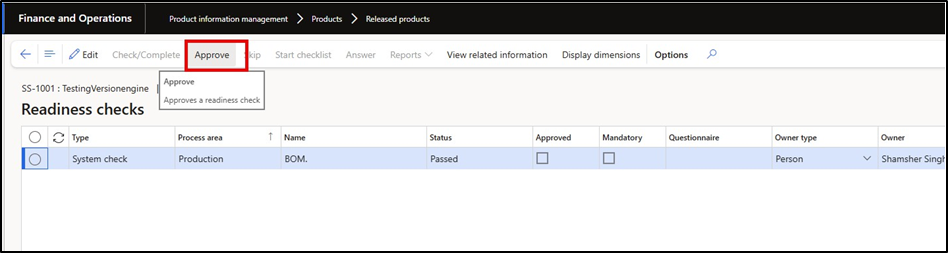
- Readiness Check :- Click on the Readiness check to ensure that all the required information and setup are available under item before it will available for user transactions. Approve the readiness check and after this item is ready for use.
Note :- This option will be available if the Readiness setup is applicable, Else the item is ready to us






Leave a Reply
You must be logged in to post a comment.